How to Install Windows 11 Without TPM 2.0: Options and Risks
How to install Windows 11 without TPM 2.0: first check if TPM is only switched off, then the Rufus and registry methods and what Microsoft says.
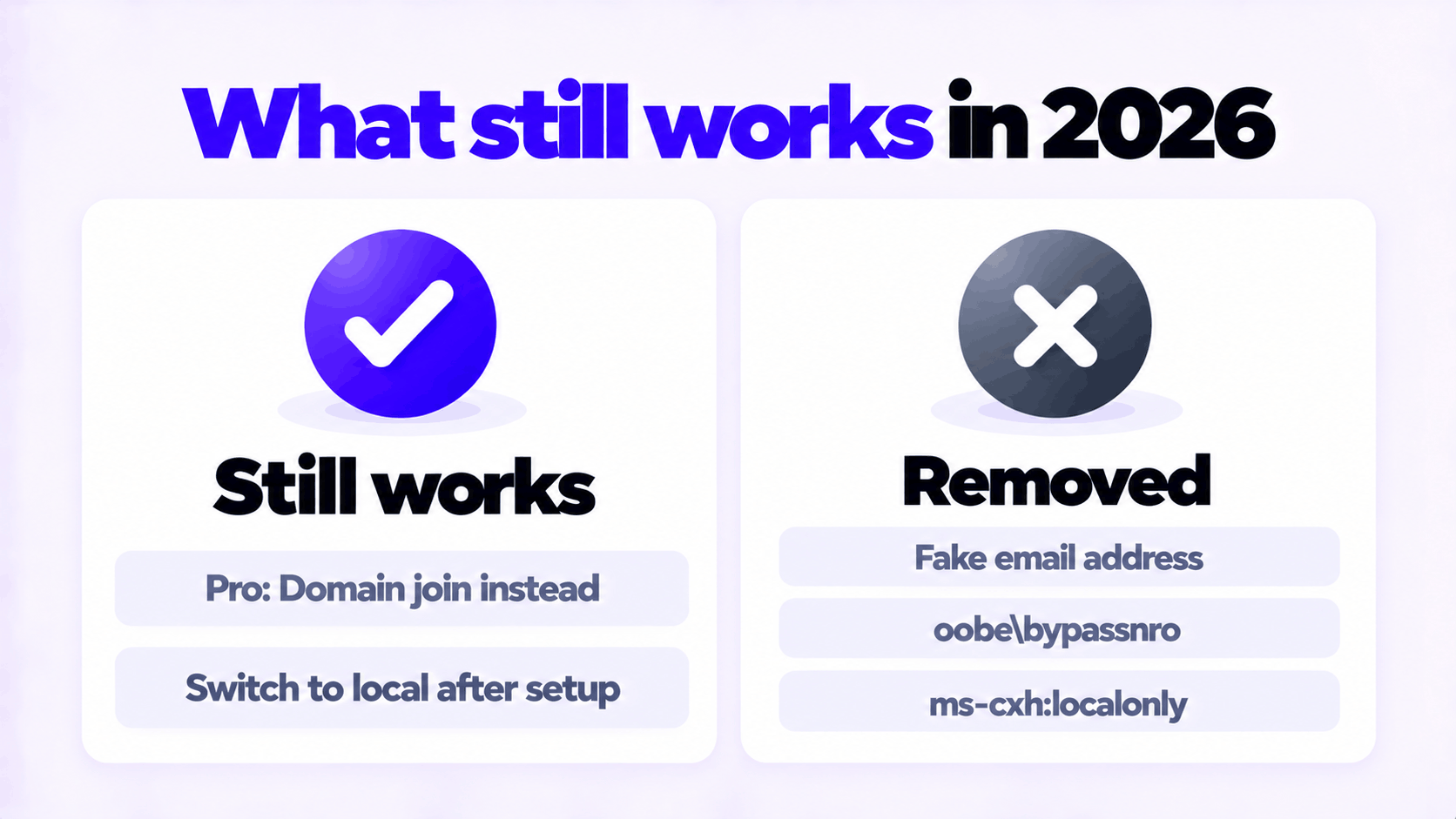
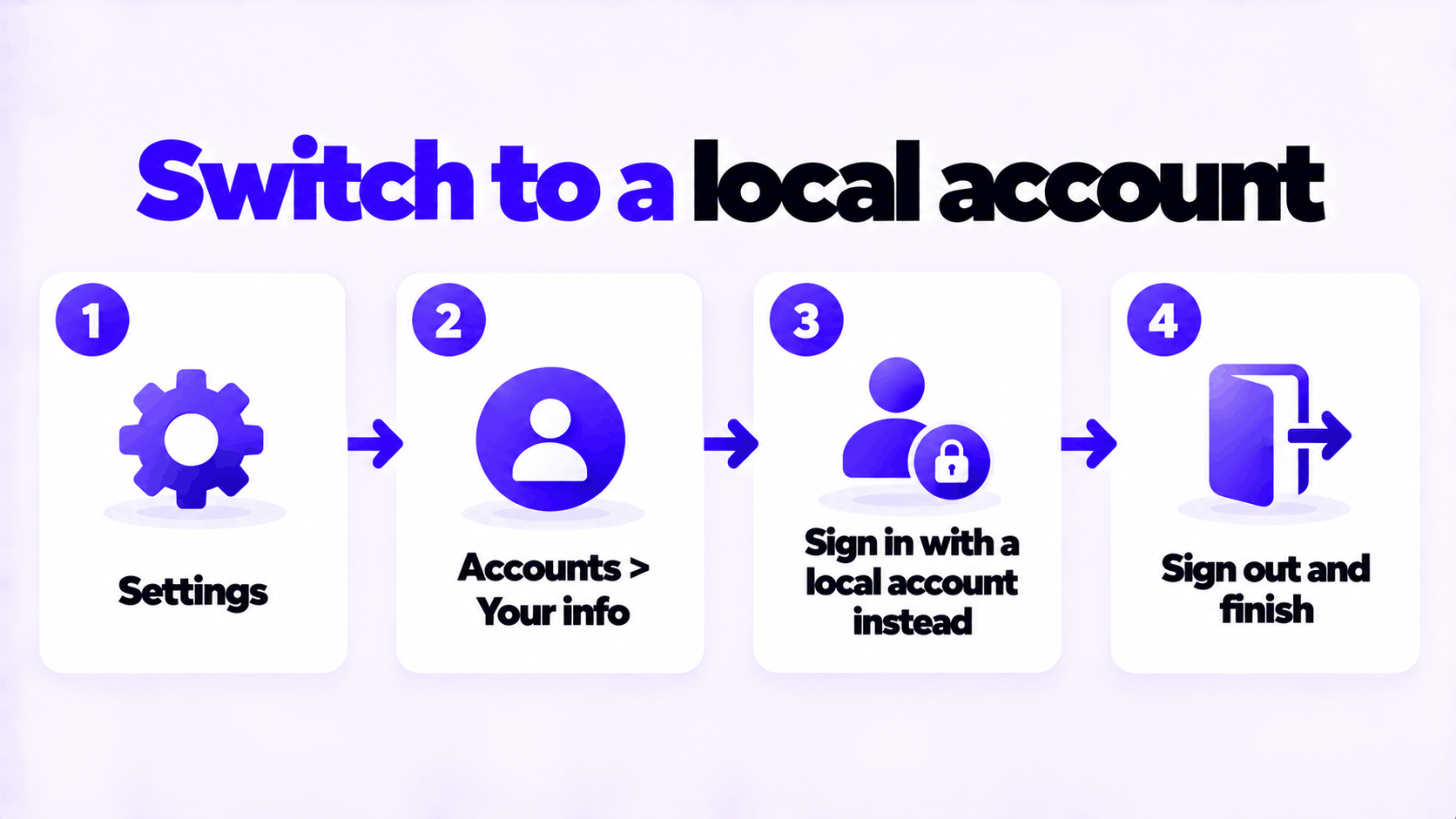
Short answer: The one way to install Windows 11 without a Microsoft account that Microsoft still builds into setup is on the Pro edition: choose Set up for work or school, then Sign-in options, then Domain join instead, and create a local account. On Home, setup requires a Microsoft account, and the old shortcuts (oobe\bypassnro and the fake email address) have been removed. The route that always works on any edition is to finish setup with a Microsoft account and then switch to a local account in Settings, which takes two minutes.
Applies to: Windows 11 Home and Pro, versions 24H2 and later. Setup behavior changes between releases, so check the date on this page: it was last reviewed in October 2026.
Table of Contents
Microsoft has been closing the ways around the account requirement one at a time. If a guide you followed did not work, this is probably why.
| Method | Status |
|---|---|
| Typing a fake email address such as [email protected] | No longer works |
The oobe\bypassnro command |
The script was removed from Windows 11 during 2025 |
The start ms-cxh:localonly command |
Removed from newer builds in late 2025 |
| Domain join instead on Pro | Still part of setup |
| Switching to a local account in Settings after setup | Supported and documented by Microsoft |
| Setup USB made with Rufus, or a registry value added during setup | Reported to work at the time of writing. Unofficial, and may be removed. |
Microsoft’s stated reason for removing the commands is that they “inadvertently skip critical setup screens”. Its support pages also say plainly that it recommends a Microsoft account over a local account for signing in to Windows.
Pro has to support business PCs that join a company network, so its setup keeps an option to create a local account. You do not need an actual domain to use it.
This option is not offered on Windows 11 Home. If you are choosing an edition and this matters to you, it is one of the practical differences covered in Windows 11 Home vs Pro.
This is the method Microsoft documents, and it works on Home and Pro alike. Sign in with a Microsoft account to get through setup, then change the account type.
Your files, apps and settings stay as they are. Two things to tidy up afterward if you want the Microsoft account gone from the PC entirely:
You can also keep the first account and add a separate local one: Settings > Accounts > Other users > Add account > I don’t have this person’s sign-in information > Add a user without a Microsoft account.
These skip the account screen during setup itself. Neither is documented by Microsoft for home use, both have been reported to work on recent releases, and either can stop working with the next update. If one fails, fall back to the method above.
A setup USB made with Rufus. When Rufus writes a Windows 11 image to a USB drive, its options dialog includes Remove requirement for an online Microsoft account and lets you set a local account name. Setup then creates that account without asking you to sign in. Download Rufus only from rufus.ie and the Windows image only from microsoft.com.
A registry value during setup. On the first setup screen, where you choose a region:
reg add HKLM\SOFTWARE\Microsoft\Windows\CurrentVersion\OOBE /v BypassNRO /t REG_DWORD /d 1 /f
shutdown /r /t 0This sets by hand the same value the removed bypassnro script used to set.
A local account is a reasonable choice, and it is also less convenient in specific ways. Know these before you decide.
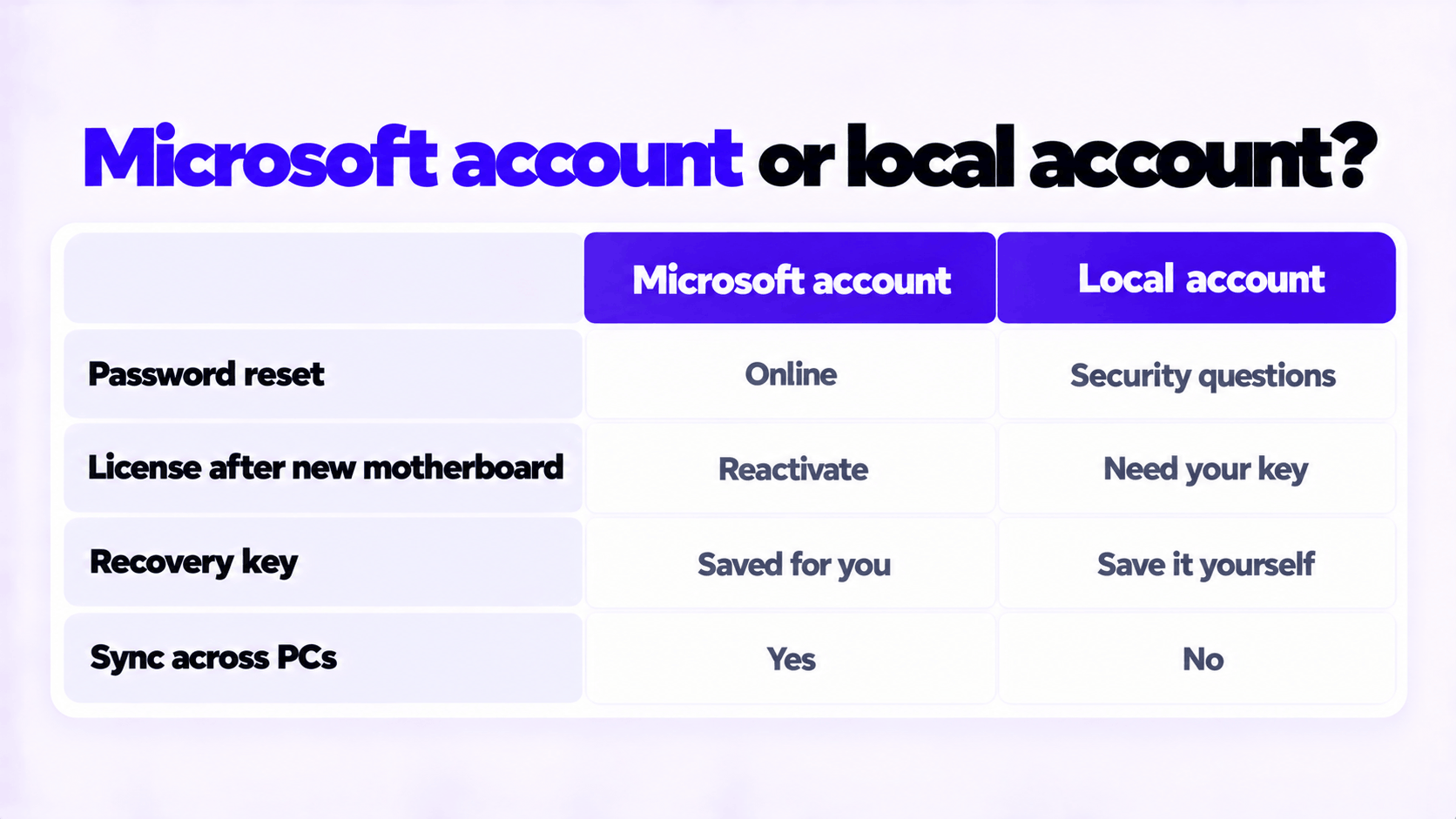
| Microsoft account | Local account | |
|---|---|---|
| Forgotten password | Reset online from any device | Only with your security questions or a password reset disk |
| Windows license after a motherboard change | Reactivate through the Activation troubleshooter | No linked license to reactivate from. Keep your product key. |
| Drive encryption recovery key | Saved to your account automatically | You must save it yourself. Lose it and the data is gone. |
| Settings and files across PCs | Sync through the account and OneDrive | Stay on this PC only |
| Microsoft Store | Signed in | Free apps work. Purchases need a sign-in to the Store only. |
| Data shared with Microsoft | Account-linked sync and activity | Less tied to an identity. Diagnostic data is still sent. |
A local account does not make Windows faster, and it does not switch off diagnostic data or suggestions by itself. Those are separate settings under Settings > Privacy & security.
You can also use a local account to sign in to Windows and still sign in to individual apps, such as the Store or OneDrive, with a Microsoft account. It does not have to be all or nothing.
Open Settings > Accounts > Your info. Under your name:
Whichever you use, Windows still needs to be activated. A local account does not change how a product key works: see how to activate Windows 11 Pro with an OEM product key.
Stuck on a step?
Send us the step and the exact error message. Our support team answers every day, 8 am to 9 pm New York time.
Every day, 8 am to 9 pm New York timeHow to install Windows 11 without TPM 2.0: first check if TPM is only switched off, then the Rufus and registry methods and what Microsoft says.
How to downgrade Windows 11 to Windows 10: Go back within 10 days and keep your files, or clean install after that. Plus why to think twice in 2026.
How to create a Windows 11 bootable USB with Microsoft’s Media Creation Tool or from an ISO with Rufus, then start a PC from it. Free, step by step.