
By Egodget Tech Team
•
Updated: October 2026
How to Activate Windows 11 Pro With an OEM Product Key
Short answer: To activate Windows 11 Pro with an OEM product key, open Start > Settings > System > Activation, select Change product key, enter the 25-character key and select Next. The PC must be online and the installed edition must be Windows 11 Pro, or Windows 11 Home that is already activated. When it works, the Activation page shows “Windows is activated with a digital license”.
Applies to: Windows 11 Pro and Windows 11 Home (upgrading to Pro). The same steps work on Windows 10 with a Windows 10 key, under a different Settings path, which is listed below. Windows 10 reached end of support in October 2025.
Table of Contents
- Before you start
- How to activate Windows 11 Pro in Settings
- If the PC runs Windows 11 Home
- Enter the key during a clean installation
- Activate from the command line
- Check that Windows is activated
- Activation error codes and what they mean
- After a motherboard change or a reinstall
- What an OEM key does and does not allow
Before you start
Three checks save most failed attempts:
- The key matches the edition. A Windows 11 Pro key activates Windows 11 Pro. It does not activate Home, Enterprise, Education or Pro for Workstations. To see what is installed, open Settings > System > About and read Edition under Windows specifications.
- The PC is online. Activation contacts Microsoft’s activation servers. A firewall that blocks them produces error
0xC004FC03. - You have the full key. It is 25 characters in five groups of five, like
XXXXX-XXXXX-XXXXX-XXXXX-XXXXX. Copy and paste it from your order email to avoid mixing up characters such as 8 and B.
You do not need to reinstall Windows to enter a key. If Windows 11 Pro is already installed and shows “Windows is not activated”, go straight to the next section.
How to activate Windows 11 Pro in Settings
This is the method Microsoft documents, and it takes about two minutes.
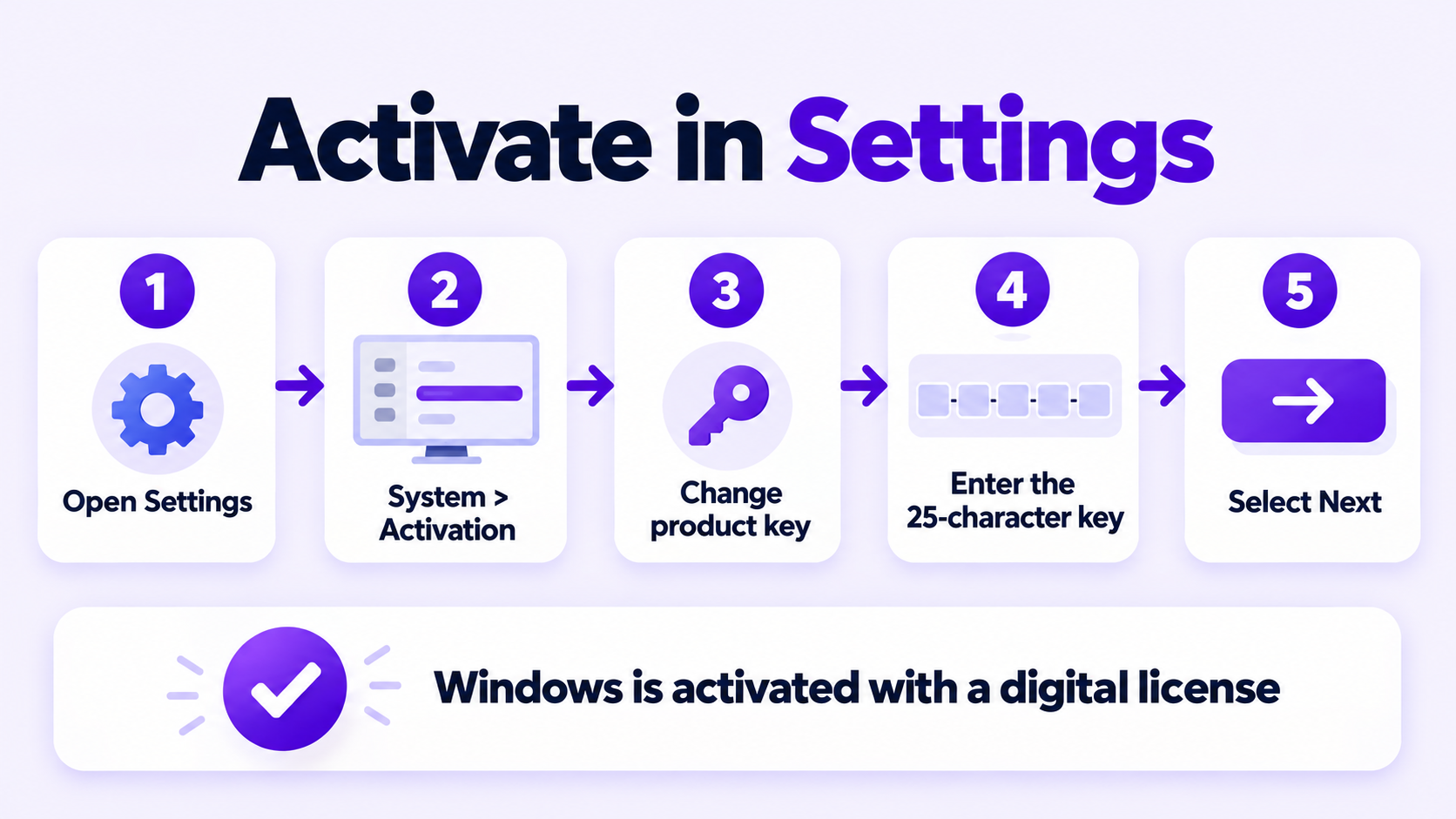
- Select Start > Settings > System > Activation.
- Select Change product key.
- Enter the 25-character product key.
- Select Next, then confirm when Windows asks.
- Wait for the Activation page to refresh. It should now read “Windows is activated with a digital license”.
On Windows 10 the path is Start > Settings > Update & Security > Activation > Change product key. A Windows 11 key and a Windows 10 key are sold as separate products, so use the key that matches the version you installed.
If the PC runs Windows 11 Home
A Pro key entered on Windows 11 Home does two things: it upgrades the edition to Pro, then activates it. Your files and apps stay in place. Microsoft’s instructions are the same four clicks as above: Settings > System > Activation > Change product key, enter the Pro key, select Next.
One condition matters. Microsoft says this route is for a device running an activated copy of Windows Home, and recommends activating Home first if it is not. If Home was never activated on that PC, a clean installation of Pro is the more reliable route.
The differences between the two editions are covered in Windows 11 Home vs Pro.
Enter the key during a clean installation
If you are installing Windows from a USB drive, setup asks for the key on the Activate Windows screen.
- Start the PC from the Windows 11 installation USB and choose your language and keyboard.
- On the product key screen, enter the 25-character key. Setup reads the edition from the key and installs Windows 11 Pro.
- Finish setup and connect to the internet. Windows activates online.
You can also select I don’t have a product key, choose Windows 11 Pro from the edition list, and enter the key later in Settings. Pick the edition carefully: if you install Home here, a Pro key will have to upgrade it afterward.
Laptops and prebuilt PCs: many ship with a Home key stored in the firmware. On those machines setup can skip the edition list and install Home automatically. If that happens, finish setup, let Home activate, then use the Home to Pro steps above.
Activate from the command line
If the Settings page will not accept the key, the built-in licensing script does the same job. Open Command Prompt as administrator and run these two commands, replacing the placeholder with your key:
slmgr.vbs /ipk XXXXX-XXXXX-XXXXX-XXXXX-XXXXX
slmgr.vbs /ato
/ipk installs the product key and replaces any key already installed. It returns an error if the key does not apply to the installed edition. /ato asks Windows to try online activation. Each command answers in a small pop-up window after a few seconds.
Check that Windows is activated
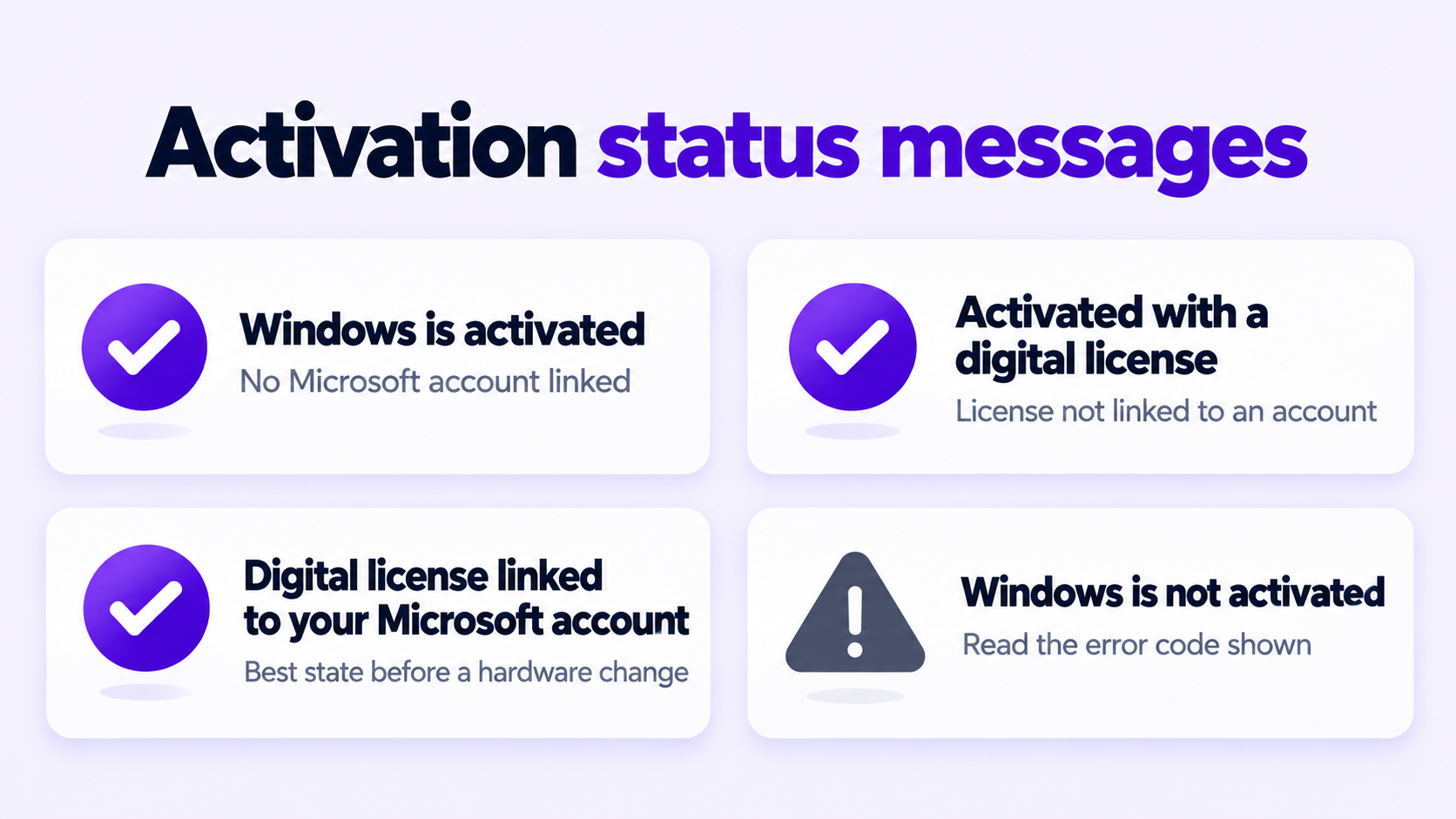
Open Settings > System > Activation and read the line next to Activation state. Microsoft lists four possible messages:
| Message | What it means |
|---|---|
| Windows is activated | Activated. No Microsoft account is linked. |
| Windows is activated with a digital license | Activated. The license is not linked to a Microsoft account. |
| Windows is activated with a digital license linked to your Microsoft account | Activated, and the license is linked to your account. |
| Windows is not activated | Not activated. An error code under the message explains why. |
For more detail, run either of these in Command Prompt. Neither needs administrator rights.
slmgr.vbs /xpr
slmgr.vbs /dlv
/xpr shows the activation expiration date, or states that the machine is permanently activated. /dlv shows detailed license information, including the license status and the product key channel.
Worth doing now: link the license to a Microsoft account. On the Activation page select Add an account and sign in. Microsoft calls this step essential before a hardware change, because the Activation troubleshooter uses the account to find your license again.
Activation error codes and what they mean
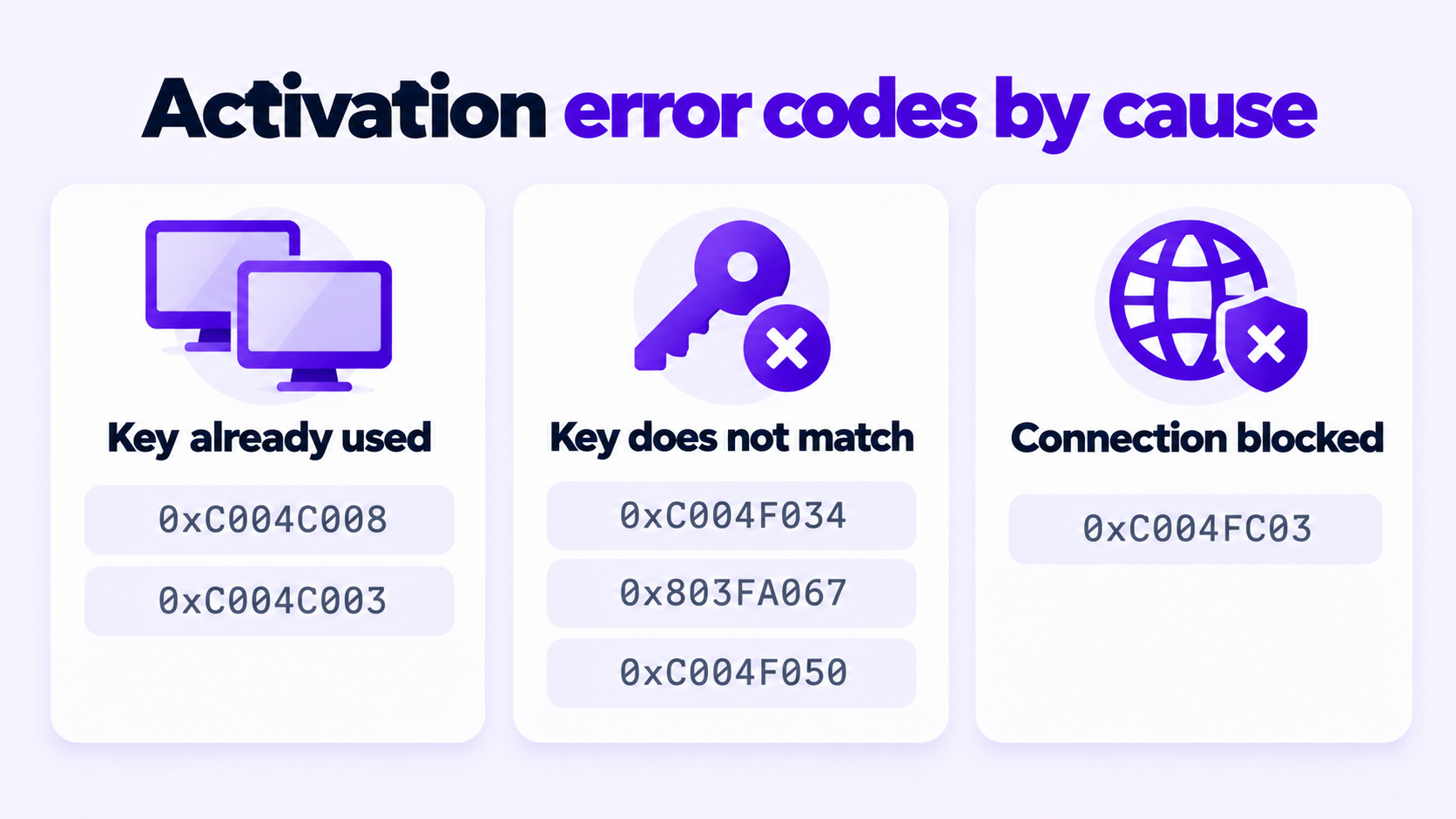
If activation fails, the Activation page shows a code. These are the ones most often seen with a purchased key, with the cause and fix as Microsoft describes them in Get help with Windows activation errors.
| Code | Cause | What to do |
|---|---|---|
0xC004C008 |
The product key has already been used on another device. | Use one key per device. After a major hardware change on the same PC, try offline activation (below). |
0xC004C003 |
The key was used, or attempted, on multiple devices and is marked as not valid. | Contact the seller you bought the key from. |
0xC004F034 |
The key is invalid or is for a different version or edition of Windows. | Check the installed edition, then enter a key that matches it. |
0x803FA067, 0xC004F050, 0xC004C060 |
The key cannot be used to activate Windows. | Retype the key to rule out a typo. If it still fails, contact the seller for a different key. |
0xC004F213 |
No product key was found on the device, often after a motherboard replacement. | Select Change product key and enter your key again. |
0x803F7001 |
No valid Windows 11 license was found for the device. | Select Change product key and enter the 25-character key. |
0xC004FC03 |
A firewall or connection problem is blocking online activation. | Check the internet connection and firewall, then try again. |
0x8007232B, 0xC004F074 |
An Enterprise edition key was entered, or a work device cannot reach its organization’s network. | Enter a key that matches the installed edition. On a work PC, ask your IT support. |
Activation troubleshooter: when Windows is not activated, a Troubleshoot button appears on the Activation page. It runs diagnostics and fixes many of these problems on its own. The button is hidden once Windows is activated.
Offline activation: Microsoft’s phone activation line has moved online. If the PC cannot activate over the internet, use offline activation with an Installation ID and Microsoft’s Product Activation Portal. It is not available for Windows 11 Pro Education or Pro for Workstations.
If the key itself was rejected, Windows 11 product key didn’t work goes through each cause in more depth.
After a motherboard change or a reinstall
Reinstalling on the same PC: once Windows is activated, the PC holds a digital license. Reinstall the same edition, select I don’t have a product key if setup asks, and Windows activates online by itself. Keep the key anyway; it is the fallback if that does not happen.
Replacing the motherboard: Windows treats this as a significant hardware change and may no longer find a license that matches the device. Microsoft’s steps to reactivate are:
- Open Settings > System > Activation and select Troubleshoot.
- Select I changed hardware on this device recently.
- Sign in with the Microsoft account you linked to the license.
- Tick the device you are using and select Activate.
This works only if the license was linked to that account before the change and the edition is the same as before. If Windows was not preinstalled on the PC and you activated it with a key, Microsoft says to enter that same key under Change product key.
What an OEM key does and does not allow
An OEM key installs and activates the same Windows 11 Pro as a retail key: BitLocker, Remote Desktop host, Hyper-V and Group Policy are all included. The difference is in the license terms, and it is worth knowing before you buy.
- It stays with the first PC. An OEM license is tied to the device it is first activated on and is not meant to be moved to a different computer. A retail license can be moved.
- It does not expire. Activation is permanent on that device. You can reinstall Windows on it as often as you need.
- Support comes from the seller. Microsoft directs OEM license questions to the manufacturer or seller. If one of our keys fails to activate, we replace it or refund it.
- One key, one PC. Entering the same key on a second PC leads to error
0xC004C008or0xC004C003.
If you still need a key, this is the one we sell: Windows 11 Pro OEM key for 1 PC.
Need a Windows 11 Pro Key?
One key for one PC. If it does not activate, we replace it or refund it.
Email Delivery in 1 to 12 Hours • 90-Day Money-Back Guarantee