
By Egodget Tech Team
•
Updated: October 2026
SLUI 4 and Windows Phone Activation: How to Activate in 2026
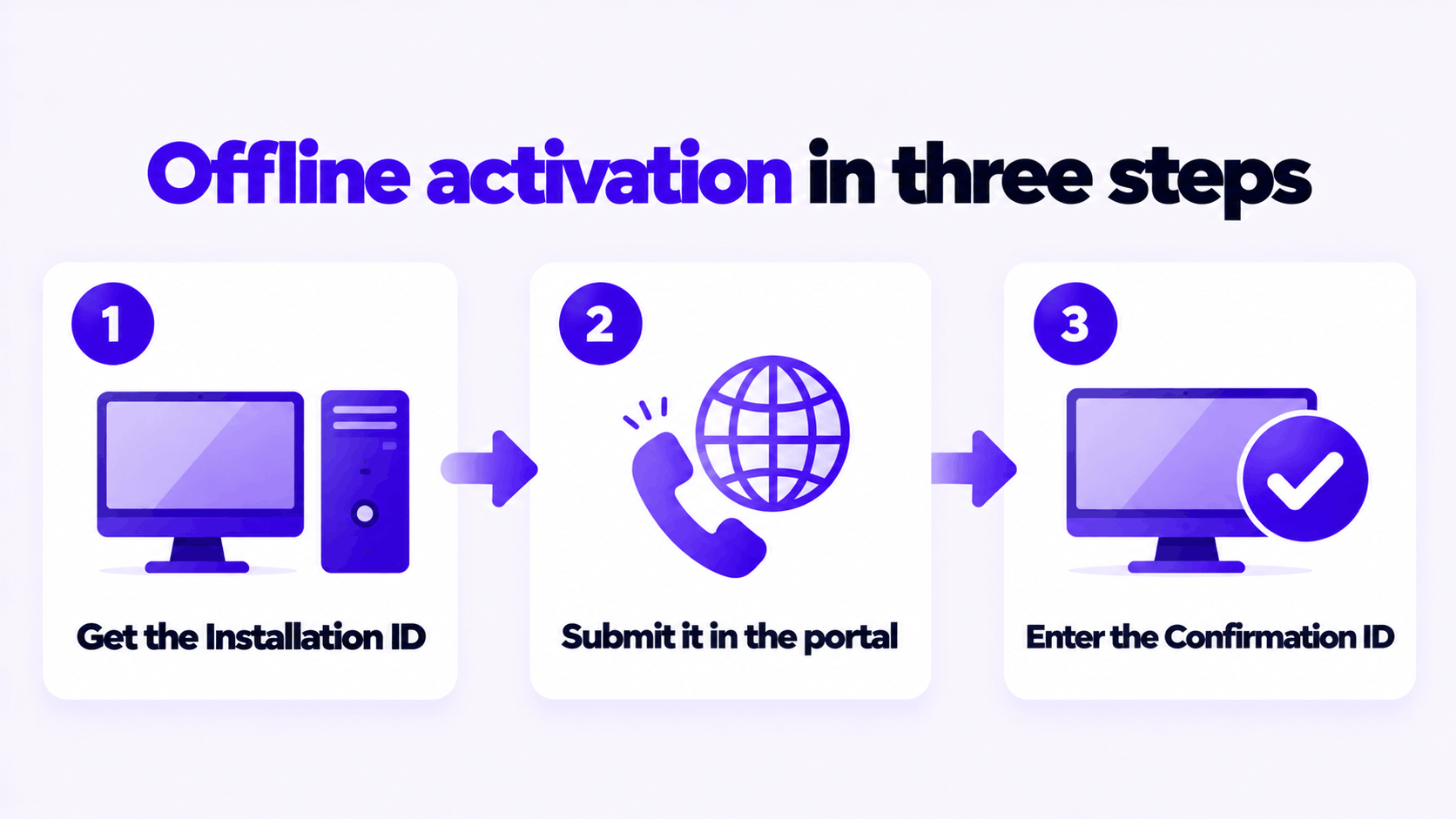
Short answer: Windows phone activation no longer works by phone. Microsoft moved it online, and its support page now says “Don’t call the telephone number.” The process is otherwise the same: Windows shows an Installation ID, you enter it in Microsoft’s Product Activation Portal on any device with internet, and the portal gives you a Confirmation ID to type back into Windows. SLUI 4 still opens the Installation ID screen on older builds; on current Windows 11 builds, use Settings > System > Activation > Automated Help or the slmgr commands below.
Applies to: Windows 11 and Windows 10, when the PC cannot activate online. Not available for Windows 11 Pro Education or Pro for Workstations, which must activate over the internet.
Table of Contents
What happened to Windows phone activation
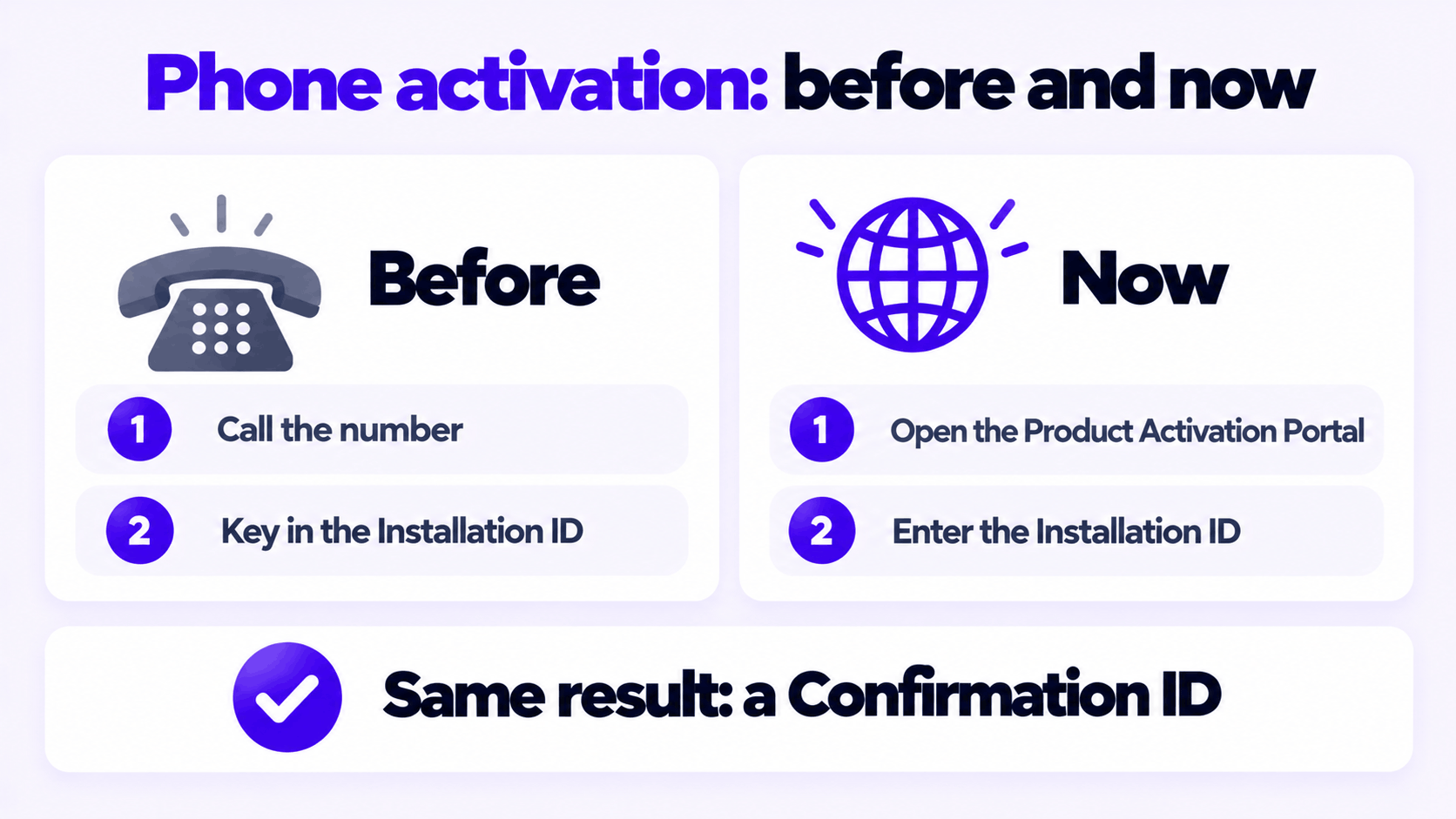
For more than twenty years you could activate Windows by calling a Microsoft number, keying in a long Installation ID, and writing down the Confirmation ID an automated voice read back. Around the end of 2025 that line stopped doing this. Callers now hear a recorded message saying that support for product activation has moved online.
Microsoft’s support article was renamed to match. It is now titled Activate Windows: Online or Offline activation using an Installation ID and Confirmation ID, and it says that if Windows shows you a phone number during offline activation, you should not call it and should use the Product Activation Portal.
What did not change is the mechanism. Windows still produces an Installation ID and still accepts a Confirmation ID. Only the middle step moved from a phone keypad to a web page.
| Before | Now | |
|---|---|---|
| Where you send the Installation ID | Automated phone line | Product Activation Portal |
| What you need besides the PC | A phone | Any device with internet, and a sign-in |
| How you open the screen | SLUI 4 |
Automated Help in Settings, slmgr, or SLUI 4 on older builds |
| What you get back | Confirmation ID | Confirmation ID |
When you need offline activation
Most PCs never need this. If the PC is online, enter the key under Settings > System > Activation > Change product key and Windows activates by itself. Use the offline route when:
- The PC has no internet connection and is not going to get one, such as a workshop or lab machine.
- A firewall blocks Microsoft’s activation servers and you cannot change it (error
0xC004FC03). - A valid key is refused online after a major hardware change, and the Activation troubleshooter did not fix it.
It is not a way around a key that Microsoft has blocked. A key that fails online because it was already used elsewhere will usually fail here too.
What you need
- The product key installed on the PC. The Installation ID is generated from the installed key, so enter the key first. If the Settings page will not take it offline, open Command Prompt as administrator and run
slmgr.vbs /ipkfollowed by your key. - A second device with internet access, such as your phone, to open the portal.
- An account to sign in to the portal with. The portal asks you to pass a CAPTCHA and sign in.
- Somewhere to write two long numbers. Both IDs are several dozen digits. A phone photo of the screen is the easiest way to carry the Installation ID to the other device.
Step 1: Get the Installation ID
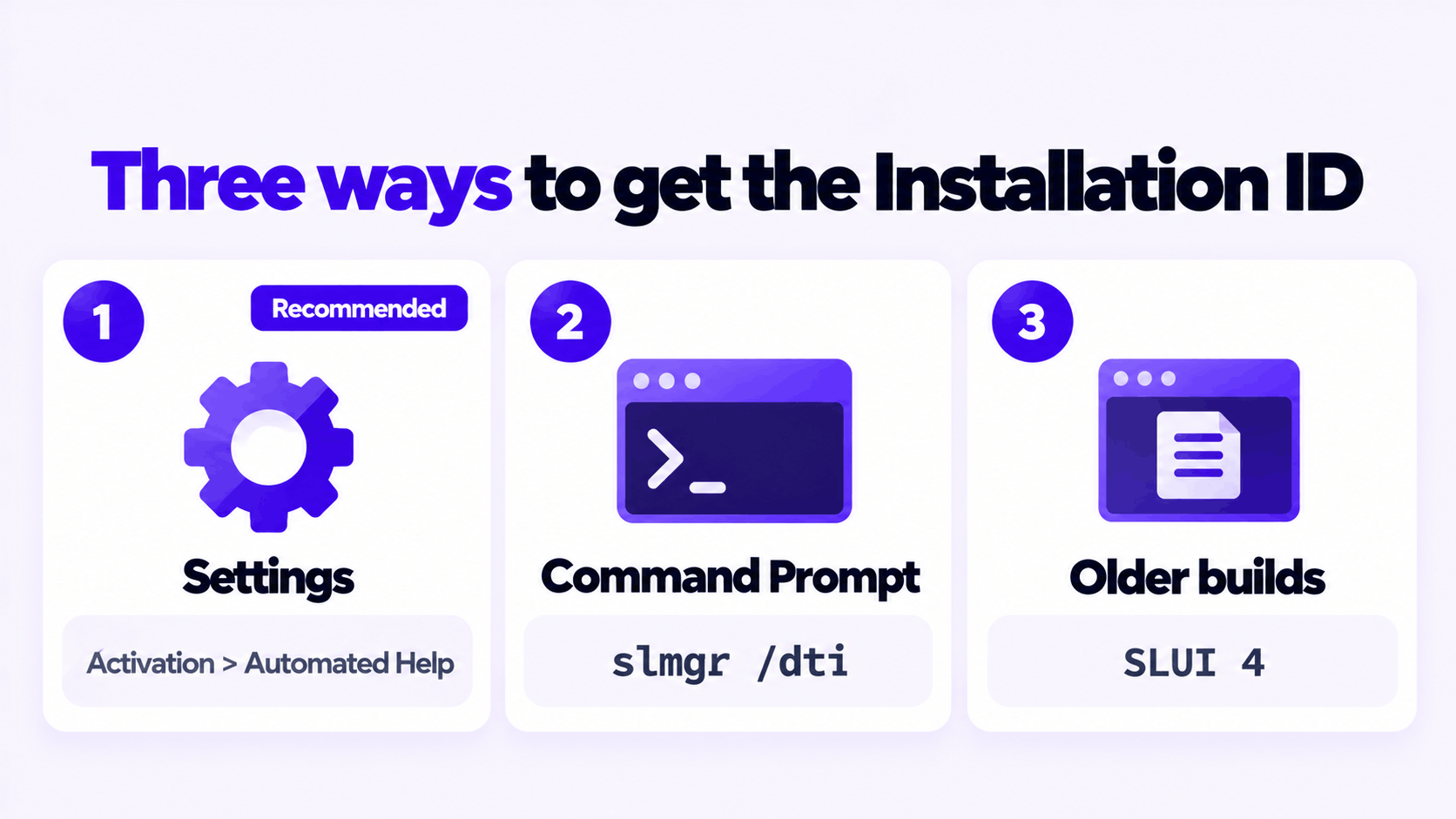
Microsoft lists three ways. Which one works depends on your Windows build. To see yours, press Windows + R, type winver and press Enter.
Method 1: Settings (Microsoft’s recommended method)
- Windows 11 build 26100.8973, 26200.8973 or later: open Settings > System > Activation and select Automated Help. The Installation ID is displayed.
- Earlier builds: open System > Activation, select Activate by Phone, choose your country or region, and select Next. The Installation ID is displayed. Ignore the phone number on that screen.
Method 2: Command Prompt (works on every build)
Open Command Prompt as administrator and run:
slmgr /dtiThe Installation ID appears in a small pop-up window after a few seconds.
Method 3: SLUI 4 (older builds only)
From an administrator Command Prompt, run:
SLUI 4Choose your country or region and select Next. Microsoft warns that on builds 26200.7922 and newer, SLUI “may no longer provide the expected activation experience or be available”. If nothing opens, or the window closes by itself, use Method 1 or Method 2.
Step 2: Get the Confirmation ID from the portal
- On the device with internet, open the Product Activation Portal: aka.ms/WindowsActivate.
- Pass the CAPTCHA and sign in.
- Select Activate a Microsoft Product, then Windows, then your version, for example Windows 11.
- Enter the Installation ID exactly as Windows shows it.
- Select Submit. The portal returns the Confirmation ID.
Keep that page open until Windows is activated, in case you need to read the number again.
Step 3: Enter the Confirmation ID
If you used Settings or SLUI 4: go back to the Activation screen on the PC, select Enter Confirmation ID, type the number, and select Activate Windows.
If you used Command Prompt: run the command below with your Confirmation ID after it. Type the digits only, with no brackets, hyphens or spaces.
slmgr /atp CONFIRMATIONIDThen confirm that it worked:
slmgr /dliThe pop-up should show License Status: Licensed. The Activation page in Settings will also read “Windows is activated”.
If it does not work
| Problem | Likely cause | What to do |
|---|---|---|
SLUI 4 does nothing |
Newer Windows 11 build | Use Automated Help in Settings or slmgr /dti |
| No Installation ID is shown | No product key is installed | Install the key with slmgr.vbs /ipk, then try again |
| The portal rejects the Installation ID | A mistyped digit, or the key itself is not accepted | Re-enter it from a photo of the screen. If it is still rejected, contact the seller of the key. |
| Windows rejects the Confirmation ID | A mistyped digit, or the Installation ID changed | Do not reinstall the key or change hardware between Step 1 and Step 3. Generate a fresh Installation ID and repeat. |
| You called the number on screen | The phone line no longer issues Confirmation IDs | Use the portal |
| Edition is Pro Education or Pro for Workstations | Offline activation is not offered for these | Connect the PC to the internet to activate |
Microsoft says its support team can review a request the portal will not complete. For key errors in general, see what to do when a Windows 11 product key didn’t work, and for the normal online route, how to activate Windows 11 Pro with an OEM product key.
Need a Windows 11 Pro Key?
One key for one PC. If it does not activate, we replace it or refund it.
Email Delivery in 1 to 12 Hours • 90-Day Money-Back Guarantee