
By Egodget Tech Team
•
Updated: October 2026
How to Install Windows 11 Without a Microsoft Account
Short answer: The one way to install Windows 11 without a Microsoft account that Microsoft still builds into setup is on the Pro edition: choose Set up for work or school, then Sign-in options, then Domain join instead, and create a local account. On Home, setup requires a Microsoft account, and the old shortcuts (oobe\bypassnro and the fake email address) have been removed. The route that always works on any edition is to finish setup with a Microsoft account and then switch to a local account in Settings, which takes two minutes.
Applies to: Windows 11 Home and Pro, versions 24H2 and later. Setup behavior changes between releases, so check the date on this page: it was last reviewed in October 2026.
Table of Contents
What changed in Windows 11 setup
Microsoft has been closing the ways around the account requirement one at a time. If a guide you followed did not work, this is probably why.
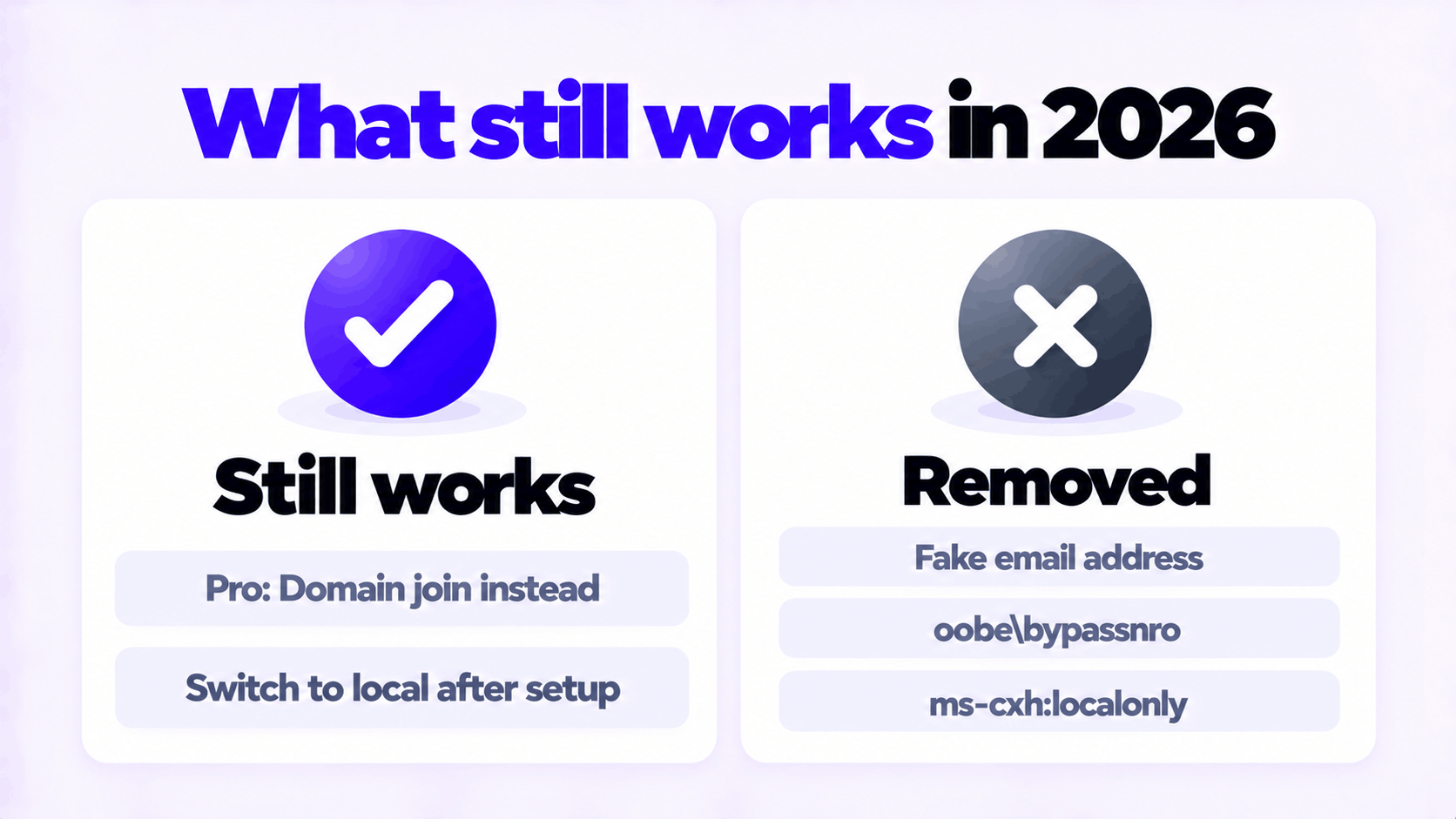
| Method | Status |
|---|---|
| Typing a fake email address such as [email protected] | No longer works |
The oobe\bypassnro command |
The script was removed from Windows 11 during 2025 |
The start ms-cxh:localonly command |
Removed from newer builds in late 2025 |
| Domain join instead on Pro | Still part of setup |
| Switching to a local account in Settings after setup | Supported and documented by Microsoft |
| Setup USB made with Rufus, or a registry value added during setup | Reported to work at the time of writing. Unofficial, and may be removed. |
Microsoft’s stated reason for removing the commands is that they “inadvertently skip critical setup screens”. Its support pages also say plainly that it recommends a Microsoft account over a local account for signing in to Windows.
Windows 11 Pro: Domain join instead
Pro has to support business PCs that join a company network, so its setup keeps an option to create a local account. You do not need an actual domain to use it.
- Go through setup until you reach How would you like to set up this device?
- Select Set up for work or school, then Next.
- On the sign-in screen, select Sign-in options.
- Select Domain join instead.
- Enter a name for the account, then a password and three security questions.
- Finish the privacy screens. You arrive at the desktop signed in with a local account.
This option is not offered on Windows 11 Home. If you are choosing an edition and this matters to you, it is one of the practical differences covered in Windows 11 Home vs Pro.
Any edition: switch to a local account after setup
This is the method Microsoft documents, and it works on Home and Pro alike. Sign in with a Microsoft account to get through setup, then change the account type.
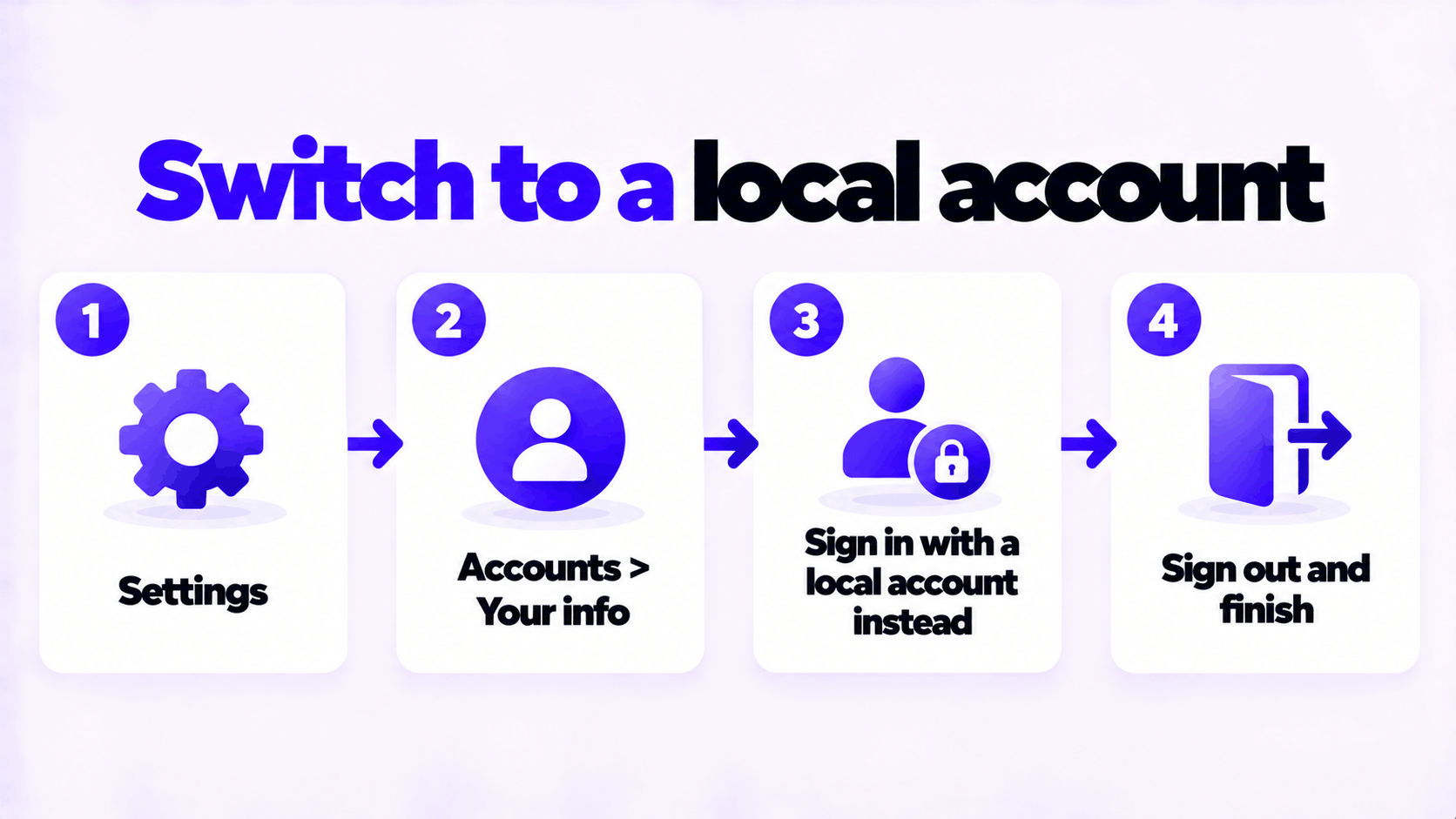
- Open Settings > Accounts > Your info.
- Select Sign in with a local account instead. The link appears only when you are signed in with a Microsoft account.
- Enter a user name, a password and a password hint.
- Select Next, then Sign out and finish.
- Sign back in with the new local account.
Your files, apps and settings stay as they are. Two things to tidy up afterward if you want the Microsoft account gone from the PC entirely:
- OneDrive. Setup may have turned on folder backup for Desktop, Documents and Pictures. Open OneDrive settings, stop the backup, and unlink the PC.
- Other apps. Check Settings > Accounts > Email & accounts and remove the account from the list if it is still there.
You can also keep the first account and add a separate local one: Settings > Accounts > Other users > Add account > I don’t have this person’s sign-in information > Add a user without a Microsoft account.
Install Windows 11 without a Microsoft account using workarounds
These skip the account screen during setup itself. Neither is documented by Microsoft for home use, both have been reported to work on recent releases, and either can stop working with the next update. If one fails, fall back to the method above.
A setup USB made with Rufus. When Rufus writes a Windows 11 image to a USB drive, its options dialog includes Remove requirement for an online Microsoft account and lets you set a local account name. Setup then creates that account without asking you to sign in. Download Rufus only from rufus.ie and the Windows image only from microsoft.com.
A registry value during setup. On the first setup screen, where you choose a region:
- Press Shift + F10 to open Command Prompt.
- Run this command, then let the PC restart:
reg add HKLM\SOFTWARE\Microsoft\Windows\CurrentVersion\OOBE /v BypassNRO /t REG_DWORD /d 1 /f
shutdown /r /t 0- Disconnect the PC from the internet: unplug the network cable and do not join Wi-Fi.
- Continue setup. On the network screen, select I don’t have internet, then Continue with limited setup.
- Create the local account.
This sets by hand the same value the removed bypassnro script used to set.
What you give up with a local account
A local account is a reasonable choice, and it is also less convenient in specific ways. Know these before you decide.
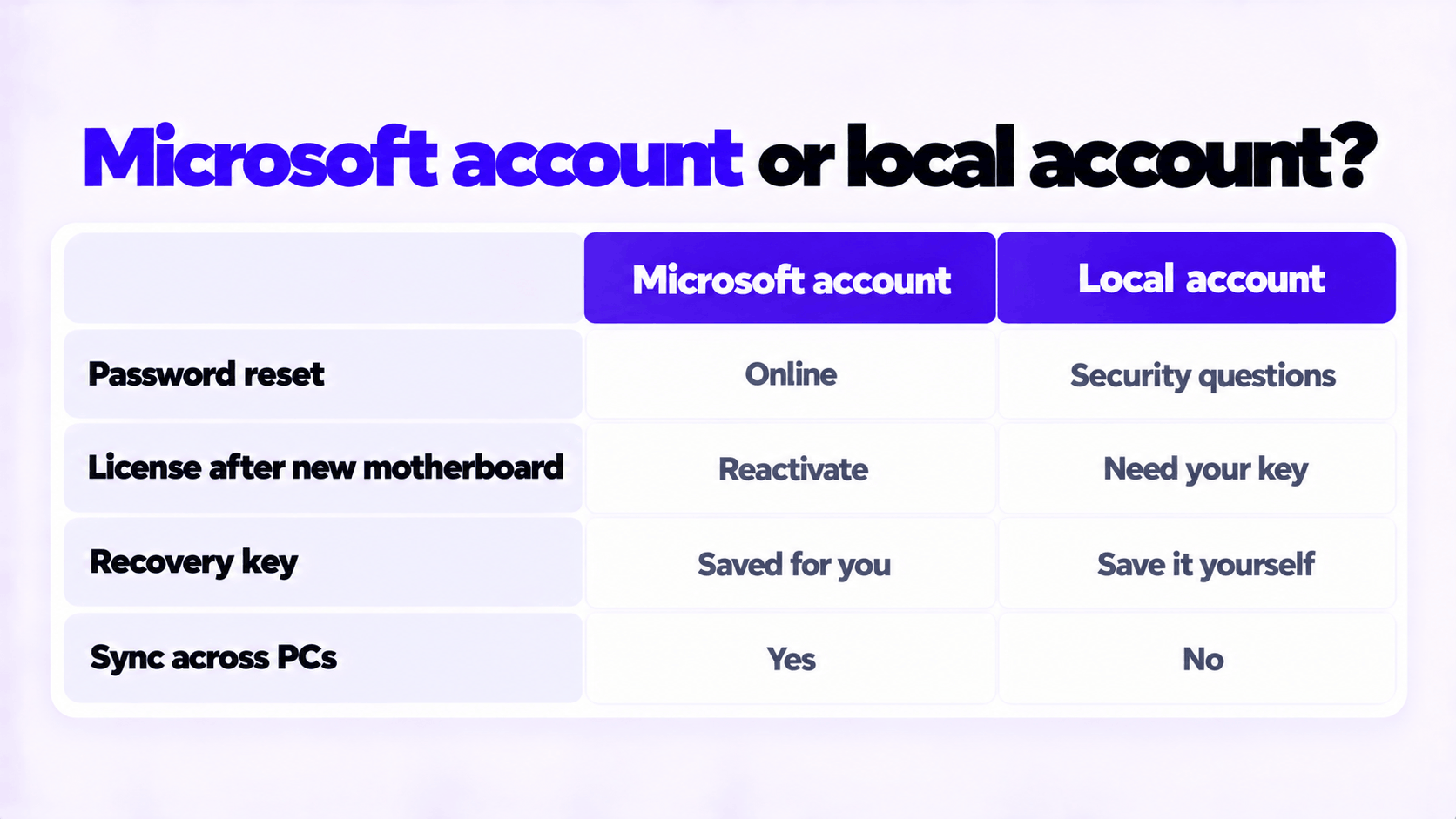
| Microsoft account | Local account | |
|---|---|---|
| Forgotten password | Reset online from any device | Only with your security questions or a password reset disk |
| Windows license after a motherboard change | Reactivate through the Activation troubleshooter | No linked license to reactivate from. Keep your product key. |
| Drive encryption recovery key | Saved to your account automatically | You must save it yourself. Lose it and the data is gone. |
| Settings and files across PCs | Sync through the account and OneDrive | Stay on this PC only |
| Microsoft Store | Signed in | Free apps work. Purchases need a sign-in to the Store only. |
| Data shared with Microsoft | Account-linked sync and activity | Less tied to an identity. Diagnostic data is still sent. |
A local account does not make Windows faster, and it does not switch off diagnostic data or suggestions by itself. Those are separate settings under Settings > Privacy & security.
You can also use a local account to sign in to Windows and still sign in to individual apps, such as the Store or OneDrive, with a Microsoft account. It does not have to be all or nothing.
Check which kind of account you have
Open Settings > Accounts > Your info. Under your name:
- An email address means you are signed in with a Microsoft account.
- Local Account means you are not.
Whichever you use, Windows still needs to be activated. A local account does not change how a product key works: see how to activate Windows 11 Pro with an OEM product key.
Need a Windows 11 Pro Key?
Pro keeps the local account option in setup. One key for one PC.
Email Delivery in 1 to 12 Hours • 90-Day Money-Back Guarantee