
By Egodget Tech Team
•
Updated: October 2026
How to Enable Remote Desktop on Windows 11 Pro
Short answer: To enable Remote Desktop on Windows 11 Pro, open Start > Settings > System > Remote Desktop, switch Remote Desktop to On, and select Confirm. Note the name shown under PC name. On the other device, open Remote Desktop Connection, type that name, and sign in. The PC you connect to must run Windows 11 Pro; the device you connect from can run any edition, including Home.
Applies to: Windows 11 Pro, Enterprise and Education as the host. Windows 11 Home cannot be a Remote Desktop host.
Table of Contents
Why Windows 11 Home can’t host Remote Desktop
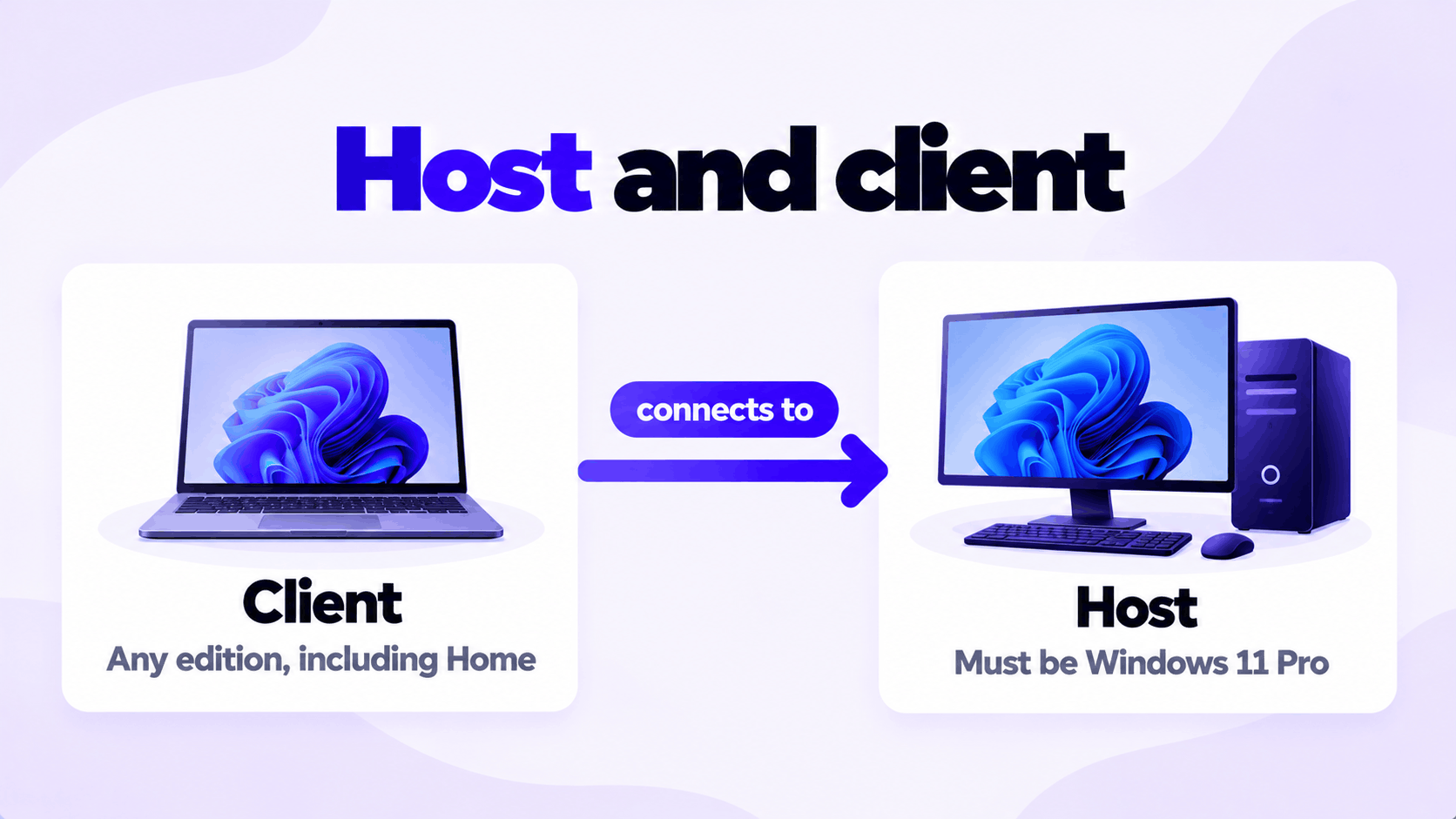
Remote Desktop has two halves. The host is the PC being controlled. The client is the device you sit at. Microsoft’s support page states the rule: the PC acting as the Remote Desktop server needs to be running a Pro edition of Windows, while the client can be running any edition.
| Windows 11 Home | Windows 11 Pro | |
|---|---|---|
| Connect from this PC to another | Yes | Yes |
| Connect to this PC from another | No | Yes |
| Remote Desktop page in Settings | Shows a message that the edition does not support it | Shows the on/off switch |
To check your edition, open Settings > System > About and read Edition under Windows specifications.
If the PC you want to reach runs Home, it needs upgrading to Pro. Enter a Windows 11 Pro key under Settings > System > Activation > Change product key; your files and apps stay in place. The other differences between the editions are in Windows 11 Home vs Pro.
How to enable Remote Desktop on Windows 11 Pro
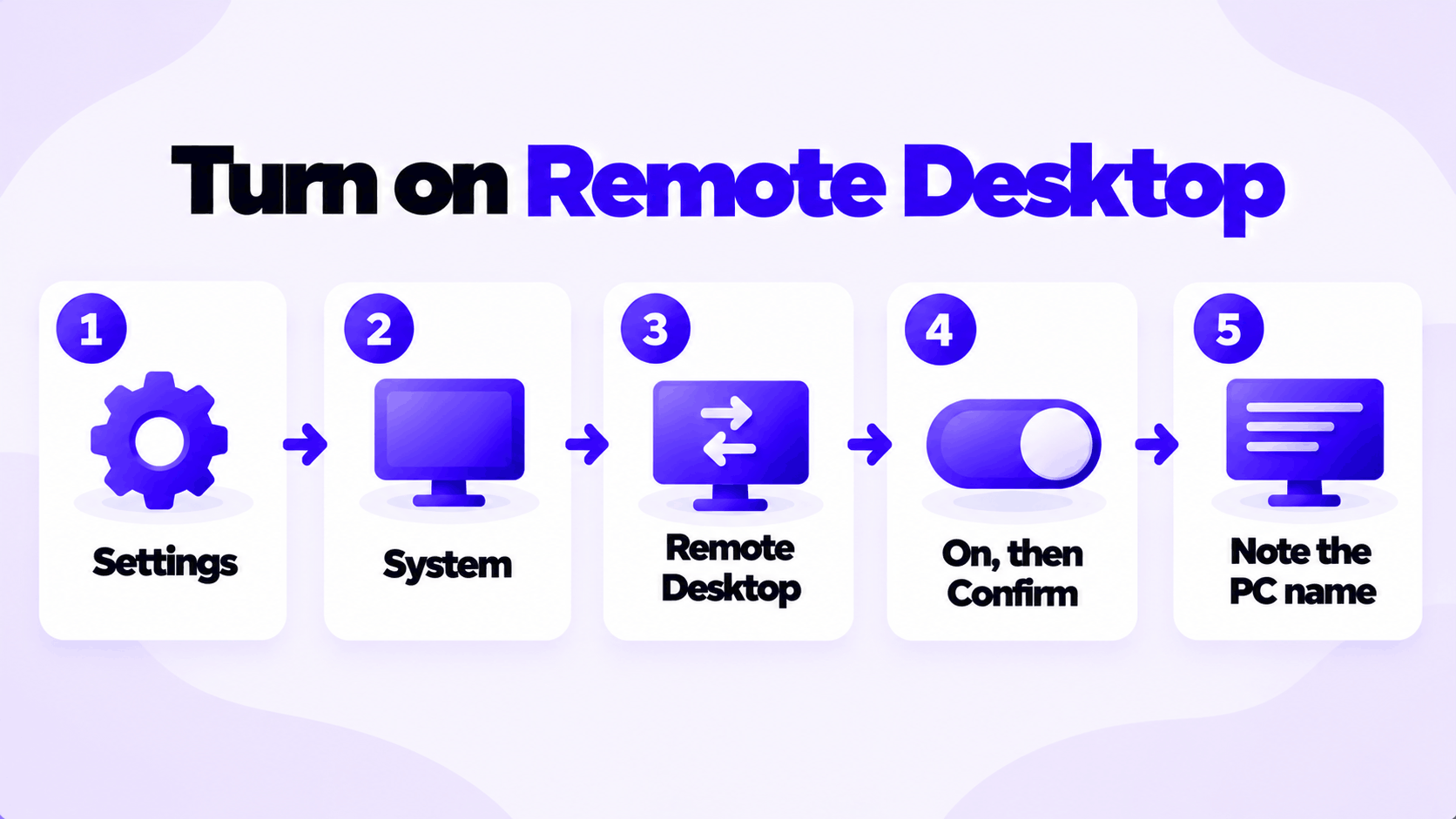
Do this on the PC you want to control.
- Select Start > Settings > System.
- Select Remote Desktop.
- Switch Remote Desktop to On.
- Select Confirm.
- Write down the name shown under PC name. You will type it on the other device.
Two things to check while you are on that page:
- Network Level Authentication. Expand the Remote Desktop setting and leave Require devices to use Network Level Authentication to connect ticked. Microsoft recommends it because users must authenticate before a session is created.
- The account you will sign in with has a password. Remote Desktop does not accept an account with a blank password.
The host PC has to be switched on and awake to accept a connection. If it goes to sleep, you cannot reach it. Open Settings > System > Power & battery > Screen and sleep and set When plugged in, put my device to sleep after to Never on a PC you plan to reach remotely.
Connect from another device
From a Windows PC (any edition):
- In the taskbar search box, type
Remote Desktop Connectionand open it. You can also press Windows + R and runmstsc. - In Computer, type the PC name you wrote down.
- Select Connect.
- Enter the user name and password of an account on the host PC.
- If a certificate warning appears on your own network, select Yes to continue.
From a Mac, iPhone or iPad: install Microsoft’s free Windows App from the App Store, add the PC by name, and select it.
From Android: install Microsoft’s Remote Desktop app from Google Play, add the PC by name, and select it.
What to type as the user name:
| Account on the host PC | User name to enter |
|---|---|
| Microsoft account | The full email address, with that account’s password |
| Local account | PCNAME\username, for example OFFICE-PC\maria |
If the host signs in with a PIN, fingerprint or face only, Remote Desktop still needs the account’s actual password. Sign in on the host with the password once so that it is current.
When you connect, the host PC’s own screen locks. Only one person can use a Windows 11 Pro PC at a time, either at the PC or remotely.
Let another account connect
Members of the Administrators group can always connect. Anyone else has to be added.
- On the host, open Settings > System > Remote Desktop.
- Select Remote Desktop users.
- Select Add, type the account’s user name, and select OK.
Keep it secure
Microsoft’s documentation is direct about what this setting does: enabling Remote Desktop opens a port on your PC, making it accessible to devices on your local network. It advises enabling it only on trusted networks, such as your home network.
- Use strong, unique passwords on every account that can connect. Remote Desktop is only as safe as the weakest of them.
- Keep Network Level Authentication on.
- Keep the network set to Private at home, and do not enable Remote Desktop on a laptop you take onto public Wi-Fi.
- Keep Windows updated. Remote Desktop flaws are among the ones attackers look for.
- Turn it off when you no longer need it, using the same switch.
Connecting from outside your home
The steps above work between devices on the same network. Reaching the PC from elsewhere needs one more piece, and the choice matters for security.
| Method | How it works | Verdict |
|---|---|---|
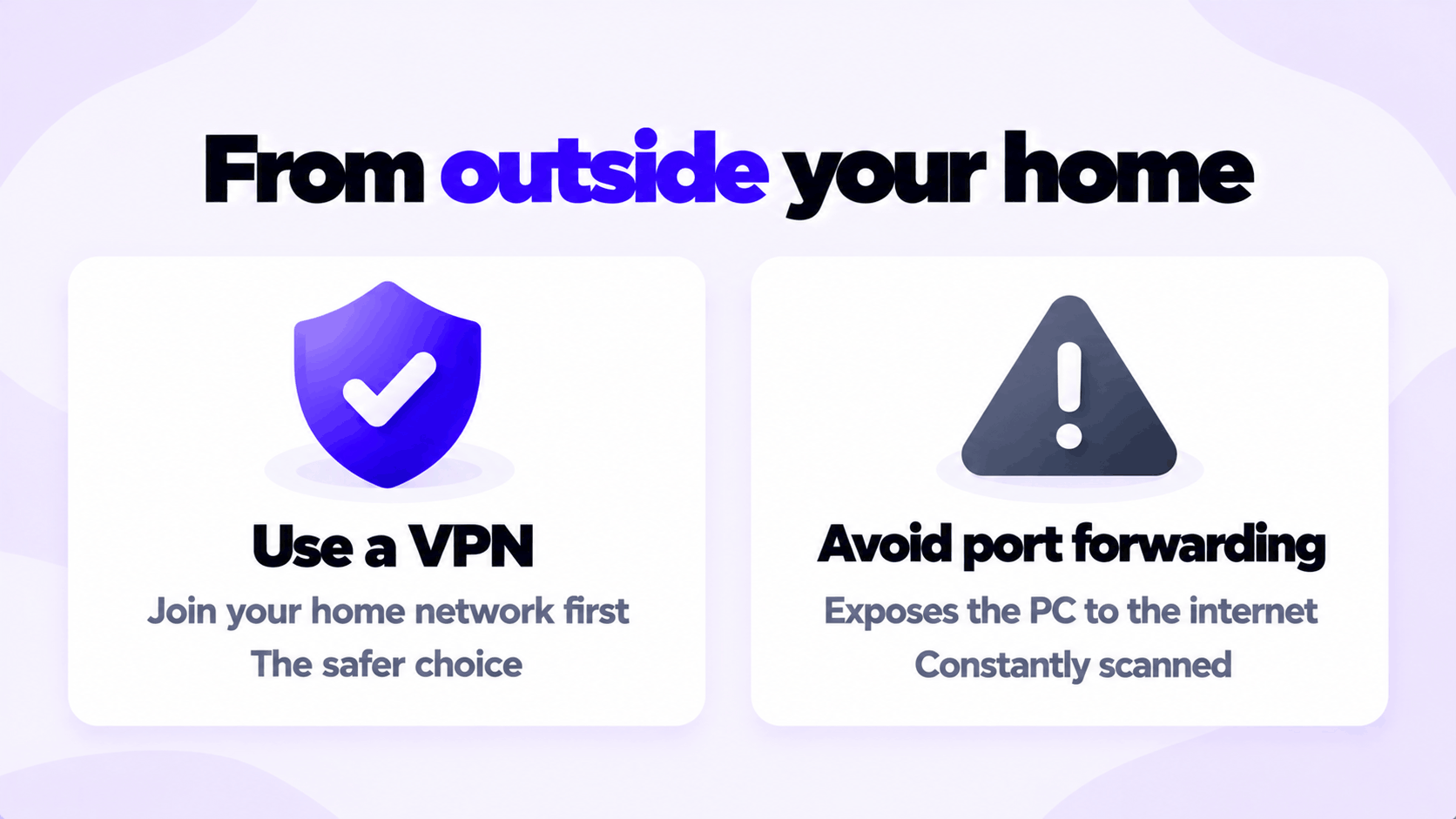
| VPN into your home network | Your device joins the home network securely, then connects as if it were there | The safer choice. Many routers include a VPN server, and mesh VPN services make it simple. |
| Port forwarding on the router | The router passes internet traffic on port 3389 straight to the PC | Avoid. It exposes the sign-in screen to the whole internet, where it is scanned and attacked constantly. |
Microsoft’s documentation lists both as options. A VPN is the one to use.
If you cannot connect
| Problem | Likely cause | What to do |
|---|---|---|
| The Remote Desktop page says your edition does not support it | Windows 11 Home | Upgrade to Pro |
| “Remote Desktop can’t find the computer” | The name does not resolve, or the host is off or asleep | Wake the host. Try its IP address, from ipconfig on the host, in place of the name. |
| “Remote Desktop can’t connect to the remote computer” | Remote Desktop is off, or the host’s network is set to Public | Check the switch, and set the network to Private under Settings > Network & internet |
| “Your credentials did not work” | Wrong user name format, or a PIN-only account | Use the email address or PCNAME\username, with the real password |
| It worked, then stopped the next day | The host went to sleep, or its IP address changed | Set sleep to Never, and connect by PC name |
| A third-party firewall is installed | It is blocking TCP port 3389 | Allow Remote Desktop in that firewall’s settings |
If the host needs Pro, this is the key we sell: Windows 11 Pro OEM key for 1 PC. The steps for entering it are in how to activate Windows 11 Pro with an OEM product key.
Need Windows 11 Pro for Remote Desktop?
Home cannot be a Remote Desktop host. One key for one PC.
Email Delivery in 1 to 12 Hours • 90-Day Money-Back Guarantee