
By Egodget Tech Team
•
Updated: October 2026
How to Check Your Windows License Type (OEM, Retail, Volume)
Short answer: To check your Windows license type, open Command Prompt, run slmgr.vbs /dli, and read the end of the Description line in the window that appears. RETAIL channel means retail, anything starting with OEM means OEM, and anything starting with VOLUME means a volume license owned by an organization. The command works on Windows 10 and Windows 11 and does not need administrator rights.
Applies to: Windows 11 and Windows 10, all editions.
Table of Contents
Check Windows license type with slmgr
- Press Windows + R, type
cmdand press Enter. - Type the command below and press Enter.
- Wait a few seconds. A small window titled Windows Script Host appears.
slmgr.vbs /dliThe window shows three things: the Name of the installed edition, a Description, and the License Status. The license type is the last part of the Description, for example:
Name: Windows(R), Professional edition
Description: Windows(R) Operating System, RETAIL channel
Partial Product Key: XXXXX
License Status: Licensed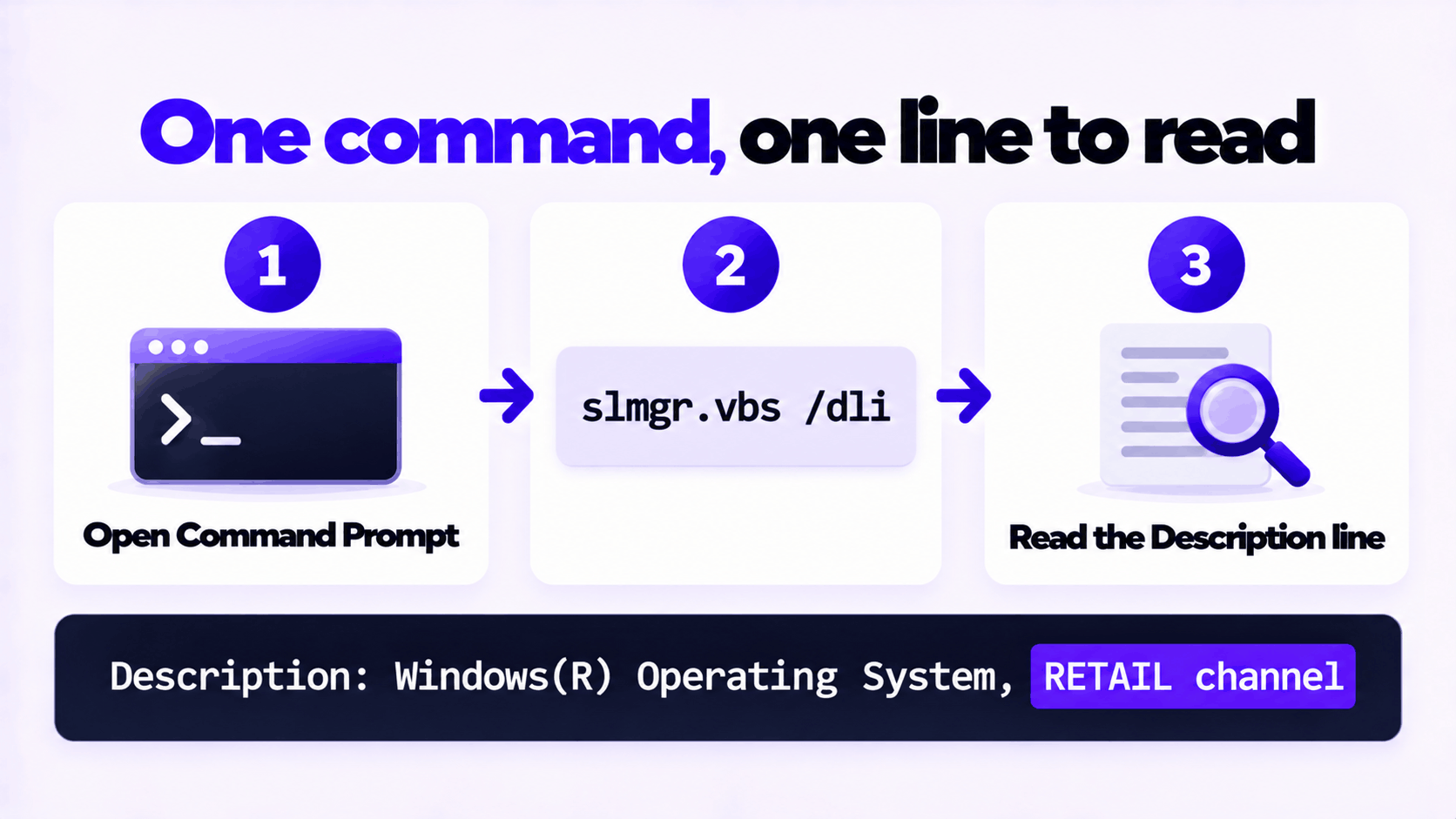
How to read the result
| Description ends with | License type | Where it usually comes from |
|---|---|---|
RETAIL channel |
Retail | Bought from Microsoft or a retailer. Also shown on PCs upgraded for free from Windows 7 or 8. |
OEM_DM channel |
OEM | A laptop or prebuilt PC, with the key stored in the firmware by the manufacturer |
OEM_COA_NSLP channel |
OEM | A system builder key entered by hand, or the key from a sticker |
OEM_SLP channel |
OEM | Older manufacturer activation, common on Windows 7 era PCs |
VOLUME_MAK channel |
Volume, activated once with Microsoft | An organization’s license |
VOLUME_KMSCLIENT channel |
Volume, renewed against an organization’s server | A work or school PC |
TIMEBASED_EVAL channel |
Evaluation | A trial copy of Windows Enterprise |
What each license type means for you
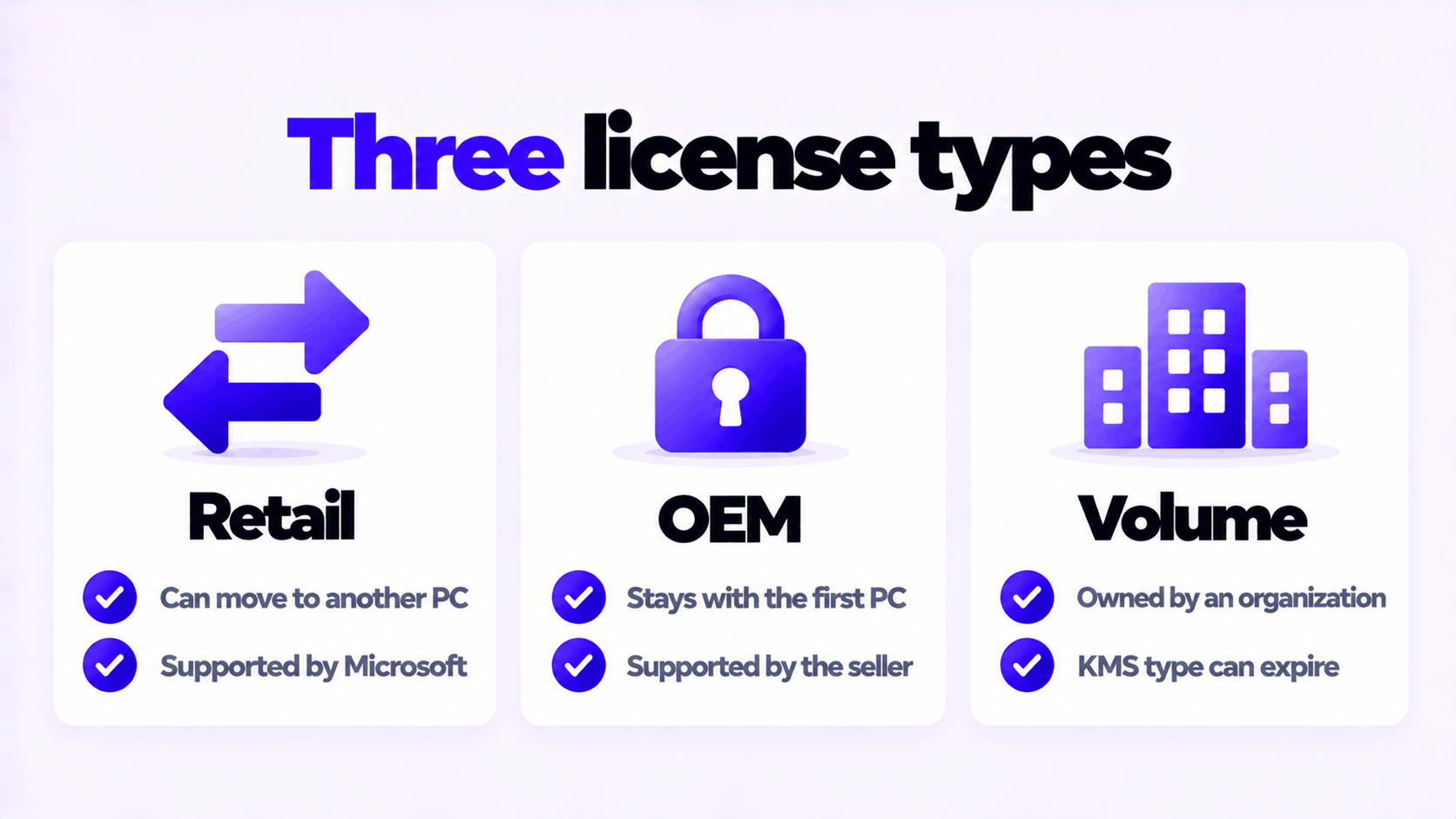
| Retail | OEM | Volume | |
|---|---|---|---|
| Move it to another PC you own | Yes, after removing it from the old one | No. It stays with the first PC. | Not yours to move |
| Expires | No | No | MAK: no. KMS: every 180 days unless renewed. |
| Who supports it | Microsoft | The manufacturer or seller | The organization’s IT department |
| Survives a motherboard replacement | Yes, reactivate with the key or your Microsoft account | Often needs a new license | Depends on the organization |
Three situations where the answer changes what you do next:
- Building or buying a new PC. A retail license can come with you. An OEM license cannot. See can you transfer a Windows OEM license to a new PC.
- Buying a used or refurbished PC. It should show an OEM or retail channel. A volume channel on a PC sold to an individual means it is still carrying a previous organization’s license, and that activation can stop working.
- Seeing an expiry warning. Only KMS and evaluation licenses expire. See your Windows license will expire soon.
The differences between the first two are covered in full in OEM vs retail license.
More detail: status and expiry
Two more commands, neither of which needs administrator rights:
slmgr.vbs /dlvThis shows detailed license information: everything from /dli plus the activation ID, the product key channel, and for KMS clients the server details and renewal intervals.
slmgr.vbs /xprThis shows the activation expiration date. For retail, OEM and MAK licenses it reports that the machine is permanently activated. Microsoft notes the date is mainly useful for KMS clients, because the other kinds do not expire.
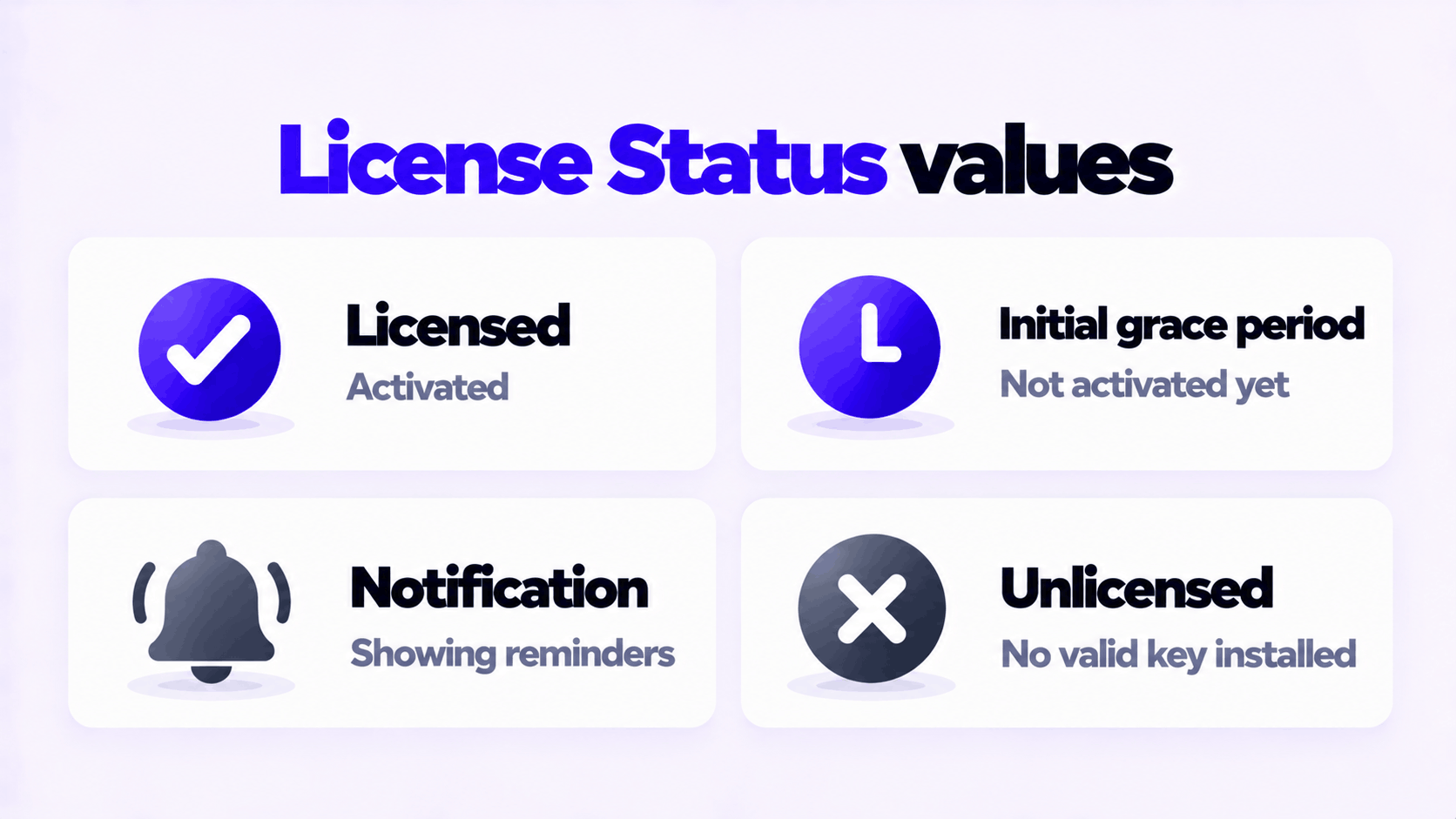
The License Status line has a small set of values:
| License Status | Meaning |
|---|---|
| Licensed | Activated |
| Initial grace period | Installed but not yet activated, still inside the grace period |
| Notification | Not activated. Windows is showing activation reminders. |
| Unlicensed | No valid key is installed |
The same check in PowerShell
If you prefer text you can copy, run this in PowerShell. It prints the edition, the description with the channel, and the status as a number, where 1 means licensed.
Get-CimInstance SoftwareLicensingProduct -Filter "PartialProductKey IS NOT NULL AND Name LIKE 'Windows%'" | Select-Object Name, Description, LicenseStatusTo see whether the manufacturer stored a key in the PC’s firmware:
(Get-CimInstance SoftwareLicensingService).OA3xOriginalProductKeyIf this prints a key, the PC shipped with an OEM license for the edition that key belongs to, and a clean installation of that edition will activate by itself. If it prints nothing, there is no firmware key, which is normal for a self-built PC.
Treat a product key like a password. Do not post the output of the second command in a forum or a support chat.
What Settings shows, and what it does not
Open Settings > System > Activation on Windows 11, or Settings > Update & Security > Activation on Windows 10. This page tells you the edition and whether Windows is activated, in one of four messages Microsoft documents:
- Windows is activated
- Windows is activated with a digital license
- Windows is activated with a digital license linked to your Microsoft account
- Windows is not activated
It does not tell you whether the license is retail, OEM or volume. For that you need one of the commands above.
You do not need a third-party “key finder” program for any of this. Everything on this page is built into Windows.
License type is not the same as “genuine”
These commands answer two separate questions: what kind of license is installed, and whether Windows is currently activated. Neither one, by itself, proves where the key came from.
- “Licensed” and a retail or OEM channel is what a properly licensed home PC looks like.
- “Licensed” and a volume channel on a personal PC means it is activated with an organization’s license. It works today and may not later.
- “Notification” or “Unlicensed” means Windows is not activated, whatever the channel.
If Windows is not activated and you have a key, see how to activate Windows 11 Pro with an OEM product key. If the key is refused, see what to do when a product key didn’t work.
Need a Windows 11 Pro Key?
An OEM key for one PC. If it does not activate, we replace it or refund it.
Email Delivery in 1 to 12 Hours • 90-Day Money-Back Guarantee