
By Egodget Tech Team
•
Updated: October 2026
How to Upgrade Windows 10 Home to Pro With a Product Key
Short answer: To upgrade Windows 10 Home to Pro without reinstalling, open Start > Settings > Update & Security > Activation, select Change product key under “Upgrade your edition of Windows”, enter a 25-character Windows 10 Pro key and select Next. The PC restarts once and comes back as Windows 10 Pro. Windows 10 Home must already be activated for this to work.
Applies to: Windows 10 Home, version 22H2. Windows 10 reached end of support on October 14, 2025, so read the first section before you spend money on it.
Table of Contents
Before you upgrade: Windows 10 is out of support
Microsoft ended support for Windows 10 on October 14, 2025. Version 22H2 is the final version. Home and Pro no longer receive free monthly security updates, and moving from Home to Pro does not change that. Pro adds features; it does not bring the updates back.
That leaves two sensible reasons to do this upgrade today:
- The PC cannot run Windows 11 and you need a Pro feature on it now, such as BitLocker or Remote Desktop.
- The PC can run Windows 11 and you want Windows 11 Pro. A PC that is on Windows 10 Pro upgrades to Windows 11 Pro, so the edition carries over.
If the PC can run Windows 11 and you have no reason to stay on Windows 10, move to Windows 11 first and upgrade the edition there. The steps are the same four clicks, under Settings > System > Activation.
What you need
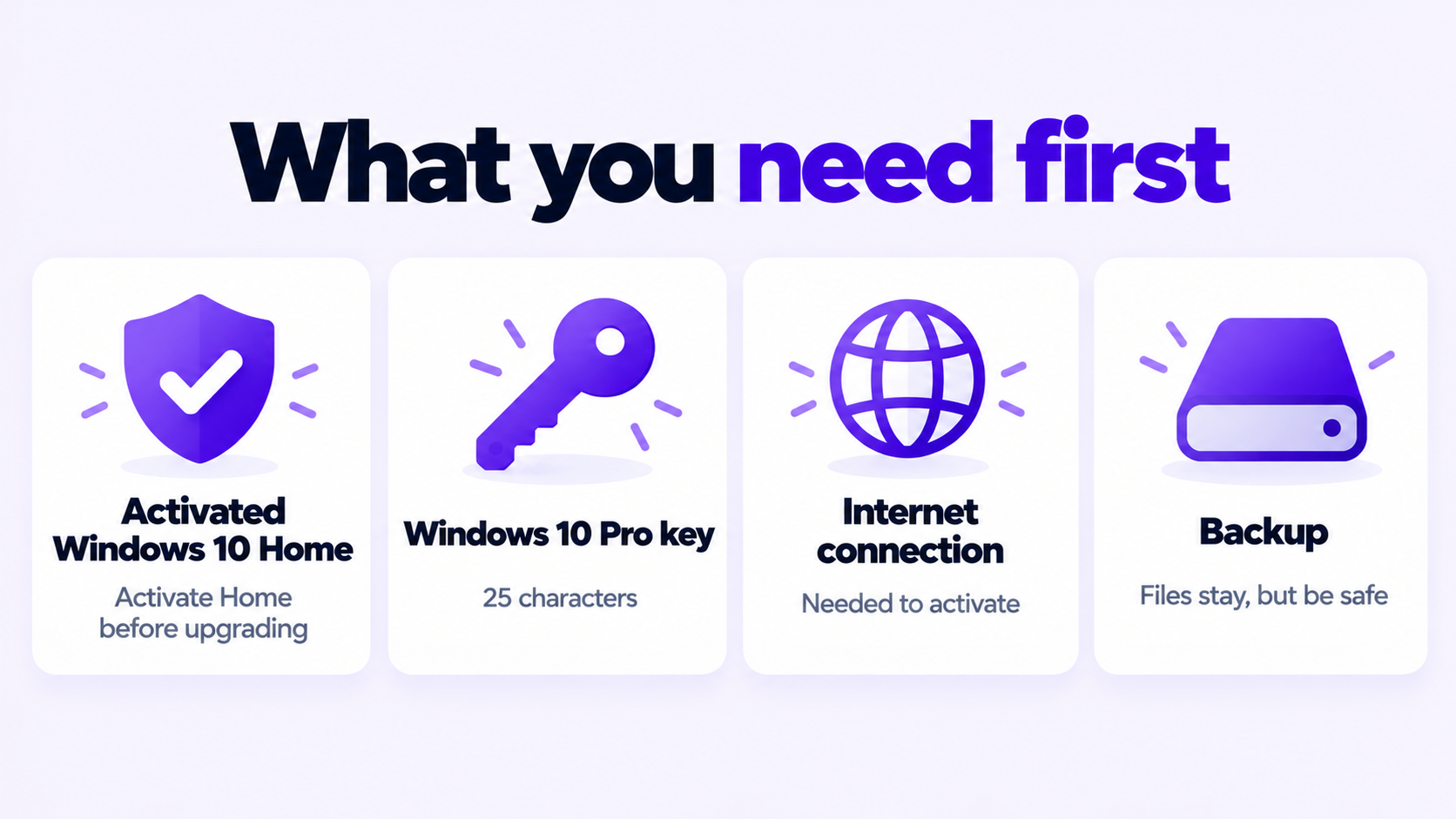
- An activated copy of Windows 10 Home. Microsoft’s instructions apply only to devices running an activated copy of Home. Check under Settings > Update & Security > Activation; it should say Windows is activated. If it does not, activate Home first.
- A Windows 10 Pro product key. Twenty-five characters in five groups of five. A Windows 10 Home key will not do it, and neither will a Pro for Workstations key if you want standard Pro.
- An internet connection, so Windows can activate the new edition.
- A backup of your files. The upgrade changes the edition in place and keeps your files, apps and settings, but a backup costs nothing and covers the rare failure.
How to upgrade Windows 10 Home to Pro with a product key
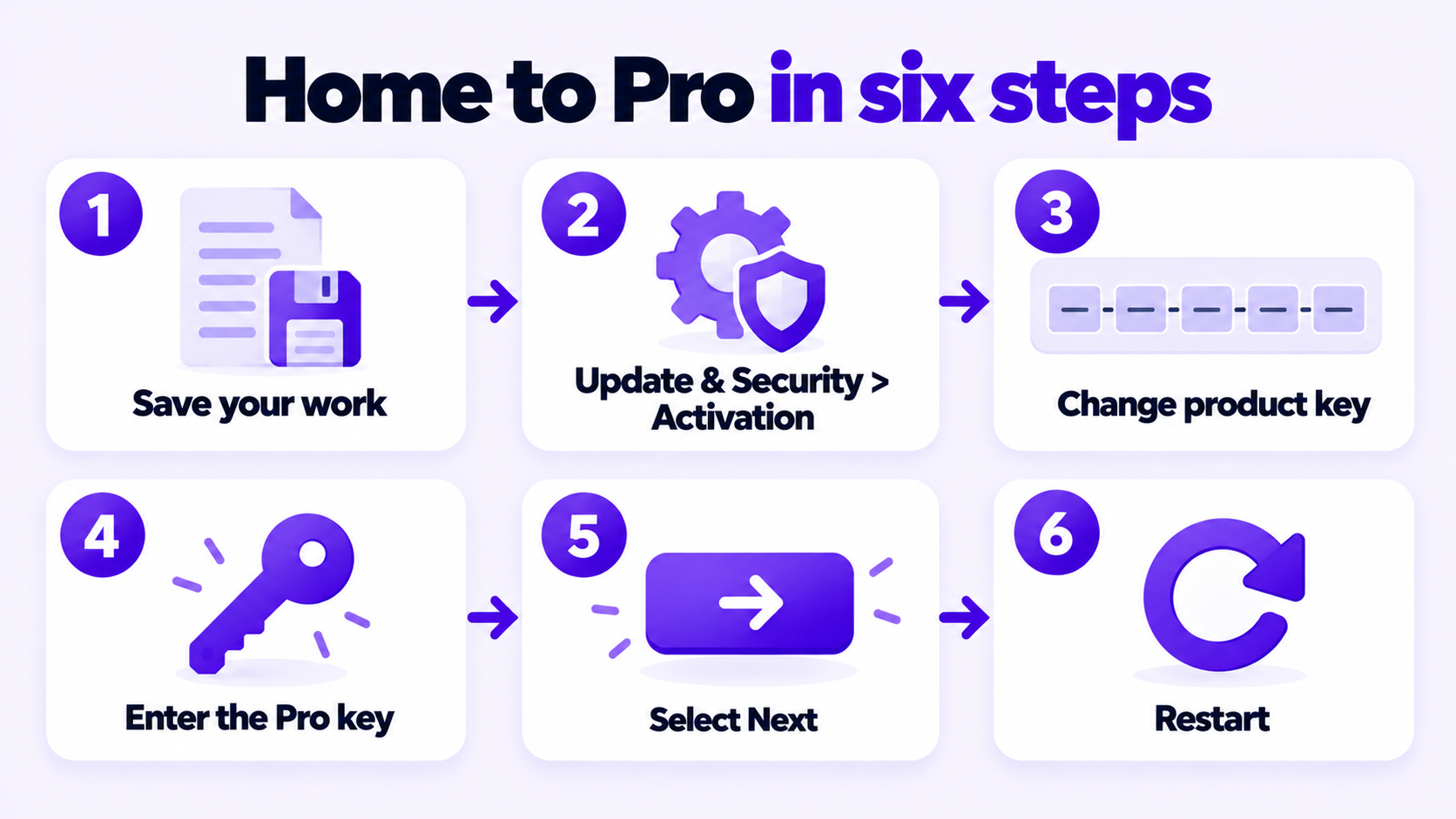
- Save your work and close open apps. The PC will restart.
- Select Start > Settings > Update & Security > Activation.
- Under Upgrade your edition of Windows, select Change product key.
- Enter the 25-character Windows 10 Pro product key.
- Select Next to start the upgrade, and follow the on-screen instructions.
- Let the PC restart. Keep a laptop plugged in until the desktop is back.
A shortcut to the same page: right-click Start, select Run, type the line below and select OK.
ms-settings:activationMicrosoft lists manual product key entry as the supported method for Home to Pro, and notes that a restart is required. The command-line tool changepk.exe is not supported for this particular upgrade, so use the Settings page.
Confirm the upgrade worked
After the restart, check two things:
- Edition: open Settings > System > About. Under Windows specifications, Edition should read Windows 10 Pro.
- Activation: open Settings > Update & Security > Activation. It should say Windows is activated.
If the edition changed to Pro but activation shows an error, the edition upgrade succeeded and the key did not activate. Go to the error table below.
What Pro adds
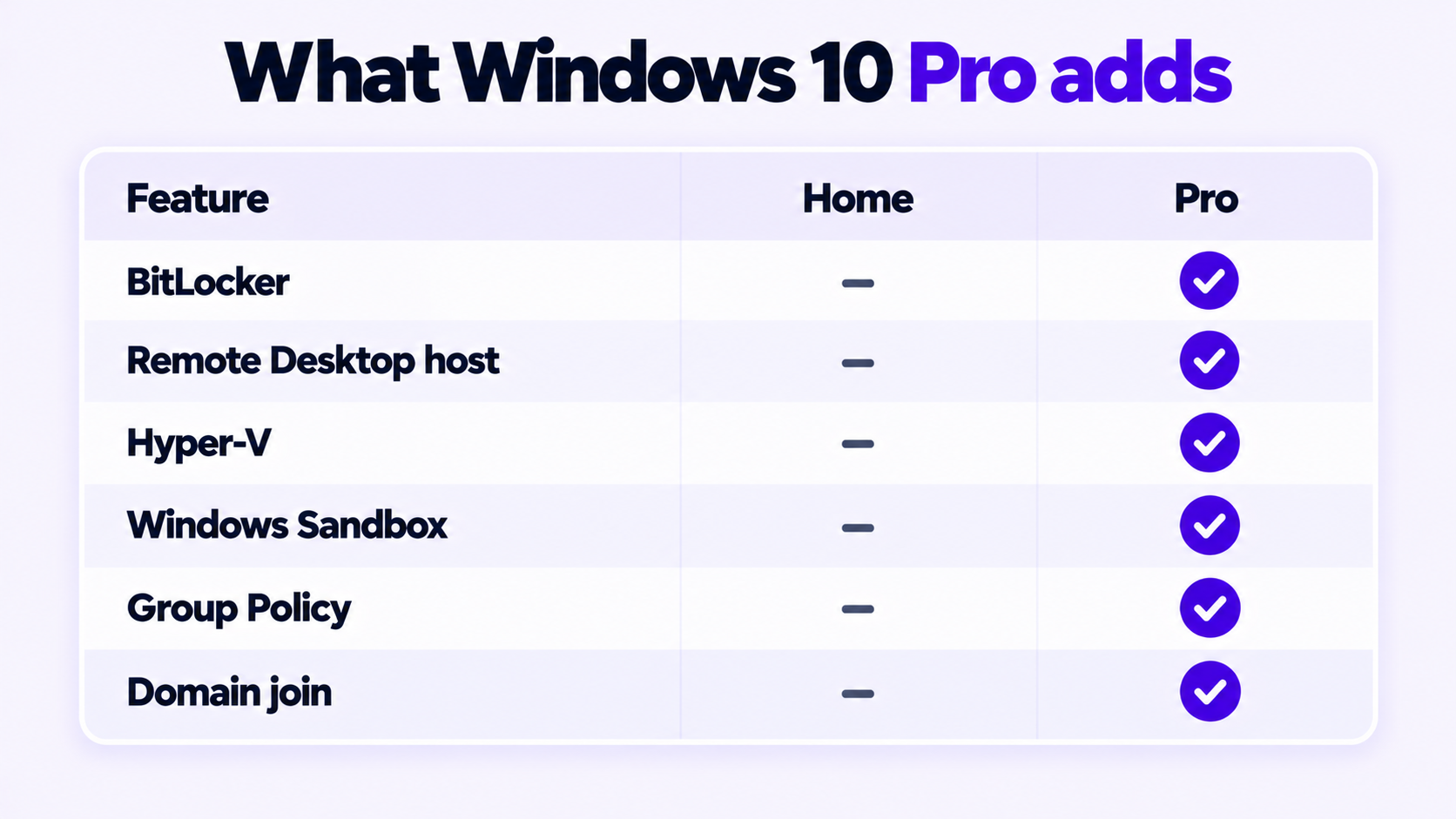
| Feature | Windows 10 Home | Windows 10 Pro |
|---|---|---|
| BitLocker drive encryption | No | Yes |
| Remote Desktop host (connect to this PC) | No | Yes |
| Hyper-V virtual machines | No | Yes |
| Windows Sandbox | No | Yes |
| Group Policy editor | No | Yes |
| Join a domain or Microsoft Entra ID | No | Yes |
If none of these is something you will use, staying on Home costs you nothing. Everyday speed, games and apps are the same on both editions.
If the upgrade fails
When the key is refused, the Activation page shows a code. These are the ones that come up during a Home to Pro upgrade, with the cause as Microsoft describes it.
| Code | Cause | What to do |
|---|---|---|
0x803FA067, 0xC004F050, 0xC004C060 |
The key can’t be used to activate Windows. | Paste the key again to rule out a typo. Confirm it is a Windows 10 Pro key. If it still fails, ask the seller for a different key. |
0xC004F034 |
The key is invalid or is for a different version or edition. | Check that the key is for Windows 10 Pro, not Home or another edition. |
0xC004C003, 0xC004C008 |
The key has already been used on another device. | Contact the seller. Nothing on your PC fixes this. |
0xC004FC03 |
A firewall or connection problem is blocking activation. | Check the connection and firewall, then try again. |
Two more things to check when no code appears:
- Home is not activated. This is the most common reason the Pro key is refused. Activate Home, then repeat the steps.
- Nothing happens after you select Next. Restart the PC and try once more from the Activation page.
For the full list of checks, see what to do when a product key didn’t work. It is written for Windows 11, and every step applies to Windows 10.
Other route: the Microsoft Store
If you do not have a key, Microsoft’s own route is the Store. On the Activation page, select Go to the Store under “Upgrade your edition of Windows”, sign in with your Microsoft account, confirm the purchase, then install Windows 10 Pro when prompted and restart. The Store checks that Home is activated before it sells you the upgrade. It costs considerably more than a key from a reseller.
Moving to Windows 11 afterward
Once the PC is on Windows 10 Pro and activated, the upgrade to Windows 11 keeps the edition: Pro becomes Windows 11 Pro. The PC has to meet the Windows 11 hardware requirements, including TPM 2.0 and a supported processor. To check, open Settings > Update & Security > Windows Update; an eligible PC shows the offer there.
Before any change of hardware or Windows version, link the license to a Microsoft account: on the Activation page select Add an account and sign in. It makes reactivation much easier later.
If you still need a key for the edition upgrade, this is the one we sell: Windows 10 Pro OEM key for 1 PC.
Need a Windows 10 Pro Key?
One key for one PC. If it does not activate, we replace it or refund it.
Email Delivery in 1 to 12 Hours • 90-Day Money-Back Guarantee