
How to Downgrade Windows 11 to Windows 10 (and Should You?)
Short answer: You can downgrade Windows 11 to Windows 10 in two ways. Within 10 days of upgrading, open Settings > System > Recovery and select Go back, which keeps your files. After 10 days, or on a PC that came with Windows 11, the only route is a clean installation of Windows 10 from a USB drive, which erases the drive. Before doing either, know that Windows 10 reached end of support on October 14, 2025 and no longer gets free security updates.
Applies to: Windows 11 Home and Pro, going back to Windows 10 version 22H2.
Table of Contents
Should you downgrade Windows 11 to Windows 10 in 2026?
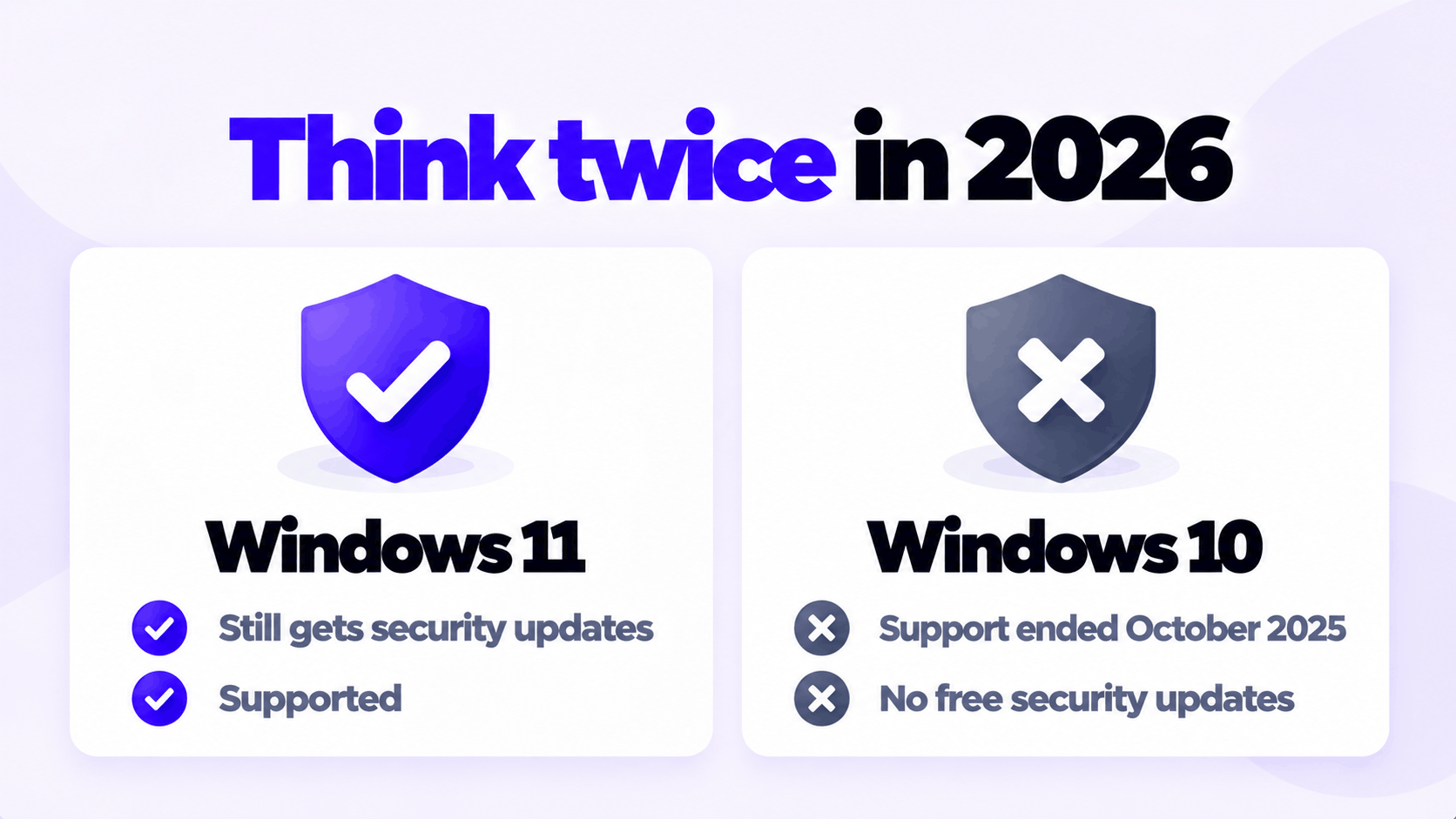
For most people the answer is now no. Microsoft stopped releasing free security updates, fixes and support for Windows 10 Home and Pro on October 14, 2025. Going back means trading a supported system for an unsupported one.
| Your reason | Is going back a good answer? |
|---|---|
| A program or device you depend on does not work on Windows 11 | Possibly, if there is no update for it and no alternative. Keep that PC off sensitive tasks. |
| You upgraded an unsupported PC and it is unstable | Yes. Microsoft itself recommends rolling such a PC back. |
| You dislike the Start menu or taskbar | No. Those can be adjusted, and they are not worth losing security updates over. |
| Windows 11 feels slower | Rarely. On the same hardware the difference is small. Check drivers and startup apps first. |
| A game stutters | No. Update the graphics driver first. |
If you still want to go back, the two methods follow. If you are unsure, read the last section first.
Which method applies to you
| Your situation | Method | Files kept? |
|---|---|---|
| Upgraded from Windows 10 in the last 10 days | Go back | Yes |
| Upgraded more than 10 days ago | Clean install | No |
| The PC came with Windows 11 | Clean install | No |
| You did a clean install of Windows 11 | Clean install | No |
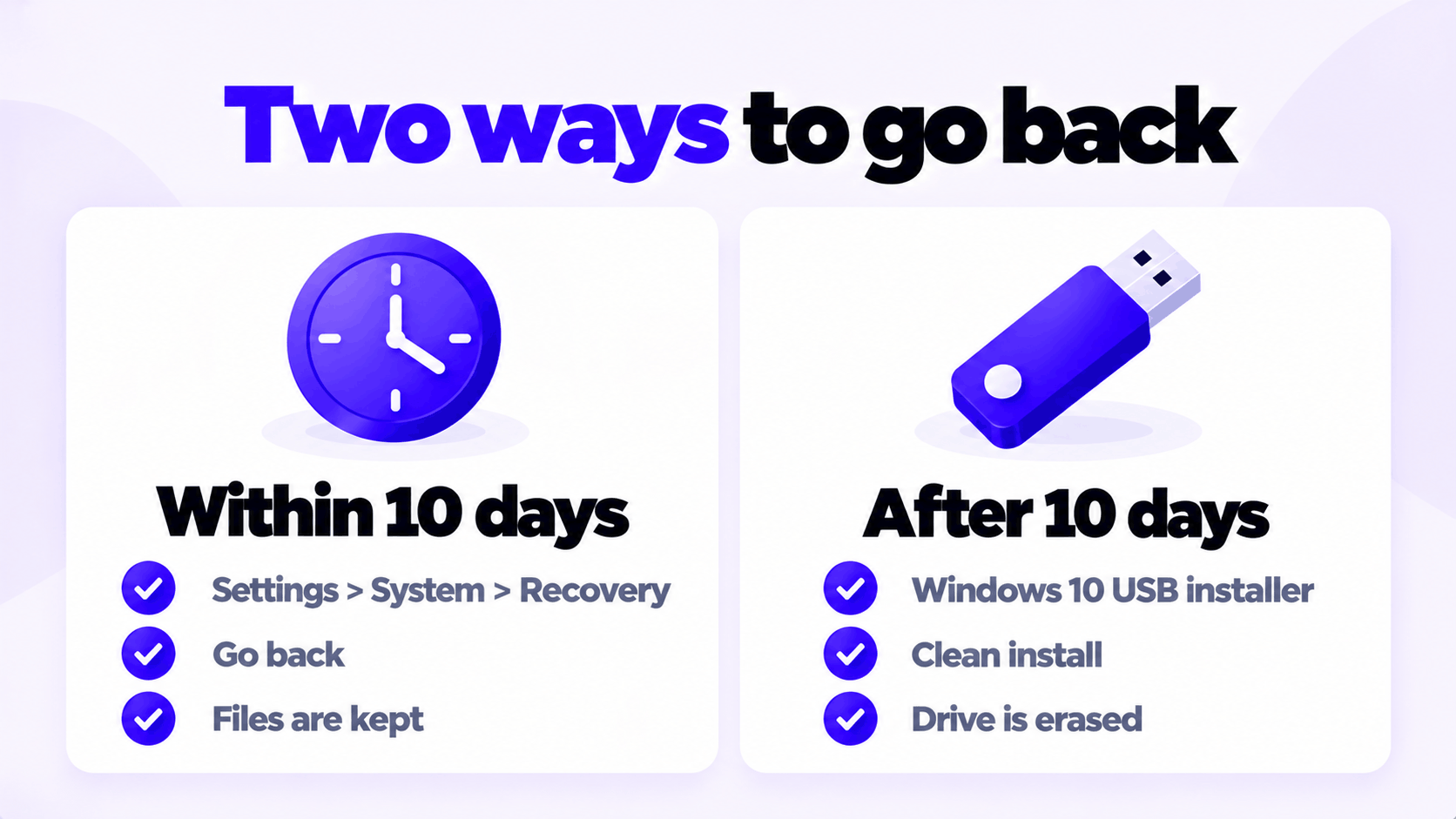
To check, open Settings > System > Recovery. If Go back is there and can be selected, Method 1 is available. Microsoft states that it is offered for only 10 days after an upgrade, after which the files it needs are removed.
Method 1: Go back within 10 days
Back up your files first anyway. The rollback keeps them, but any change this large deserves a backup. Make sure you know the password you used on Windows 10, because you will need it to sign in.
- Open Settings > System > Recovery.
- Under Recovery options, select Go back and approve the administrator prompt.
- Choose a reason and select Next.
- When asked to check for updates, select No, thanks.
- Read the notices and select Next, then Next again on the password reminder.
- Select Go back to Windows 10.
The PC restarts and restores Windows 10. Keep a laptop plugged in until it finishes.
What comes back and what does not:
- Your personal files stay.
- Programs you installed after the upgrade are removed and need reinstalling.
- Settings you changed after the upgrade are lost.
Once back on Windows 10, Windows Update will offer Windows 11 again. To stay on Windows 10, select Stay on Windows 10 for now when the offer appears.
Method 2: Clean install Windows 10
This erases the system drive completely. There is no way to do it and keep your programs.
- Back up everything you want to keep to an external drive: documents, photos, browser bookmarks, and the license keys for your programs.
- Check that Windows 10 drivers exist for the PC. Look up the model on the manufacturer’s support site. Some PCs sold with Windows 11 have no Windows 10 drivers for their Wi-Fi, touchpad or graphics, and on those a downgrade is not practical.
- Create a Windows 10 USB installer with Microsoft’s Media Creation Tool, on a USB drive of 8 GB or more.
- Start the PC from the USB drive and choose Custom: Install Windows only (advanced).
- Select the same edition you have now. If Windows 11 Home is installed, choose Windows 10 Home; if Pro, choose Pro. This is what lets it activate.
- Delete the partitions on the system drive and install to the unallocated space.
- Finish setup, run Windows Update, and install the drivers from step 2.
Each of these steps is set out in full, including the warnings about deleting partitions, in how to clean install Windows 10 Pro from a USB drive.
Do you need a new license?
Usually not. A PC that is activated with Windows 11 generally activates Windows 10 of the same edition as well, without a new key.
| Situation | What to do during Windows 10 setup |
|---|---|
| The PC was upgraded from an activated Windows 10 | Select I don’t have a product key. It reactivates online with its existing digital license. |
| The PC came with Windows 11 from the manufacturer | Select I don’t have a product key if asked. Setup normally reads the key stored in the firmware. |
| You activated Windows 11 with a key you bought | Enter that same key. If setup refuses it, skip it and enter it in Settings afterward. |
| You want a different edition than you have now | You need a key for that edition |
After installation, check Settings > Update & Security > Activation. If Windows 10 does not activate by any of these routes, that is when a Windows 10 key is needed. Do not buy one before you have tried.
Fix Windows 11 instead
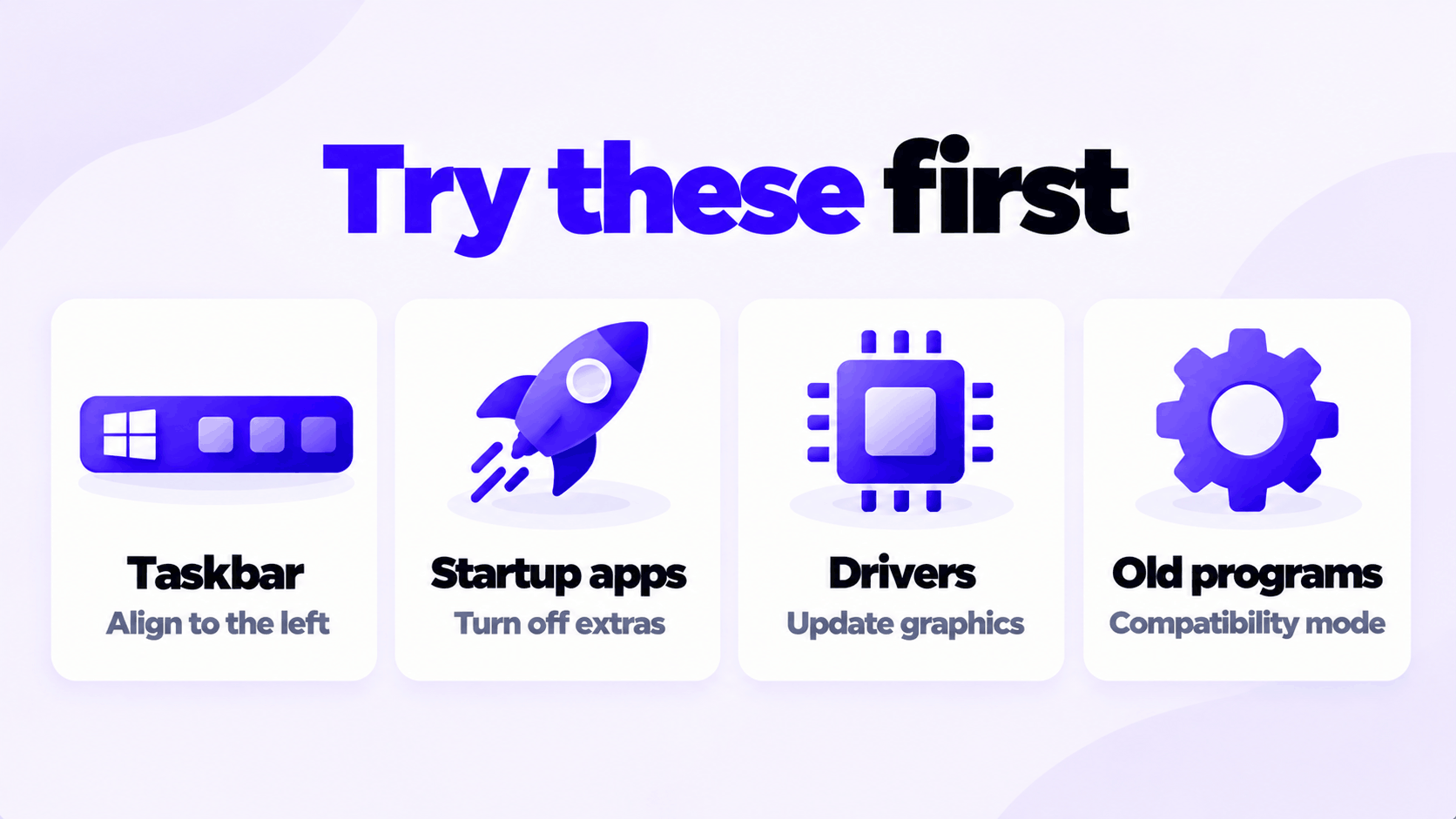
Most complaints that lead people to downgrade have a smaller fix. Try these first; each takes a few minutes.
| Complaint | Try this |
|---|---|
| Taskbar icons in the center | Settings > Personalization > Taskbar > Taskbar behaviors > Taskbar alignment > Left |
| The short right-click menu | Select Show more options, or press Shift + F10, for the full menu |
| Slow startup | Settings > Apps > Startup, and turn off what you do not need |
| Poor game performance | Install the current graphics driver from the manufacturer |
| An old program will not run | Right-click it, select Properties > Compatibility, and try an earlier Windows mode |
| Something broke after a recent update | Settings > Windows Update > Update history > Uninstall updates |
If the PC is going to stay on Windows 11, make sure it is activated: see how to activate Windows 11 Pro with an OEM product key.
Keys we sell, each for one PC: Windows 11 Pro and Windows 10 Pro.
Staying on Windows 11?
Windows 11 is the version that still gets security updates. One key for one PC.