
By Egodget Tech Team
•
Updated: October 2026
How to Clean Install Windows 10 Pro From a USB Drive
Short answer: To clean install Windows 10 Pro from a USB drive, create the drive with Microsoft’s Media Creation Tool, start the PC from it, choose Custom: Install Windows only (advanced), delete the partitions on the system drive, and install to the unallocated space. Select Windows 10 Pro when setup asks for the edition, and enter your key during setup or afterward in Settings. This erases everything on that drive, so back up first.
Applies to: Windows 10 Pro, version 22H2. Windows 10 reached end of support on October 14, 2025, and no longer receives free security updates. If the PC can run Windows 11, install that instead.
Table of Contents
Before you clean install Windows 10 Pro
Decide whether Windows 10 is the right choice. Microsoft’s own download page for Windows 10 now carries the notice that after October 14, 2025 it no longer receives free software updates, technical support or security fixes. A clean installation today gives you a tidy copy of an operating system that is no longer patched. It makes sense for a PC that cannot run Windows 11, or one that stays offline. For anything else, see how to upgrade Windows 10 to Windows 11 or create a Windows 11 bootable USB.
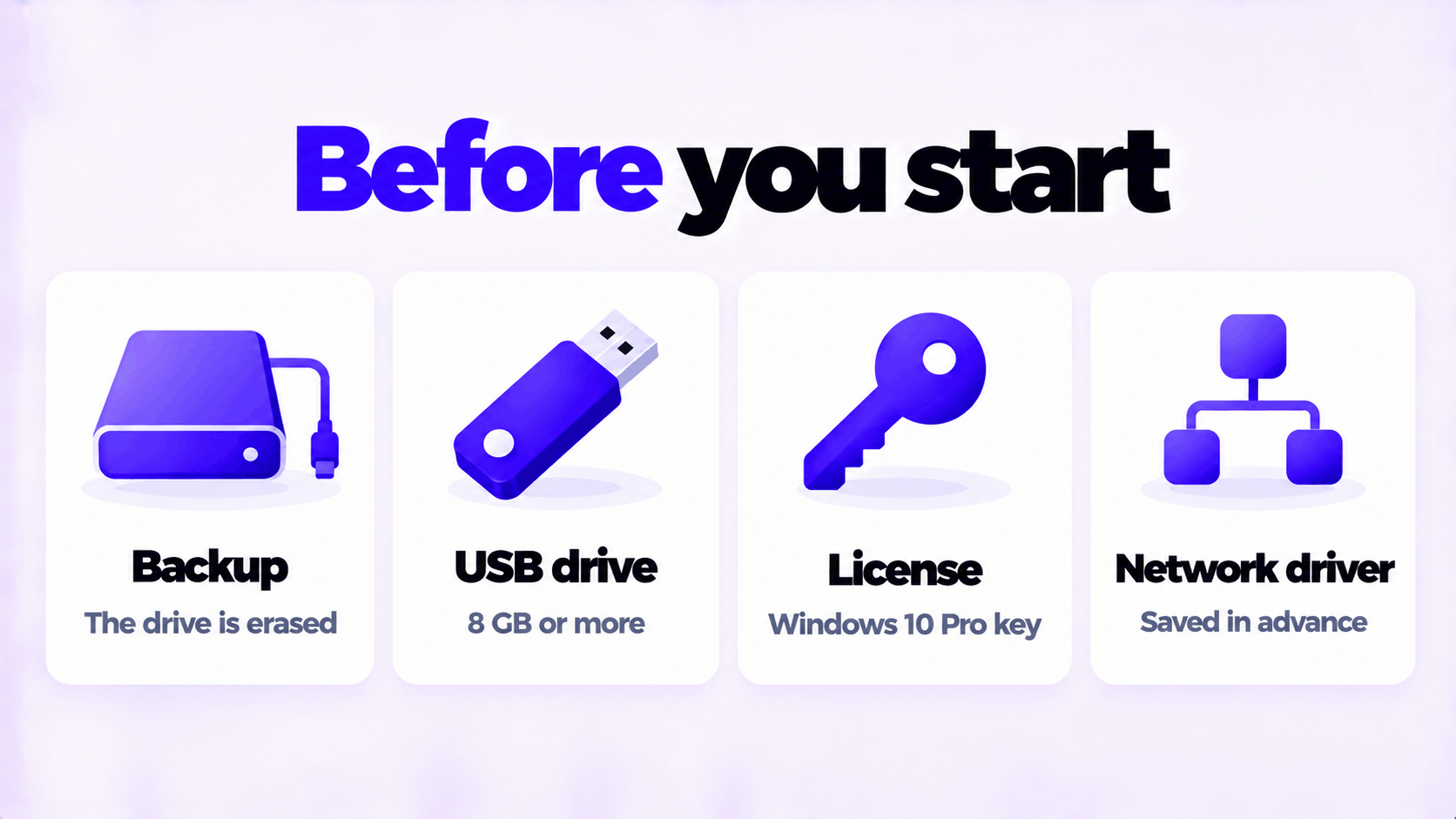
Then gather what you need:
- A backup of your files on an external drive or cloud storage. A clean installation deletes everything on the system drive: documents, photos, programs and settings.
- A blank USB flash drive of at least 8 GB. It is erased too.
- A license. Either a Windows 10 Pro product key, or a PC that was already activated with Windows 10 Pro, which reactivates by itself.
- Installers and keys for your programs, and your Wi-Fi password.
- The network driver for the PC, downloaded from the manufacturer and saved to a second USB drive, in case Windows does not recognize the network adapter after installation.
Minimum hardware for 64-bit Windows 10 is a 1 GHz processor, 2 GB of memory and 32 GB of storage. In practice it needs 8 GB of memory and an SSD to be pleasant to use.
Step 1: Create the USB installer
- On a working PC, open Microsoft’s Download Windows 10 page.
- Under Create Windows 10 installation media, select Download Now and run the tool. You must be an administrator.
- Select Accept.
- Choose Create installation media (USB flash drive, DVD, or ISO file) for another PC, then Next.
- Select the language, Windows 10 as the edition, and 64-bit, then Next.
- Choose USB flash drive, select your drive, and select Next.
- Wait while the tool downloads Windows 10 and writes it to the drive, then select Finish.
The “Windows 10” edition in step 5 contains both Home and Pro. You choose between them during installation.
Step 2: Start the PC from the USB drive
- Shut the PC down completely and plug in the USB drive.
- Turn it on and immediately press the boot menu key. Microsoft lists F2, F12, Delete and Esc as the usual ones.
- Choose the USB drive. If it is listed twice, pick the entry that starts with UEFI.
Using the one-time boot menu is better than changing the boot order in the firmware settings. If you do change the order, set it back afterward, or the PC will start setup again when it restarts.
Leave Secure Boot on. Microsoft’s installer works with it.
Step 3: Clean install Windows 10 Pro
- On the Windows Setup screen, confirm the language, time format and keyboard, then select Next and Install now.
- On the Activate Windows screen, enter your 25-character key and select Next. If this PC was already activated with Windows 10 Pro, select I don’t have a product key instead.
- If setup shows a list of editions, select Windows 10 Pro. This must match your license.
- Accept the license terms.
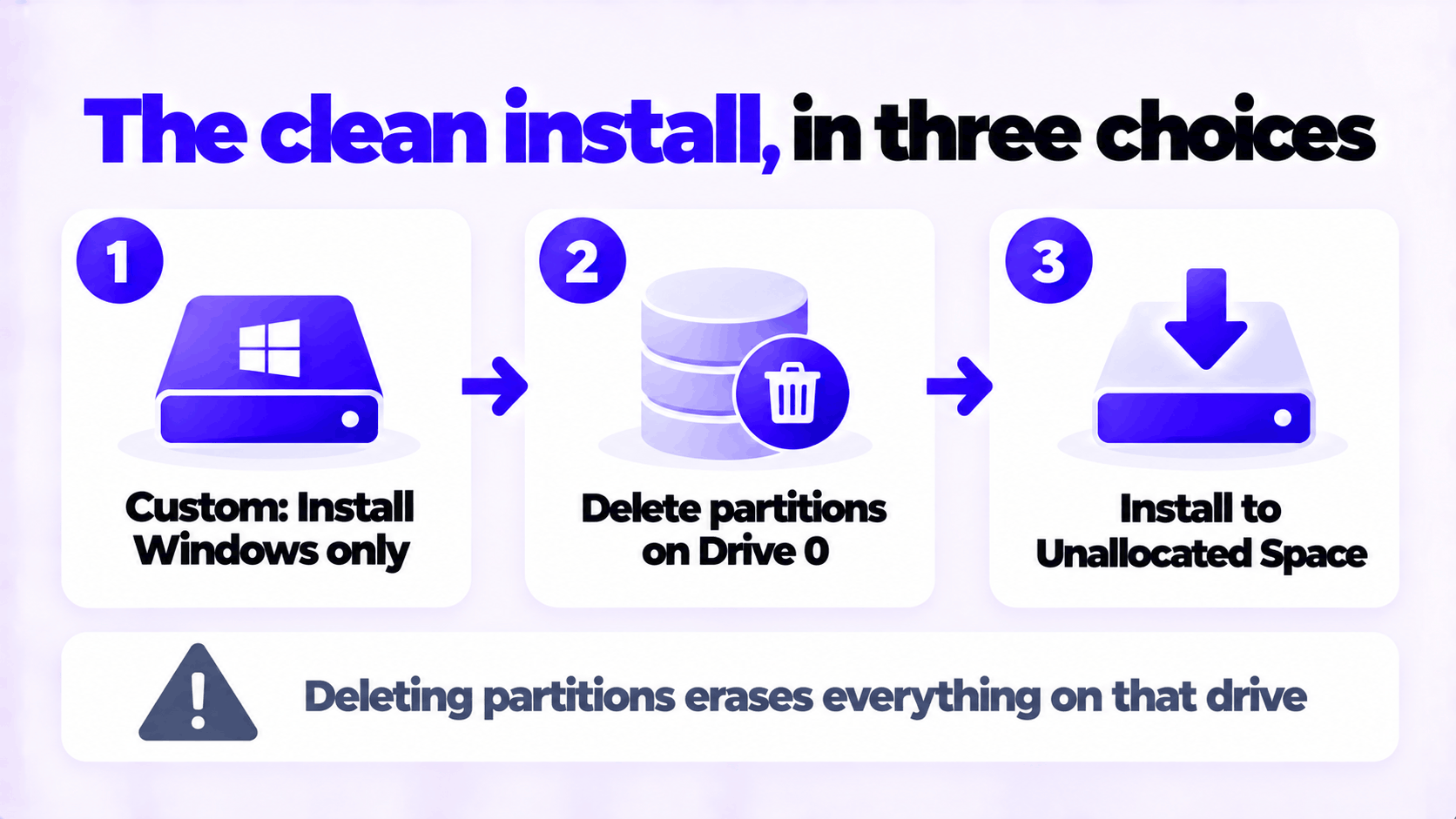
- Choose Custom: Install Windows only (advanced).
- On Where do you want to install Windows?, find the system drive, usually Drive 0. Select each of its partitions in turn and select Delete, until the drive shows as one block of Unallocated Space.
- Select that unallocated space and select Next. Setup creates the partitions it needs.
- Let it run. The PC restarts by itself several times.
Read step 6 twice before you do it. If the PC has more than one drive, each appears as Drive 0, Drive 1 and so on. Only delete partitions on the drive Windows is going on. If you are not sure which is which, shut down, unplug the other drives, and start again. Deleted partitions cannot be brought back from this screen.
On laptops and prebuilt PCs with a Home key stored in the firmware, setup may skip steps 2 and 3 and install Home automatically. If that happens, finish setup and then enter your Pro key in Settings to upgrade: see how to upgrade Windows 10 Home to Pro.
Step 4: First-time setup
When the files are copied, the PC restarts into the setup screens. If it starts the installer again instead, unplug the USB drive and restart.
- Choose your region and keyboard layout.
- Connect to your network, or select I don’t have internet to carry on offline.
- Create your account. On Pro you can choose Set up for personal use, then Offline account if you do not want to sign in with a Microsoft account.
- Set a password and the three security questions.
- Review the privacy settings and turn off the ones you do not want.
Step 5: Updates, drivers and activation
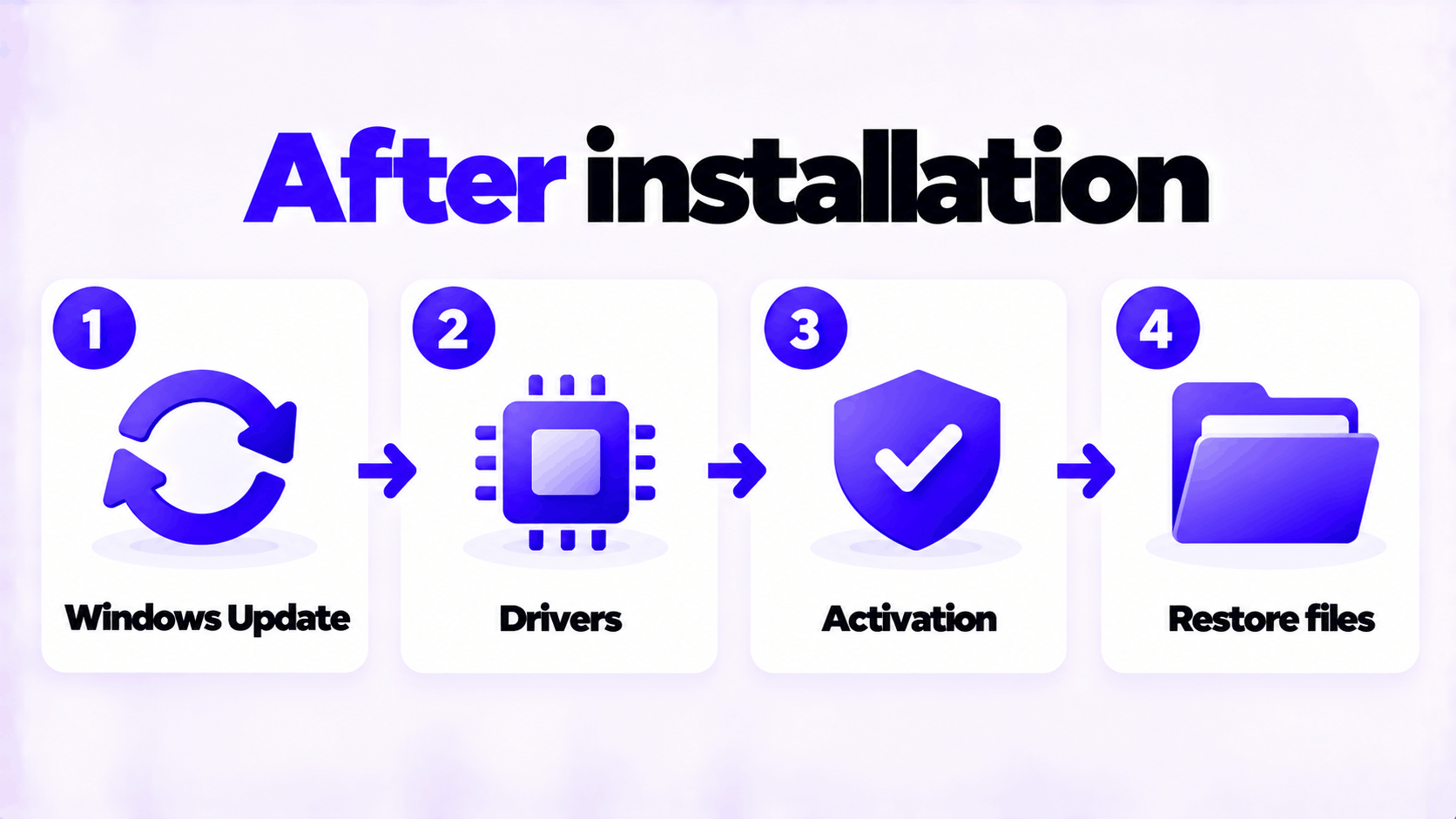
- Windows Update. Open Settings > Update & Security > Windows Update and select Check for updates. Repeat until nothing is left. This brings the PC up to the last updates released for Windows 10 and installs most drivers.
- Drivers. Open Device Manager and look for entries with a yellow warning mark. Get the graphics and chipset drivers from the PC or component manufacturer’s site.
- Activation. Open Settings > Update & Security > Activation. It should say Windows is activated. If not, select Change product key and enter your key.
- Your files and programs. Copy your backup back and reinstall what you need.
If activation fails, the error code tells you why: see what to do when a product key didn’t work.
If something goes wrong
| Problem | Likely cause | What to do |
|---|---|---|
| The PC ignores the USB drive | Fast startup skipped the boot menu, or the wrong key | Shut down fully and try again. Try the other keys. |
| “Windows cannot be installed to this disk. The selected disk is of the GPT partition style” | The USB drive was started in Legacy mode on a drive set up for UEFI | Restart and pick the boot entry that begins with UEFI |
| “The selected disk has an MBR partition table” | The reverse: started in UEFI mode on an older MBR drive | Delete all partitions on that drive in step 6. Setup converts it. |
| No drives are listed | A storage driver is missing | Download the storage driver from the PC maker, put it on a USB drive, and select Load driver |
| Setup installed Home, not Pro | A Home key is stored in the PC’s firmware | Finish setup, then enter the Pro key in Settings |
| Setup starts again after the first restart | The PC is still starting from the USB drive | Unplug the drive and restart |
| No internet after installation | The network driver is missing | Install the driver you saved beforehand |
If you need a license, this is the one we sell: Windows 10 Pro OEM key for 1 PC.
Need a Windows 10 Pro Key?
One key for one PC. If it does not activate, we replace it or refund it.
Email Delivery in 1 to 12 Hours • 90-Day Money-Back Guarantee