
By Egodget Tech Team
•
Updated: October 2026
How to Create a Windows 11 Bootable USB (2 Free Methods)
Short answer: The simplest way to make a Windows 11 bootable USB is Microsoft’s free Media Creation Tool. Download it from Microsoft’s Download Windows 11 page, run it, choose USB flash drive, and it downloads Windows 11 and writes it to the drive in one go. You need a blank USB drive of at least 8 GB, and everything on it is erased. If you already have a Windows 11 ISO file, or the tool fails, use Rufus to write the ISO to the drive instead.
Applies to: Windows 11 Home and Pro, 64-bit. You can create the drive on a PC running Windows 10 or Windows 11.
Table of Contents
What you need
- A USB flash drive of at least 8 GB. Microsoft’s wording is blunt: any content on the flash drive will be deleted. Copy anything you want to keep off it first.
- A working PC with an internet connection. The download is several gigabytes, so allow for that on a metered connection.
- Administrator rights on that PC.
- A 64-bit target PC. Windows 11 runs only on 64-bit processors. Microsoft’s tool does not create media for Arm-based PCs.
You do not need a product key to create the drive. One download contains every edition, and the key you enter during or after installation decides which one is unlocked.
Which method to use
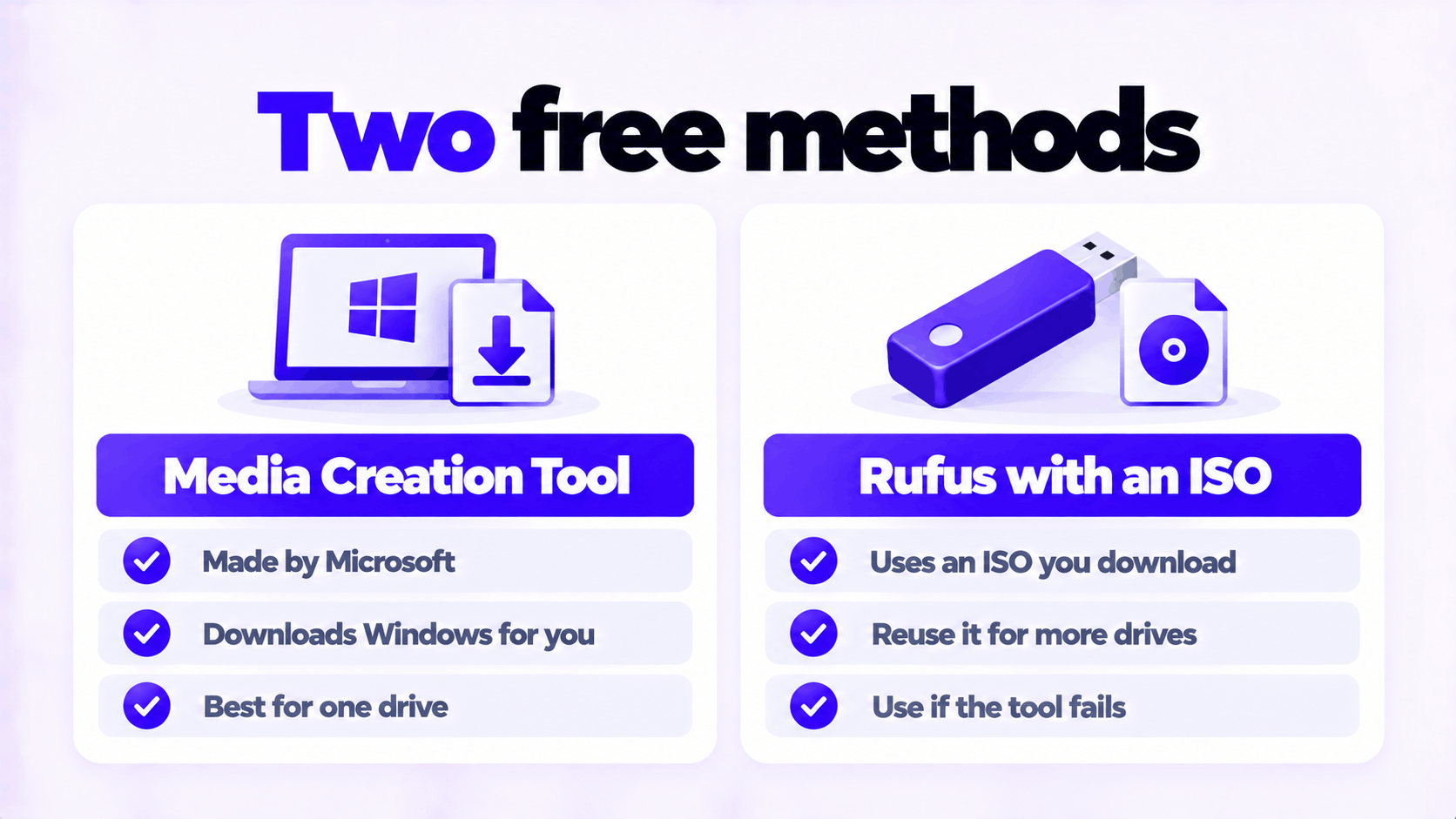
| Media Creation Tool | Rufus with an ISO | |
|---|---|---|
| Made by | Microsoft | An independent open-source project |
| Downloads Windows for you | Yes | No. You download the ISO first. |
| Choices to make | Language and drive | Partition scheme and several options |
| Reuse the download for more drives | No, it downloads again each time | Yes, keep the ISO |
| Best for | Most people, one drive | Several drives, an ISO you already have, or when the tool fails |
Method 1: Windows 11 bootable USB with the Media Creation Tool
- Open Microsoft’s Download Windows 11 page.
- Under Create Windows 11 Installation Media, select Download Now.
- Plug in the USB drive.
- Run the downloaded tool. You must be an administrator.
- Select Accept on the license terms.
- Choose the language and edition. To make a drive for a different PC, clear Use the recommended options for this PC and pick the language that PC uses. Select Next.
- Choose USB flash drive, then Next.
- Select your drive from the list. Check the drive letter and name carefully before you continue, because the tool erases whatever you pick.
- Select Next and wait. The tool downloads Windows 11, verifies it, and writes it to the drive.
- When it says the drive is ready, select Finish and eject the drive.
How long this takes depends almost entirely on your connection and the speed of the USB drive. An old USB 2.0 stick can take an hour; a USB 3.0 drive is much quicker.
Method 2: Windows 11 bootable USB from an ISO with Rufus
First, get the ISO from Microsoft.
- On the same Download Windows 11 page, go to Download Windows 11 Disk Image (ISO) for x64 devices.
- Choose Windows 11, select Download Now, pick your language, and confirm.
- Select 64-bit Download and save the file.
To confirm the download is intact, Microsoft publishes a SHA256 hash for each language on that page. Run this in PowerShell and compare the result with the published value:
Get-FileHash C:\Users\YourName\Downloads\Win11_English_x64.isoThen write it with Rufus.
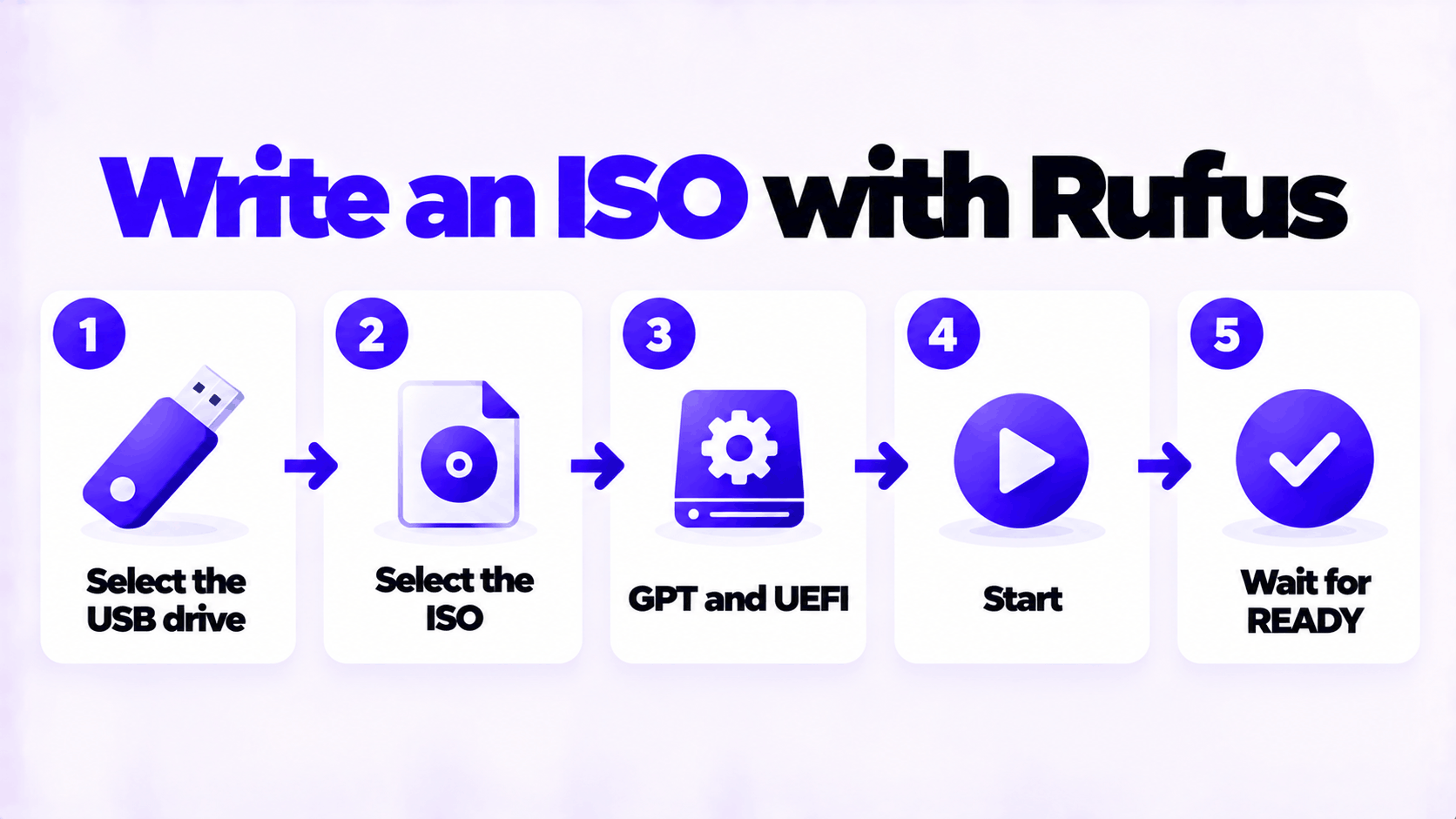
- Download Rufus from its official site, rufus.ie, and run it. It needs no installation.
- Under Device, select your USB drive.
- Next to Boot selection, choose SELECT and open the ISO file.
- Leave Partition scheme on GPT and Target system on UEFI (non CSM). Every PC that supports Windows 11 uses these.
- Select START.
- A dialog offers extra options. For a standard installation, leave them all unticked and select OK.
- Confirm the warning that the drive will be erased.
- When the status bar shows READY, select CLOSE and eject the drive.
The options in step 6 include removing the TPM 2.0 and Secure Boot requirement and removing the Microsoft account requirement. Both produce an installation Microsoft does not support in the usual way. Read installing Windows 11 without TPM 2.0 and installing Windows 11 without a Microsoft account before you tick either.
Start a PC from the USB drive
A clean installation erases the drive you install to. Back up the target PC’s files before you start.
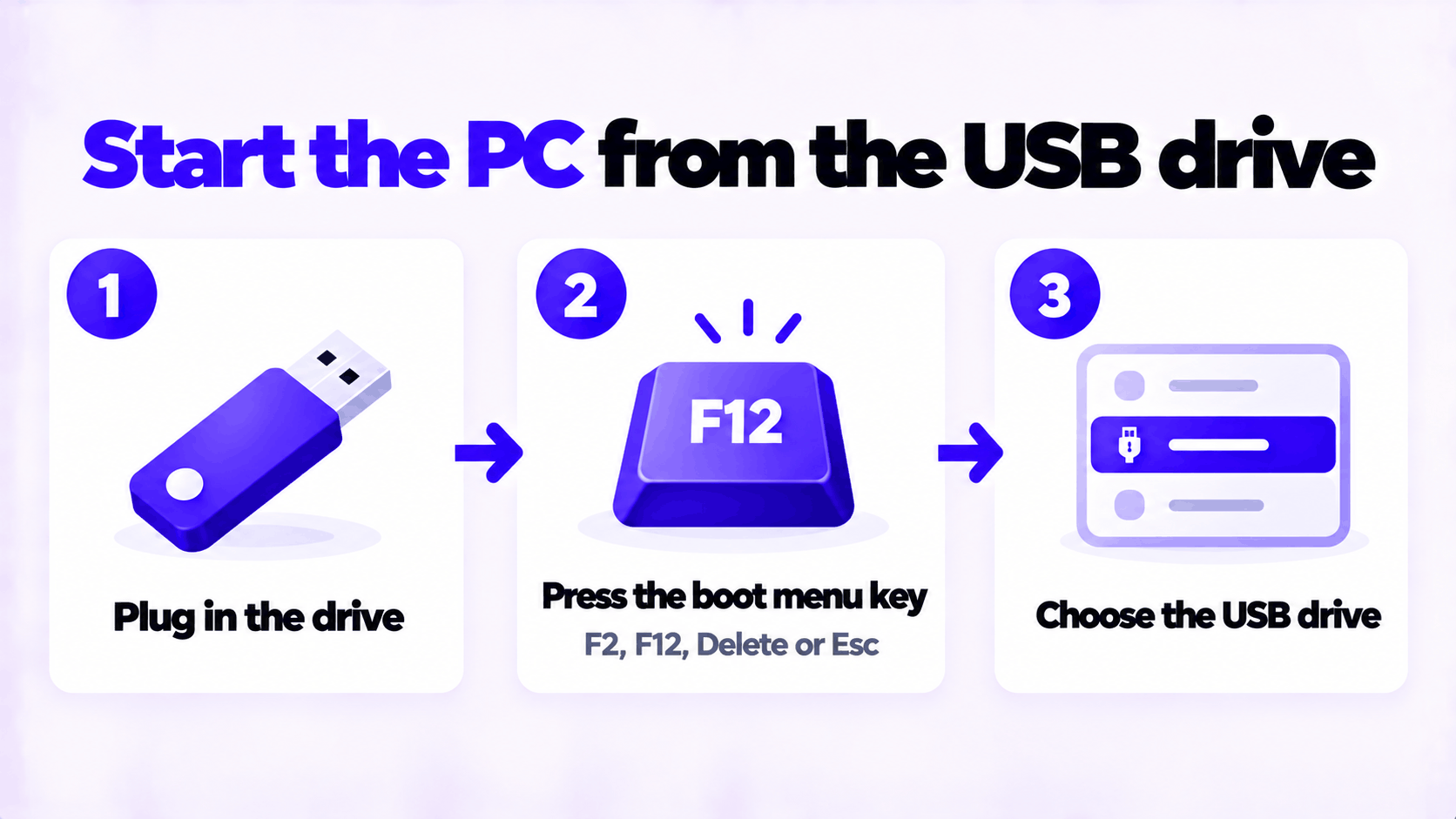
- Shut the target PC down completely and plug in the USB drive.
- Turn it on and immediately press the boot menu key. Microsoft lists F2, F12, Delete and Esc as the usual ones; the right key is often shown briefly on the first screen.
- Choose the USB drive from the menu.
- On the Install Windows page, confirm the language, time and keyboard settings and continue.
If you changed the boot order in the firmware settings instead of using the boot menu, change it back afterward, or the PC will start setup again on the next restart.
After installation, activate Windows: see how to activate Windows 11 Pro with an OEM product key. If the PC previously ran an activated copy of the same edition, select I don’t have a product key during setup and it will activate by itself once online.
If it does not work
| Problem | Likely cause | What to do |
|---|---|---|
| The PC starts the old Windows instead of the USB drive | Fast startup skipped the boot menu | Shut down fully, not restart, and try the key again. Microsoft gives the same advice. |
| The USB drive is not in the boot menu | Secure Boot or boot mode | Microsoft says you may need to disable Secure Boot temporarily. Also check the firmware is in UEFI mode, not Legacy or CSM. |
| The Media Creation Tool stops with an error | A failing USB drive, too little free space on drive C:, or security software | Try a different USB drive and port. If it fails again, use Method 2. |
| “This PC can’t run Windows 11” during setup | The target PC does not meet the requirements | Check TPM and Secure Boot in the firmware settings first |
| Setup cannot see the internal drive | A storage driver is missing | Download the storage driver from the PC maker, put it on the USB drive, and use Load driver |
| The drive shows as only a few megabytes afterward | It is still partitioned as installation media | Format it in File Explorer, or delete its partitions in Disk Management, to use it normally again |
Keep the drive once it works. Windows 11 gets a new version each year, so recreate it when a new release arrives and you will have current media ready for a repair or reinstall.
Need a Windows 11 Pro Key?
For activating after a clean installation. One key for one PC.
Email Delivery in 1 to 12 Hours • 90-Day Money-Back Guarantee