Server Architecture By Egodget Tech Team Updated: June 2026

Fix SQL Server Installation Fails on Windows Server 2025 (Ultimate Guide)

Technical troubleshooting screen demonstrating how to fix SQL Server installation fails on Windows Server 2025 with storage sector error codes

You run the installation wizard. Everything looks perfect. The progress bar crawls to 95%. Then, your screen freezes.

The installer throws a generic code. Your setup dies. You look at the logs and find error code 0x851A001A.

The message reads: "Wait on the Database Engine recovery handle failed."

If you are staring at this error on your server console right now, your brand-new enterprise hardware is actively working against your database engine. To successfully fix SQL Server installation fails on Windows Server 2025, you have to address this technical hardware conflict.

Looking for a fast 0x851A001A fix? This deep architectural issue causes deployments to fail out of the box on new setups. Let's look at why this happens and how to fix SQL Server installation fails on Windows Server 2025 immediately.

Why Your Enterprise NVMe Drive Kills SQL Server Setup

Modern U.2, U.3, and M.2 PCIe Gen 4 or Gen 5 NVMe SSDs are incredibly fast. They process data at massive speeds.

But these speeds come with a hidden change in disk geometry.

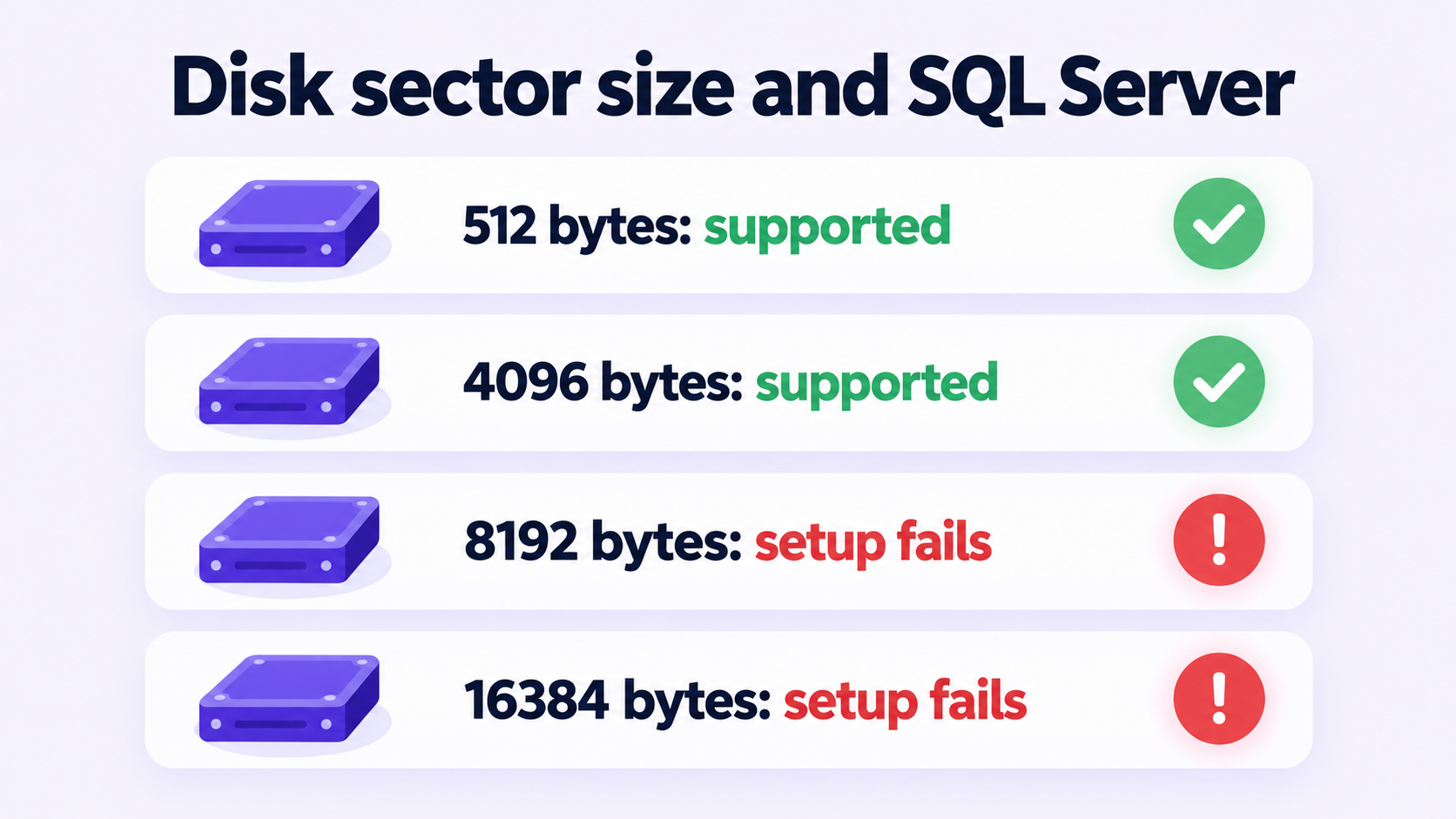
Older solid-state drives and traditional hard disks used 512-byte sectors. They relied on a format known as 512e (512-byte emulation) to present themselves to the operating system.

New high-capacity enterprise NVMe drives drop emulation entirely. They use raw 4KB native physical sectors (4Kn format).

+--------------------------------------------------------+
| Legacy Disk Geometry (512e Emulation)                  |
| [ 512B ] [ 512B ] [ 512B ] [ 512B ] ...                |
+--------------------------------------------------------+
| Modern Enterprise NVMe Geometry (4Kn Native)           |
| [                     4096 Bytes                     ] |
+--------------------------------------------------------+

The new Windows Server 2025 4Kn sector size standard updates its storage subsystem to read these physical structures directly. It passes the raw geometry values to any application requesting disk metrics.

Here's the deal. If you try to install SQL Server 2019 on Windows Server 2025 (or the 2022 edition), the core database engine uses an internal file allocation layer built around old disk structure assumptions, as detailed in Microsoft's official hardware documentation.

When SQL Server creates the master, model, and tempdb databases during the final stages of installation, it attempts to initialize the transaction log (.ldf) files.

The transaction log manager issues sector-aligned write commands. It expects a maximum physical sector size bound of 4096 bytes.

If your enterprise NVMe controller reports an unaligned block size allocation capability or a physical sector layout that exceeds standard limits during the internal check, SQL Server fails instantly. The database engine cannot start. The installer deactivates itself and rolls back.

This is a massive issue when setting up high-performance database hosts on bare-metal hardware. If you are dealing with this specific SQL Server NVMe error inside secure environments where internet access is restricted, this can stop your project. Understanding this is the first step to fix SQL Server installation fails on Windows Server 2025.

The system cannot reach the cloud to check for updates. This problem mirrors the challenges system administrators face when setting up environments where Microsoft killed phone activation Dec 2025. This change makes manual installation stability a big deal for offline enterprise architectures, which is exactly why knowing how to fix SQL Server installation fails on Windows Server 2025 is mandatory.

Run These 2 Quick Diagnostic Commands on Your Host

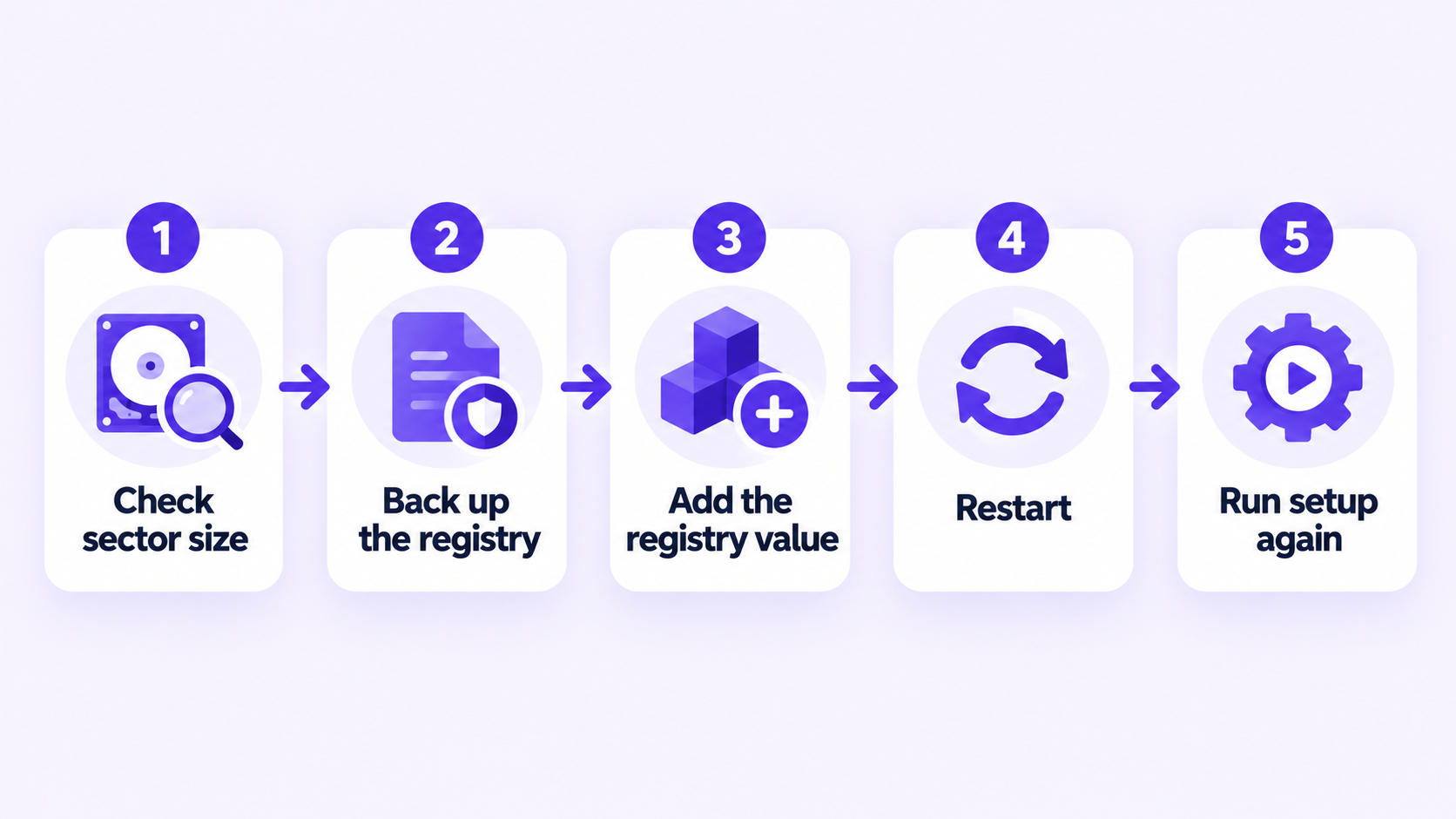
Before modifying your system registry or changing disk formatting parameters to fix SQL Server installation fails on Windows Server 2025, verify the exact geometry metrics your storage controller exposes to the operating system. Open an elevated administrative command prompt. Run the utility tests below.

1. Check NTFS Block Properties

Type this command into your terminal:

fsutil fsinfo ntfsinfo C:

Replace C: with the designated drive letter where you plan to install your database engine binary files or place your database directory assets. Look for these specific lines in the terminal output display:

  • Bytes Per Sector: This displays the logical sector presentation.
  • Bytes Per Physical Sector: This displays the true physical drive block construction.
  • Bytes Per Cluster: This displays your file system allocation unit size.

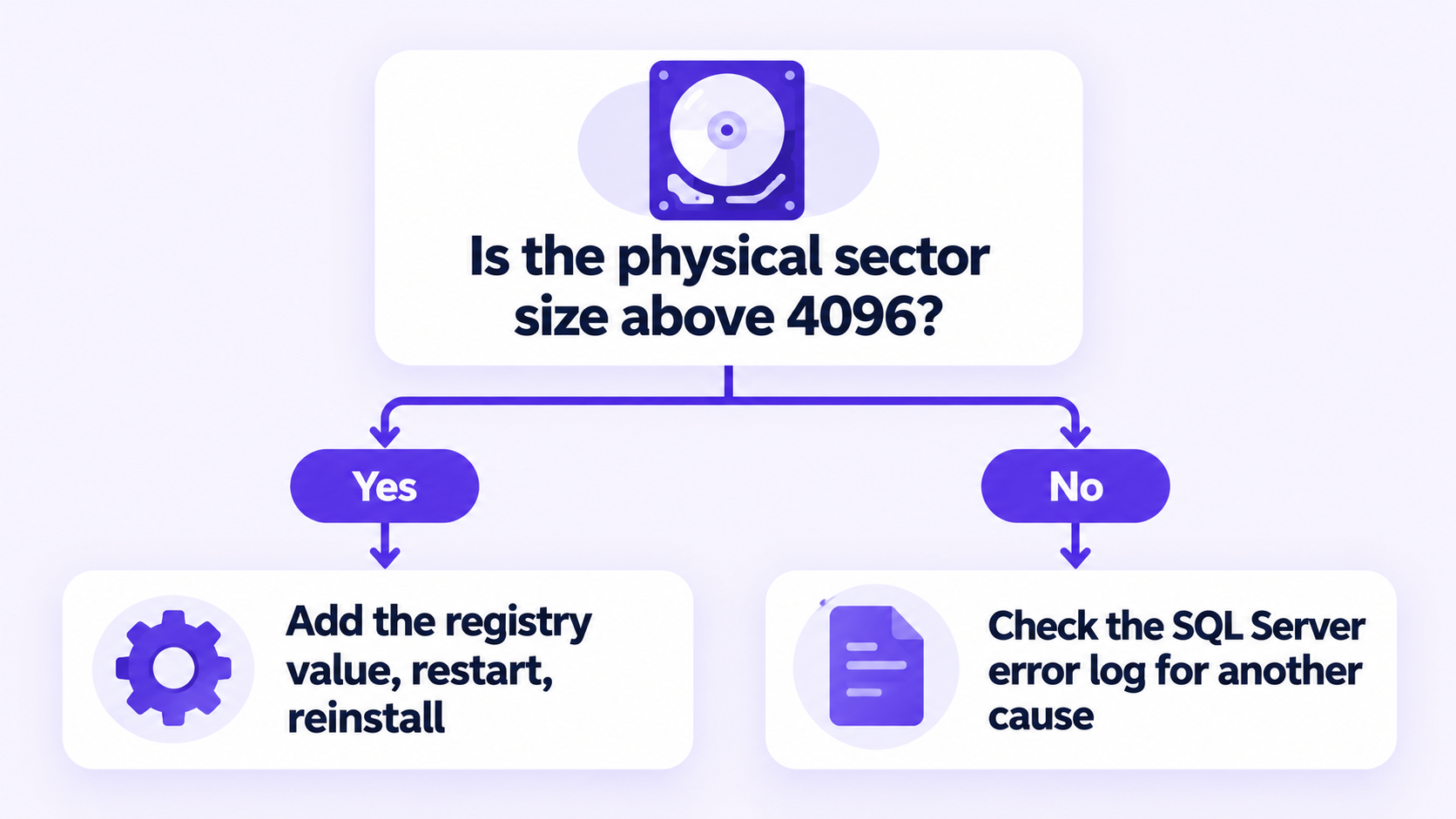
If your physical sector size reads as 4096 but your controller driver is exposing a completely mismatched value or an unaligned block length to the operating system abstraction layer, SQL Server will crash during initialization. Confirming these metrics is the first move to fix SQL Server installation fails on Windows Server 2025.

2. Verify Advanced Sector Geometry Reports

Run this query to isolate storage device properties:

fsutil fsinfo sectorinfo C:

Examine the output payload parameters. You need to focus on two properties:

LogicalBytesPerSector:         4096
PhysicalBytesPerSector:        4096
UncheckedEndorsementPattern:   0
Alignment:                     Aligned (0x000)
Performance:                   Excellent

If the alignment parameter reports any state other than "Aligned," or if the system returns an error reading the device geometry, your NVMe controller driver is passing non-compliant sector properties up the stack.

This causes the SQL Server initialization thread to crash out. You must override this storage behavior if you want to fix SQL Server installation fails on Windows Server 2025.

Fix SQL Server Installation Fails on Windows Server 2025

You can solve this block size conflict without swapping out your enterprise solid-state storage array or returning your high-performance hardware components. Use these three technical validation methods to stabilize your system and finally fix SQL Server installation fails on Windows Server 2025.

Method 1: Inject the Registry Sector Simulation Override

The most reliable, permanent fix is to force the Windows kernel storage driver layer to intercept all physical sector size queries on your NVMe drives. This forces the system to report a strict 4096-byte boundary to applications like SQL Server.

This override stops the database engine thread from panicking when it queries the storage hardware directly. Using this registry hack is the most common way to fix SQL Server installation fails on Windows Server 2025 in enterprise deployments.

Hit your Windows key on your keyboard. Type cmd. Right-click the application icon and select Run as administrator. Copy and paste this command block into the terminal window:

REG ADD "HKLM\SYSTEM\CurrentControlSet\Services\stornvme\Parameters\Device" /v "ForcedPhysicalSectorSizeInBytes" /t REG_MULTI_SZ /d "* 4096" /f

Let's break down exactly what this command string modifies inside your operating system configuration layer:

  • stornvme\Parameters\Device: This targets the global configuration repository for the native Microsoft NVMe miniport storage driver.
  • ForcedPhysicalSectorSizeInBytes registry: Creating this exact key tells the storage controller to override hardware reporting parameters.
  • * 4096: The asterisk character acts as a universal wildcard match for all connected NVMe physical drives. The integer value forces a flat 4096-byte reporting structure.

You must restart your physical host or server instance for this core system policy change to take effect across your hardware deployment.

Disk drive storage block geometry chart showing how to fix SQL Server installation fails on Windows Server 2025 by overriding physical sector reports

Once the system boots up again, open an administrative terminal. Verify the manual injection took effect by executing this query string:

REG QUERY "HKLM\SYSTEM\CurrentControlSet\Services\stornvme\Parameters\Device" /v "ForcedPhysicalSectorSizeInBytes"

If the console returns the exact value string matching * 4096, the registry fix is active.

You can now restart the Microsoft SQL Server setup program. The installation will proceed past the database engine recovery point without throwing any errors. You just managed to fix SQL Server installation fails on Windows Server 2025.

Keep in mind, this method avoids the configuration errors common when working with system level registries. If you break your OS activation registry tables during automated scripting setups, you risk locking yourself out of core administrative features.

If that happens, you might need to use an external guide like the one explaining how to fix windows 11 activation error 0xc004c003 to repair validation table errors on your administrative workstations.

Method 2: Provision a VHDX Storage Virtualization Layer

If corporate security guidelines or compliance baselines stop you from modifying the host registry parameters directly, you can bypass this issue by isolating the SQL Server storage paths.

You can create a virtual disk image file (VHDX) hosted on the raw NVMe drive. This virtual disk acts as a wrapper that completely changes how disk layout info is reported, giving you an alternative way to fix SQL Server installation fails on Windows Server 2025.

Open an elevated PowerShell console on your server desktop host. Execute this script block to build out a dedicated storage file system:

New-VHD -Path "D:\SQLStorage\SQLData.vhdx" -SizeBytes 250GB -Dynamic -BlockSizeBytes 128MB | Mount-VHD
Initialize-Disk -Number (Get-VHD -Path "D:\SQLStorage\SQLData.vhdx").DiskNumber -PartitionStyle GPT
New-Partition -DiskNumber (Get-VHD -Path "D:\SQLStorage\SQLData.vhdx").DiskNumber -UseMaximumSize -AssignDriveLetter | Format-Volume -FileSystem NTFS -AllocationUnitSize 65536 -Confirm:$false

Let's look at why this storage provisioning technique fixes the database engine initialization error:

  • New-VHD Object Layer: This creates a virtual machine disk image container on your file system. This container abstracts physical sector values away from the underlying storage controller.
  • BlockSizeBytes 128MB: This optimizes internal virtualization file movement routines across your server bus.
  • AllocationUnitSize 65536: This formats your logical partition to use a clean 64KB cluster size. This is exactly what you need to maximize SQL Server read and write performance.

When you run the SQL Server installation wizard, navigate to the Database Engine Configuration section. Click on the Data Directories tab interface component.

Change all default system file destination locations (Data root directory, User database directory, User database log directory, and TempDB directories) to point to your new virtual drive letter.

Data Root Directory:       E:\SQLData
User Database Directory:   E:\SQLData\Data
User Database Log Dir:     E:\SQLData\Logs
TempDB Directory:          E:\SQLData\Temp

The installation engine reads the disk layer as a standard virtual interface. It will complete without crashing the database setup thread, allowing you to seamlessly fix SQL Server installation fails on Windows Server 2025.

Method 3: Use Command-Line Configuration Flags to Relocate TempDB

If your server setup fails when creating the TempDB file array during initial launch routines, you can use command-line setup switches to bypass the automatic creation step on your primary boot partition.

Mount your official Microsoft SQL Server software installation ISO image directly to your server architecture platform.

Open an administrative terminal prompt. Change your working directory to the target drive letter corresponding to your mounted media framework.

Type this installation command block directly into your server console window:

Setup.exe /q /ACTION=Install /FEATURES=SQLEngine /INSTANCENAME=MSSQLSERVER /SQLSVCACCOUNT="NT SERVICE\MSSQLSERVER" /SQLSYSADMINACCOUNTS="Administrator" /AGTSVCACCOUNT="NT SERVICE\SQLSERVERAGENT" /INSTALLSHAREDDIR="C:\Program Files\Microsoft SQL Server" /INSTALLSHAREDWOWDIR="C:\Program Files (x86)\Microsoft SQL Server" /SQLUSERDBDIR="E:\SQLData" /SQLUSERDBLOGDIR="E:\SQLLogs" /TEMPDBDIR="E:\SQLTemp" /IACCEPTSQLSERVERLICENSETERMS

This installation process forces the deployment framework to send database application execution resources straight to your secondary storage arrays (E:\SQLData, E:\SQLLogs, E:\SQLTemp).

This keeps your installation clean, prevents write exceptions, and stops system-level deactivations on your host server. It is a highly effective workaround to fix SQL Server installation fails on Windows Server 2025.

Performance Optimizations After SQL Server Setup

Once your database installation finishes successfully and you fix SQL Server installation fails on Windows Server 2025, you must adjust your post-setup parameters. This ensures you get maximum speeds out of your high-performance storage array without risking data corruption.

1. Enable Trace Flag 1800 for Multi-Sector Management

According to the official SQL Server Trace Flag reference, Trace Flag 1800 tells the SQL Server query optimization engine to optimize memory allocations based on the physical sector properties of your underlying disk array.

Open SQL Server Management Studio (SSMS). Connect directly to your local master database instance. Open a new query window execution canvas.

Run this Transact-SQL script file block to configure your server instance settings:

DBCC TRACEON (1800, -1);
GO
EXEC xp_instance_regwrite 
    N'HKEY_LOCAL_MACHINE', 
    N'SOFTWARE\Microsoft\MSSQLServer\MSSQLServer', 
    N'Parameters', 
    N'SQLArg3', 
    REG_SZ, 
    N'-T1800';
GO

The -1 parameter value forces the trace flag setting onto all database connections globally. The second code block ensures the flag stays active whenever the operating system restarts your database engine background processes.

2. Match NTFS Cluster Layout to Drive Allocations

If you didn't configure your database partitions to use 64KB formatting beforehand, your storage hardware will waste processing overhead on continuous split-page IO operations.

You can check if your current partitions match this performance baseline by running this database shell command query:

wmic volume get DriveLetter, BlockSize

If the execution output value list prints anything less than 65536 for your production databases, you are losing processing speed.

You will need to back up your user database instances, re-format your long-term storage partitions using a clean 64KB setup profile, and restore your system data files to the updated volumes.

Comparing Windows Server 2025 Storage Protocols

This technical breakdown compares different file system options and block properties for SQL Server host architectures:

System Parameter Option 4Kn Native NVMe Drives 512e Emulated Storage VHDX Disk Arrays
Physical Block Density 4096 Bytes Flat 4096 Bytes Local Simulated Layer
Logical Read Density 4096 Bytes Output 512 Bytes Fixed 512 / 4096 Hybrid
SQL Engine Error Risk High Out of Box Low Out of Box Zero Exception Risk
IO Overhead Profile Absolute Minimum High Split Penalty Low Processing Cost
Setup Strategy Required Registry Modification Standard Processing Workspace Partition

Stop Fighting Installation Blocks Forever

Subscription pricing models lock your business into ongoing payment loops. They force your critical server architecture to rely on external cloud validation checks.

If your host machine drops offline, your database access window can lock down completely. But now that you know how to fix SQL Server installation fails on Windows Server 2025, putting perpetual licensing to work lets you reclaim total control over your deployment cycle.

Bottom line, run your infrastructure on your own terms. Get a 100% genuine, lifetime license key from Egodget.

No hidden fees. No expiration tickers. Just stable database servers that work exactly when you need them to.

Fix SQL Server Installation Fails on Windows Server 2025

Fix SQL Server Installation Errors Right Now.

Now that you can reliably fix SQL Server installation fails on Windows Server 2025, stop dealing with crashed deployments and cloud activation checks. Grab your lifetime licenses and get your servers back online permanently.

Microsoft SQL Server 2019 Standard + 1 CAL

Lifetime Database Activation

$59.99

Get Your SQL Server Key

Microsoft Windows Server 2025 Datacenter

1 PC Lifetime Activation

$29.99

Get Windows Server 2025
Microsoft Partner • Instant Delivery • 90-Day Guarantee
Chat with us 1