
By Egodget Tech Team
•
Updated: October 2026
Windows 10 Pro for Workstations vs Pro: Is It Worth It?
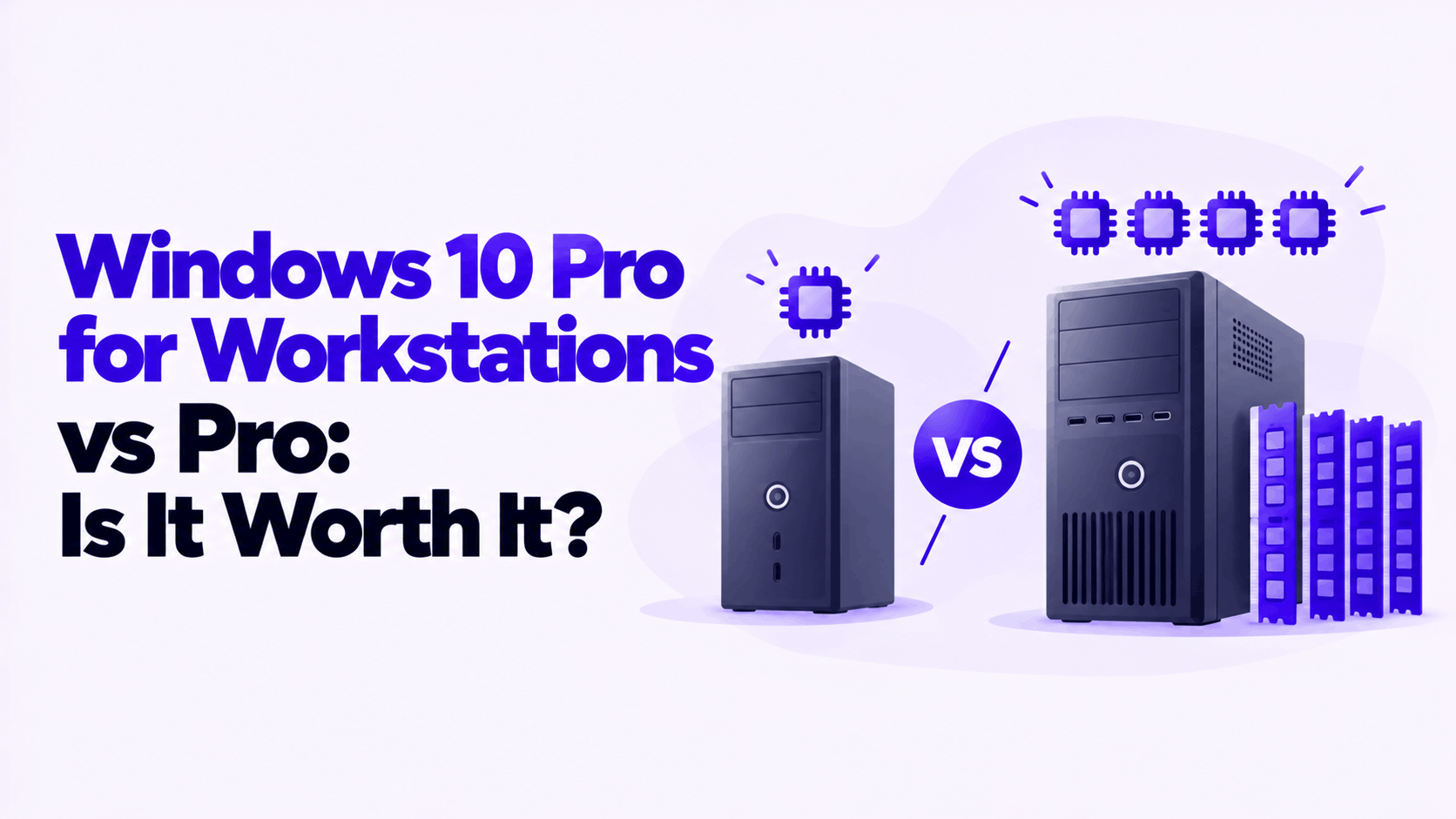
Short answer: In a Windows 10 Pro for Workstations vs Pro comparison, the Workstations edition adds four things: support for 4 processors instead of 2, 6 TB of memory instead of 2 TB, the ability to create ReFS storage volumes, and support for persistent memory and SMB Direct networking. Everything else is the same. On a PC with one processor and ordinary memory, there is no speed difference, and standard Pro is the right choice.
Applies to: Windows 10 Pro and Windows 10 Pro for Workstations. Windows 11 has the same two editions with the same memory limits. Windows 10 reached end of support on October 14, 2025.
Table of Contents
Windows 10 Pro for Workstations vs Pro at a glance
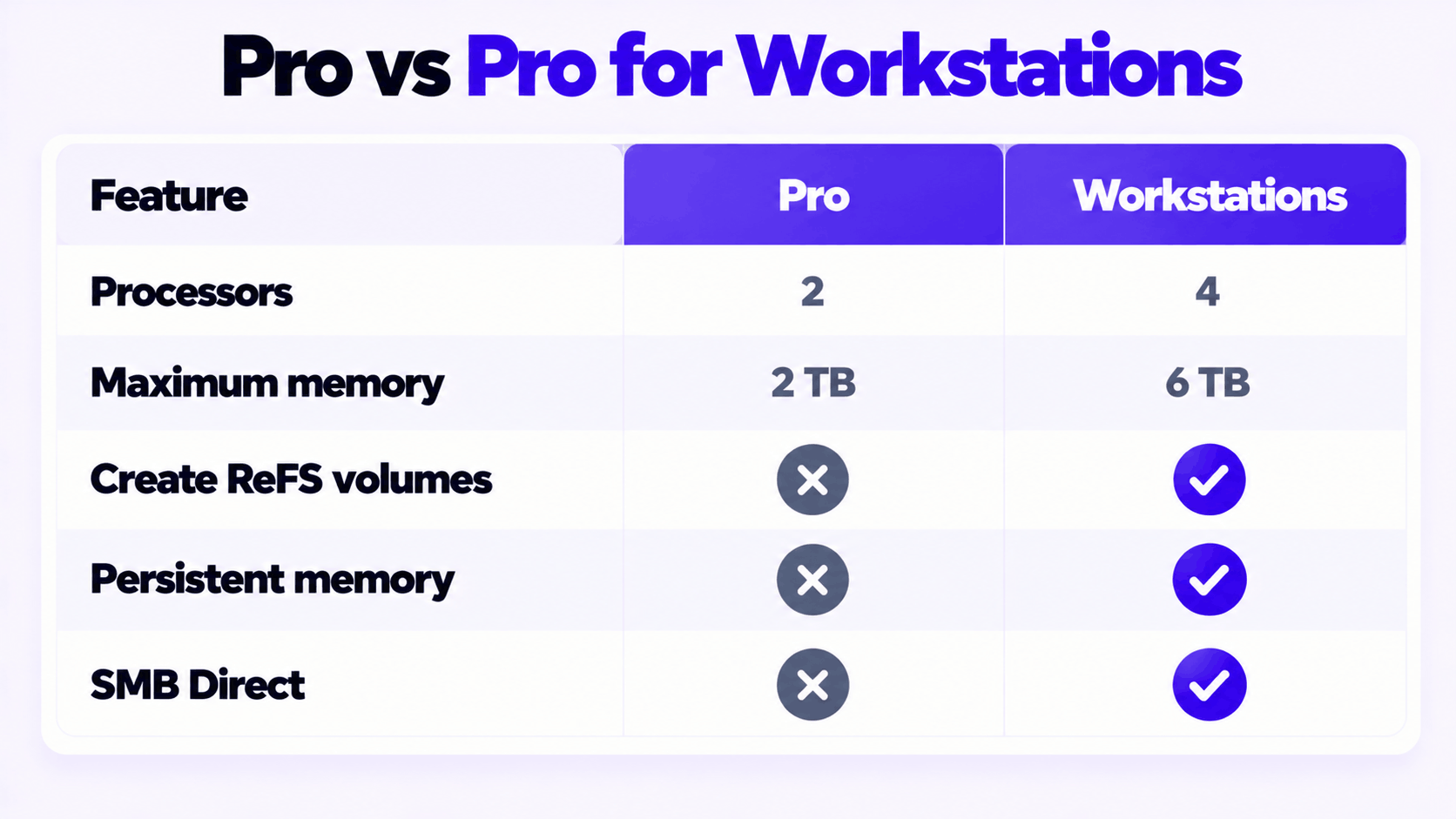
| Feature | Windows 10 Pro | Windows 10 Pro for Workstations |
|---|---|---|
| Physical processors (sockets) | 2 | 4 |
| Maximum memory | 2 TB | 6 TB |
| ReFS | Can use existing ReFS volumes, cannot create new ones | Can create and use ReFS volumes |
| Persistent memory (NVDIMM-N) | No | Yes |
| SMB Direct (RDMA networking) | No | Yes |
| BitLocker, Hyper-V, Remote Desktop, Group Policy | Yes | Yes |
| Minimum hardware requirements | The same for both | |
| Speed in games and everyday apps | The same for both | |
Each row in the top half only matters if you own the hardware it refers to. That is the whole decision, and the sections below explain what each one needs.
Processor and memory limits
When Microsoft introduced the edition, it described the change as support for up to 4 CPUs, previously limited to 2, and up to 6 TB of memory, previously limited to 2 TB. Its memory limits table confirms the second figure: 2 TB for Windows 10 Pro, 6 TB for Pro for Workstations.
Two points keep these numbers in proportion:
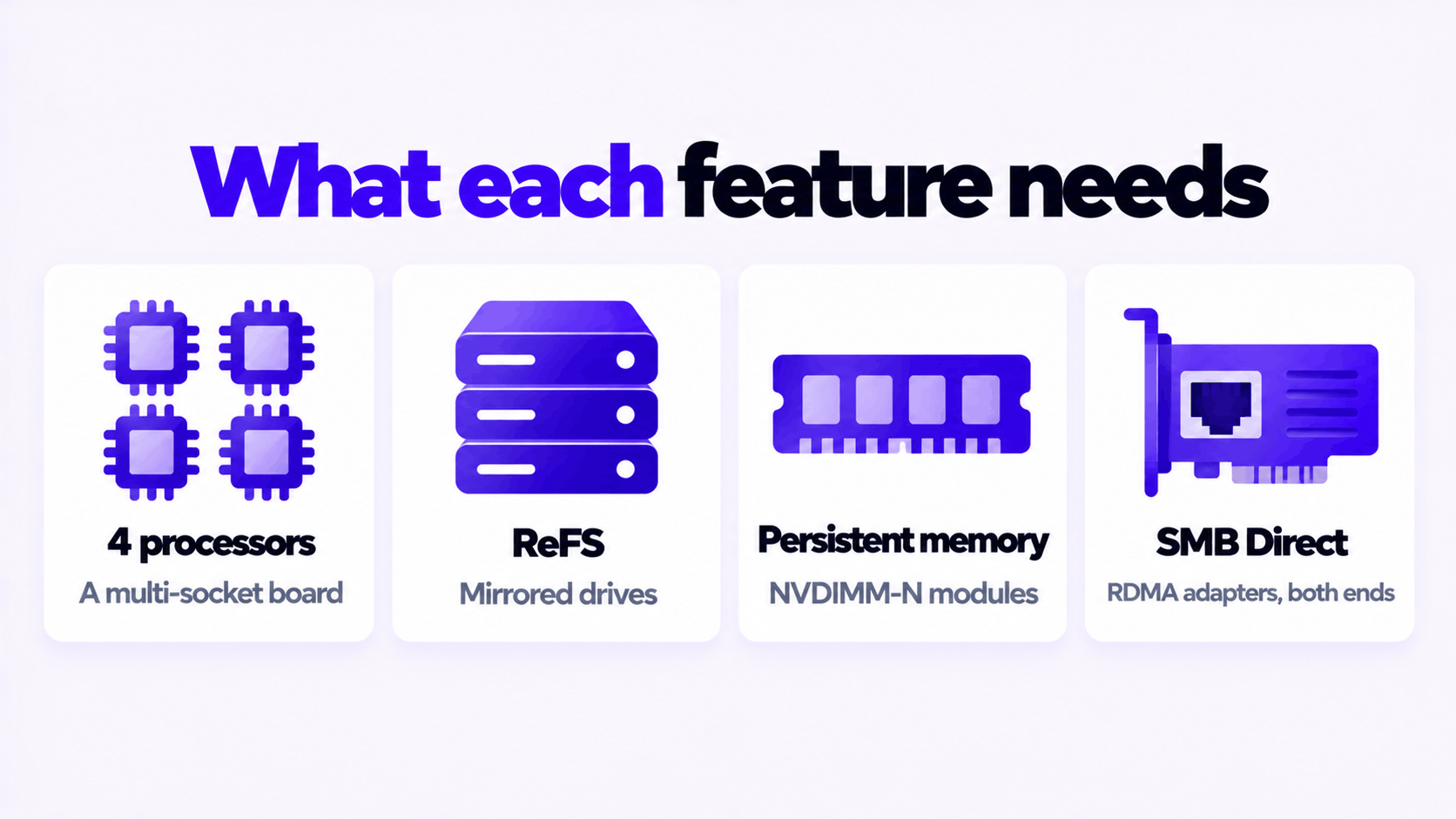
- “CPUs” means sockets, not cores. A single 64-core processor is one CPU. Standard Pro runs every core of one or two processors. You only need the Workstations edition for a motherboard with three or four physical processors.
- 2 TB is 2,048 GB. A typical high-end desktop has 64 GB to 256 GB. Only server-class boards can hold more than 2 TB.
Microsoft notes that these configurations need server-grade processors such as Intel Xeon. If your PC has one consumer processor, including a Ryzen 9 or a Core i9, standard Pro already uses all of it.
ReFS storage
ReFS, the Resilient File System, is built to protect data on large storage arrays. Microsoft describes the Workstations edition as combining ReFS with Storage Spaces: data is kept on multiple mirrored drives, and when ReFS detects that one copy has become corrupt, it repairs it from another.
What that means in practice:
- The self-repair needs redundancy. On a single drive, ReFS can detect corruption but has no second copy to repair from. The benefit comes with mirrored or parity Storage Spaces.
- ReFS is for data drives. The Windows 10 system drive stays on NTFS in both editions.
- Standard Pro is not locked out. It can read and write ReFS volumes that already exist. What it cannot do is create a new one.
If you are not building a multi-drive storage pool for large project files, this feature does nothing for you.
Persistent memory
Persistent memory modules (NVDIMM-N) sit in memory slots and work at memory speed, but keep their contents when the power goes off. Microsoft says the Workstations edition supports them for the fastest data storage a workstation can have, with files still there after a power loss.
The hardware requirements are specific: NVDIMM-N modules, a chipset that supports them, and compatible firmware. These are found in servers and a small number of high-end workstations. No ordinary desktop or laptop has them.
SMB Direct
SMB Direct speeds up file transfers over a network by using network adapters with Remote Direct Memory Access (RDMA). Microsoft lists the benefits as higher throughput, very low latency and lower processor use during transfers.
It needs RDMA-capable adapters at both ends: in the workstation and in the server or storage device it talks to. A standard 1 GbE or 2.5 GbE port on a desktop motherboard is not RDMA-capable, and neither is a typical home NAS. This is a feature for studios and labs with 10 GbE or faster storage networks.
Check what your PC has
Processors and memory: press Ctrl + Shift + Esc to open Task Manager, select Performance, then CPU. The Sockets line shows the number of physical processors. Select Memory to see the installed amount.
Or run this in PowerShell:
Get-ComputerInfo | Select-Object WindowsProductName, CsNumberOfProcessors, CsTotalPhysicalMemoryWhich editions this installation can upgrade to: open Command Prompt as administrator and run:
DISM /Online /Get-TargetEditionsIf ProfessionalWorkstation is in the list, this copy of Windows can be upgraded in place with a product key.
Who needs the Workstations edition?
| Your setup | Edition |
|---|---|
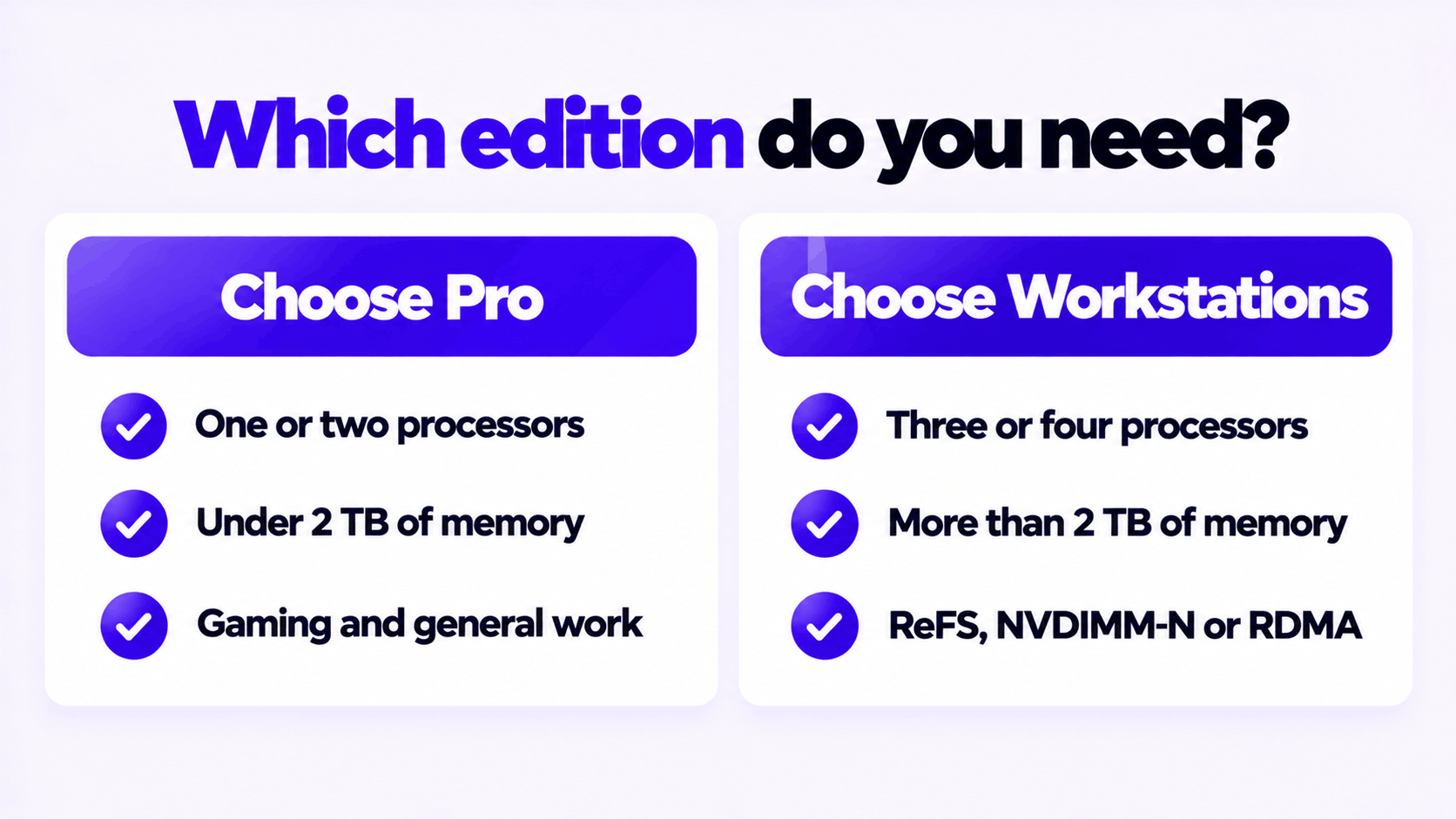
| One processor, up to 256 GB of memory, gaming or general work | Pro |
| One high-core-count processor for rendering, compiling or video editing | Pro |
| Two processors, under 2 TB of memory | Pro, unless you need one of the three features below |
| Three or four processors, or more than 2 TB of memory | Pro for Workstations |
| A mirrored Storage Spaces pool you want formatted as ReFS | Pro for Workstations |
| NVDIMM-N persistent memory installed | Pro for Workstations |
| RDMA network adapters and an RDMA-capable file server | Pro for Workstations |
If none of the last four rows describes your PC, the Workstations edition gives you nothing that Pro does not, and it will not make the PC faster.
One more consideration: Windows 10 is out of support and no longer receives security updates in either edition. A workstation with hardware of this class almost certainly meets the Windows 11 requirements, where the same edition exists with the same limits. For a new build, choose Windows 11.
How to upgrade from Pro
Moving from Pro to Pro for Workstations is an in-place edition upgrade. Your files and apps stay where they are, and Microsoft’s edition upgrade table lists it as supported with no restart required.
- Select Start > Settings > Update & Security > Activation.
- Select Change product key.
- Enter the 25-character Windows 10 Pro for Workstations key.
- Select Next and follow the on-screen instructions.
- Confirm the result under Settings > System > About: Edition should read Windows 10 Pro for Workstations.
From Windows 10 Home, the same method works but does require a restart. One thing to know afterward: Microsoft does not offer offline activation by Installation ID for the Workstations edition, so the PC has to be online to activate.
The keys we sell for each: Windows 10 Pro for Workstations and Windows 10 Pro. If a key is refused, see what to do when a product key didn’t work.
Need a Pro for Workstations Key?
For multi-processor and high-memory workstations. One key for one PC.
Email Delivery in 1 to 12 Hours • 90-Day Money-Back Guarantee