
By Egodget Tech Team
•
Updated: October 2026
Windows 10 OEM vs Retail License: What's the Difference?
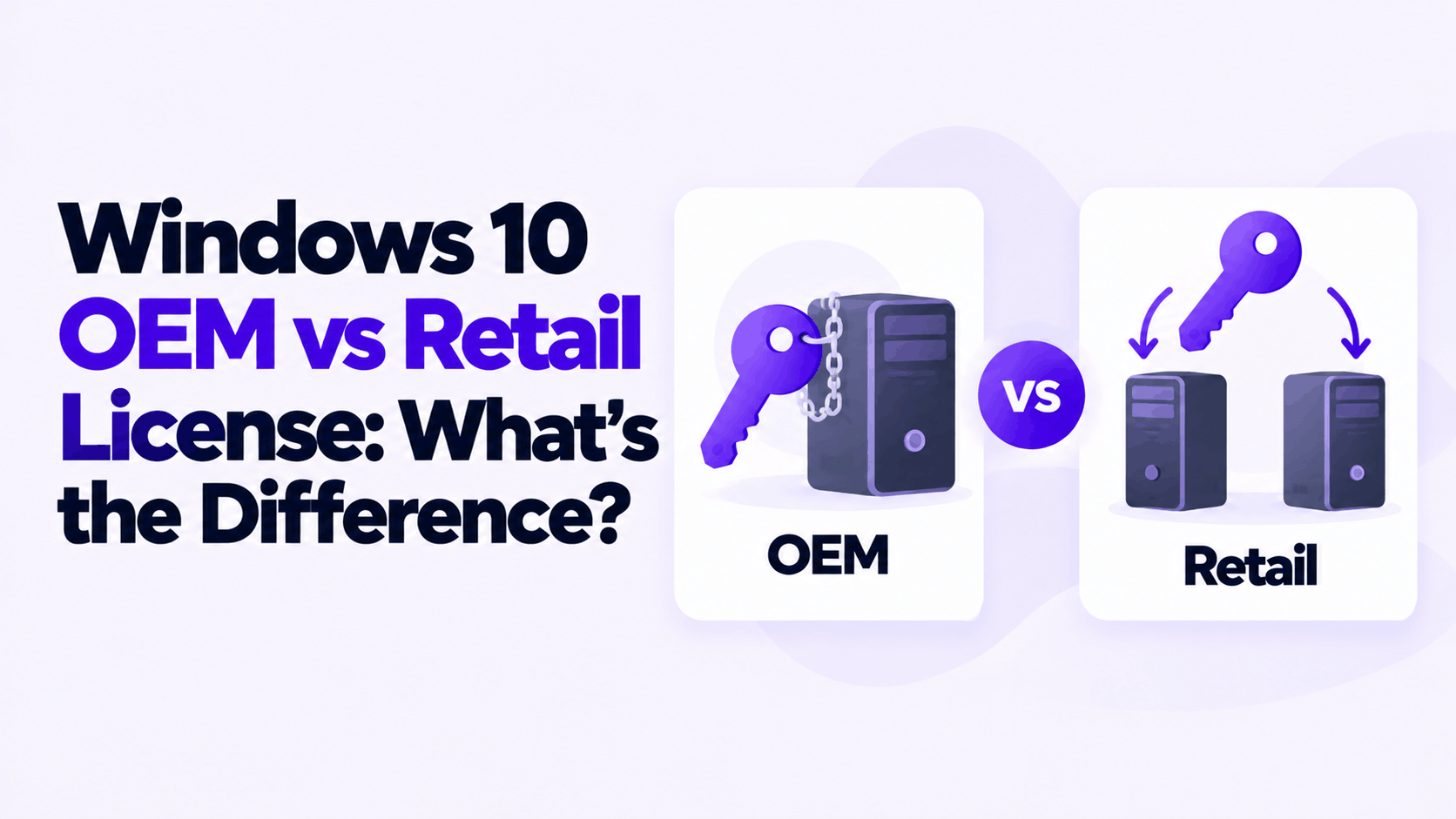
Short answer: A Windows 10 OEM vs retail license comparison comes down to three things. An OEM license stays with the first PC it is activated on, costs much less, and is supported by whoever sold or built the PC. A retail license can be moved to another PC you own, costs several times more, and is supported by Microsoft. The Windows that gets installed is identical: same features, same updates, same performance.
Applies to: Windows 10 Home and Pro. The same license rules apply to Windows 11. Windows 10 reached end of support on October 14, 2025, which affects which one is worth buying; see the last section.
Table of Contents
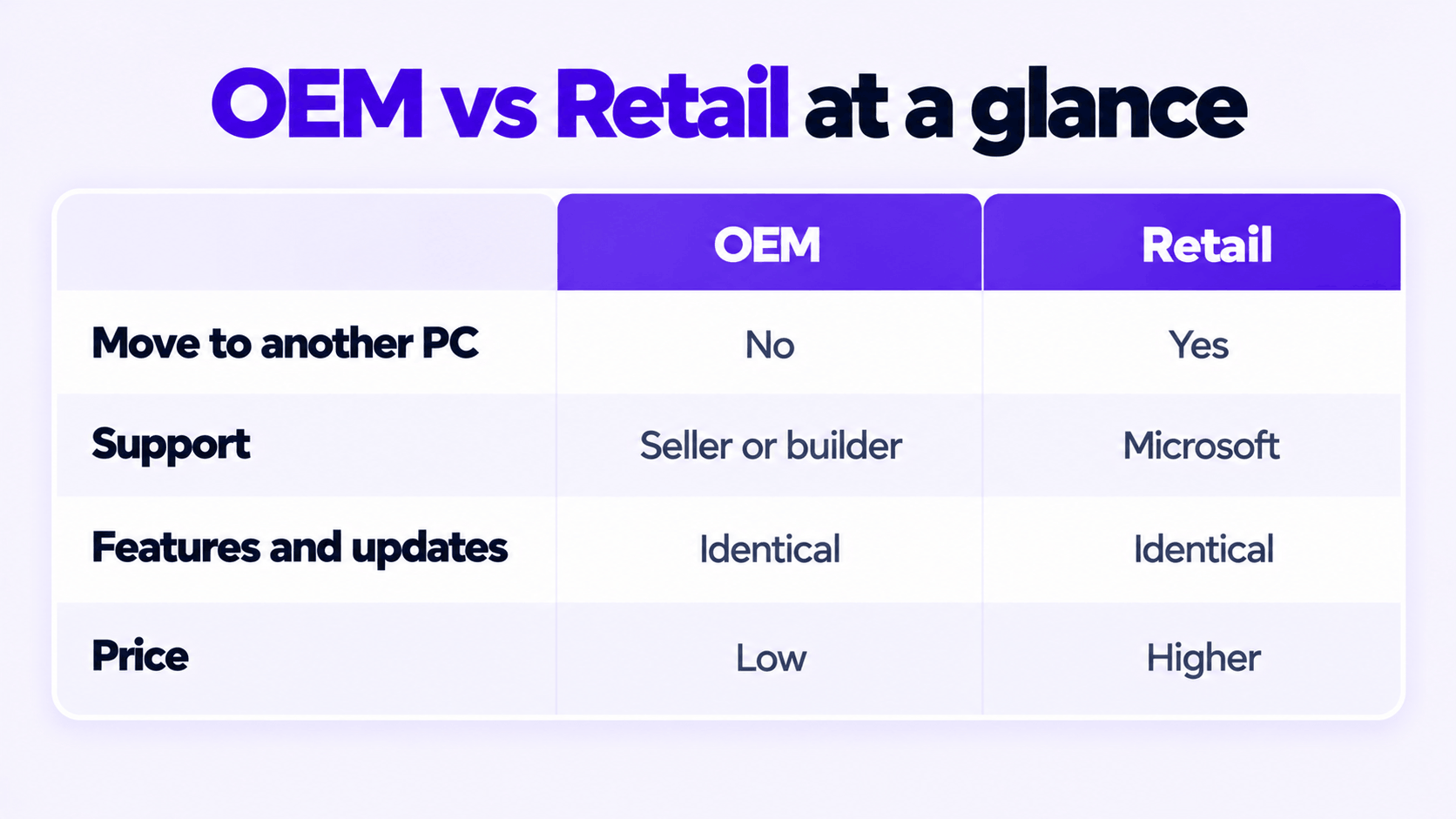
Windows 10 OEM vs retail license at a glance
| OEM | Retail | |
|---|---|---|
| Who it is made for | PC manufacturers and system builders, to install on a PC they sell or build | Individuals, bought on its own from Microsoft or a retailer |
| Move it to another PC | No. It stays with the first PC. | Yes, to another PC you own, after removing it from the old one |
| Number of PCs | One | One at a time |
| Support | The manufacturer, installer or seller | Microsoft |
| Features and updates | Identical | Identical |
| Reinstall on the same PC | Yes, as often as needed | Yes, as often as needed |
| Price | Low | Several times higher |
There is no “OEM edition” of Windows. An OEM key and a retail key for Windows 10 Pro install the same Windows 10 Pro from the same installation media. The difference is entirely in what the license lets you do afterward.
What Microsoft’s license terms say
Most of what is written online about OEM and retail is repeated from forums. The source is the Microsoft Software License Terms for Windows 10, which you accept during setup. Three sections decide the matter.
Who your agreement is with. If Windows came with a device, the agreement is between you and the device manufacturer or software installer. If you bought Windows from a retailer, it is between you and Microsoft.
Transfer. The terms split Windows into two cases:
- Software preinstalled on a device: you may transfer the license to another person only together with the licensed device. In other words, the license goes where the PC goes.
- Stand-alone software: you may transfer it to another device that belongs to you, and each time you do, you must remove it from the previous device. It cannot be used to share one license between devices.
Support. For preinstalled software, the terms tell you to contact the device manufacturer or installer. For retail software, Microsoft provides limited support services.
Both kinds allow one installed copy on one device. Neither allows the same key on two PCs at once.
A regional note: the transfer section says it does not apply to software acquired in Germany and a list of other countries Microsoft publishes, where transfers follow local law instead. If you are in the EU, the rules on moving a license may be more permissive than the summary above.
Where a key bought on its own fits: an OEM key sold separately by a reseller is still an OEM-channel key. In practice it behaves like the preinstalled case: once activated, it is tied to that PC’s hardware and should be treated as non-transferable. That is how we describe the OEM keys we sell.
What happens when you change hardware
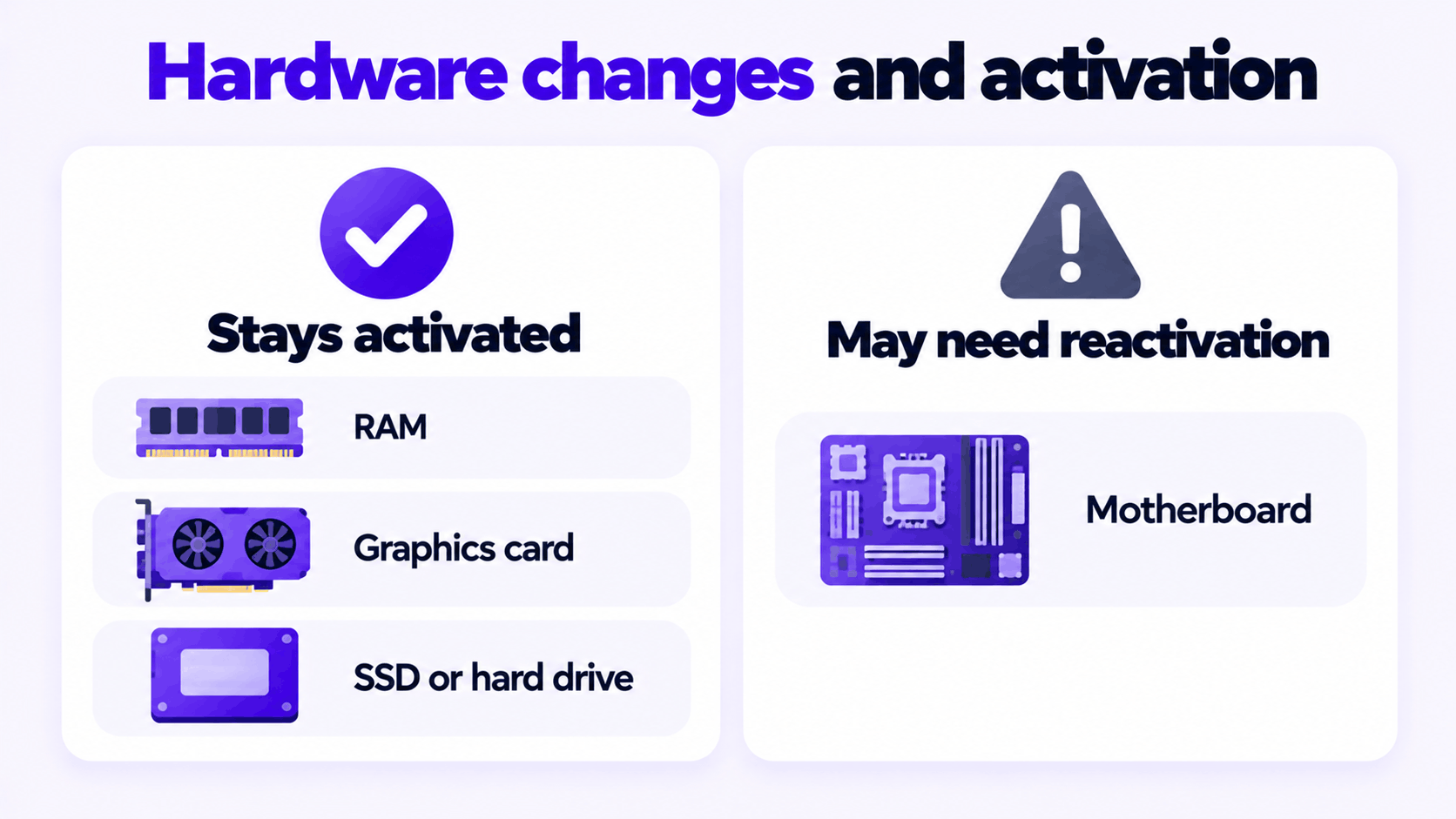
Activation is tied to the PC’s hardware. Microsoft’s support pages name one change as significant: replacing the motherboard. After that, Windows may no longer find a license that matches the device.
| Change | OEM | Retail |
|---|---|---|
| Add RAM, replace the graphics card, add or replace a drive | Stays activated | Stays activated |
| Reinstall Windows on the same PC | Reactivates | Reactivates |
| Replace the motherboard | Usually needs a new license | Reactivate with the Activation troubleshooter or by entering the key again |
| Build or buy a new PC | Needs a new license | Move the license, after removing Windows from the old PC |
If a motherboard fails and is replaced, it is still worth trying to reactivate before buying anything. Open Settings > Update & Security > Activation, select Troubleshoot, then I changed hardware on this device recently. This only works if the license was linked to your Microsoft account before the change, so link it now: on the same page, select Add an account.
How to check which license type you have
Open Command Prompt and run this command. It does not need administrator rights.
slmgr.vbs /dliA small window appears after a few seconds. Read the Description line. It ends with the channel the key came from:
| Description contains | License type |
|---|---|
RETAIL channel |
Retail. Also shown for PCs upgraded for free from Windows 7 or 8. |
OEM_DM channel |
OEM, with the key stored in the PC’s firmware by the manufacturer |
OEM_COA_NSLP channel or OEM_SLP channel |
OEM, from a system builder key or an older manufacturer key |
VOLUME_KMSCLIENT or VOLUME_MAK channel |
Volume license, managed by an organization |
For more detail, including the license status, use slmgr.vbs /dlv.
A volume channel on a home PC deserves a second look. Volume licenses are issued to organizations, and KMS activation has to be renewed against that organization’s server, so it can lapse.
Which one should you buy?
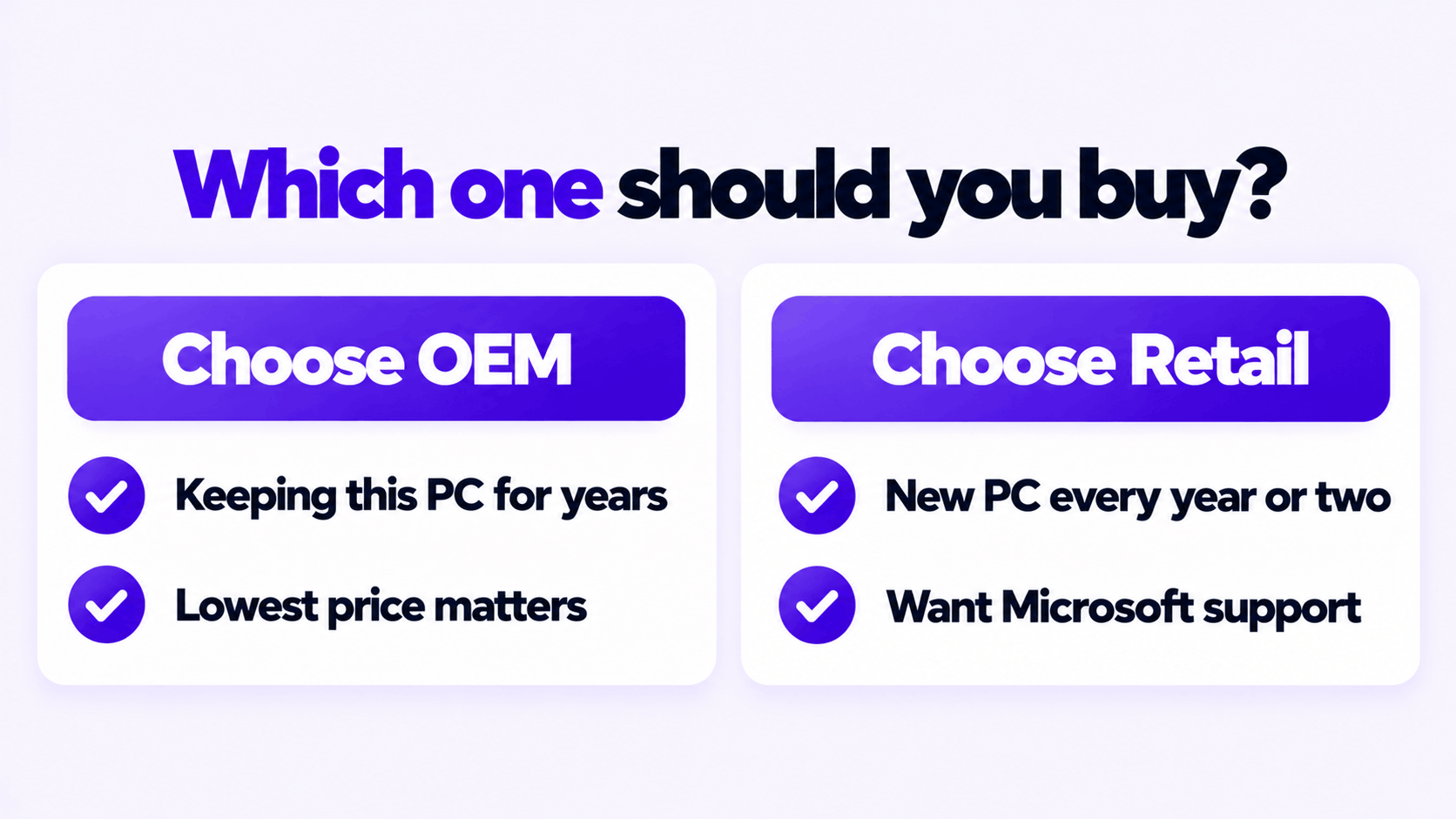
- You will keep this PC as it is for years: OEM. The transfer right is the only thing retail adds, and you would be paying for something you will not use.
- You replace your motherboard or build a new PC every year or two: retail pays for itself, because the license moves with you.
- You want Microsoft to be the one you call: retail. With OEM, support comes from the seller, so the seller’s replacement policy matters more than the price.
- You are buying for a business with many PCs: neither. Volume licensing exists for this, and it is what an audit expects to see.
Whichever you choose, buy one key per PC and keep the order email. If a key will not activate, the error code tells you why; this guide to rejected product keys lists them.
Buying a Windows 10 license in 2026
Windows 10 is out of support. Microsoft stopped releasing free security updates for Home and Pro on October 14, 2025, and no license type changes that. An OEM key and a retail key leave you on the same unsupported version.
That shifts the advice:
- If the PC can run Windows 11, a Windows 11 key is the better purchase. The OEM and retail rules above are the same for Windows 11.
- If the PC cannot run Windows 11 and you need Windows 10 activated on it, an OEM key is the sensible choice. The PC is near the end of its useful life, so the right to move the license to a newer machine has little value.
These are the two keys we sell for those cases: a Windows 10 Pro OEM key and a Windows 11 Pro OEM key. Both are for one PC. The steps for entering either are in how to activate Windows 11 Pro with an OEM product key.
Need a Windows 10 Pro OEM Key?
One key for one PC, tied to that PC. If it does not activate, we replace it or refund it.
Email Delivery in 1 to 12 Hours • 90-Day Money-Back Guarantee