
By Egodget Tech Team
•
Updated: October 2026
Windows 11 Product Key Didn't Work: How to Fix It
Short answer: If your Windows 11 product key didn’t work, the cause is almost always one of four things: a typing mistake, a key for a different edition than the one installed, a key that was already used on another PC, or a blocked connection to Microsoft’s activation servers. Read the error code on the Activation page first, because it tells you which one. Then retype the key, check the installed edition, and install the key from Command Prompt with slmgr.vbs /ipk.
Applies to: Windows 11 Home and Pro, when Settings shows “This product key didn’t work” or “Windows is not activated” after you enter a key. The same checks apply to Windows 10, which reached end of support in October 2025.
Table of Contents
1. Read the error code
Open Start > Settings > System > Activation. Under “Windows is not activated” there is a line with a code that starts with 0x. That code narrows the problem down faster than any other step. The causes below are Microsoft’s own descriptions.
| Code | What Microsoft says it means | Go to |
|---|---|---|
0xC004F034 |
The key is invalid, or it is for a different version or edition of Windows. | Steps 2 and 3 |
0x803FA067, 0xC004F050, 0xC004C060 |
The key can’t be used to activate Windows. | Steps 2 and 3, then the seller |
0xC004C008 |
The key has already been used on another device. | Step 6, then the seller |
0xC004C003 |
The key was used, or attempted, on multiple devices and is marked as not valid. | The seller |
0xC004FC03 |
A firewall or connection problem is blocking online activation. | Step 4 |
0x8007232B, 0xC004F074 |
An Enterprise key was entered, or a work device can’t reach its organization’s network. | Step 3 |
If there is no code, or a different one, work through the steps in order. Microsoft’s full list is in Get help with Windows activation errors.
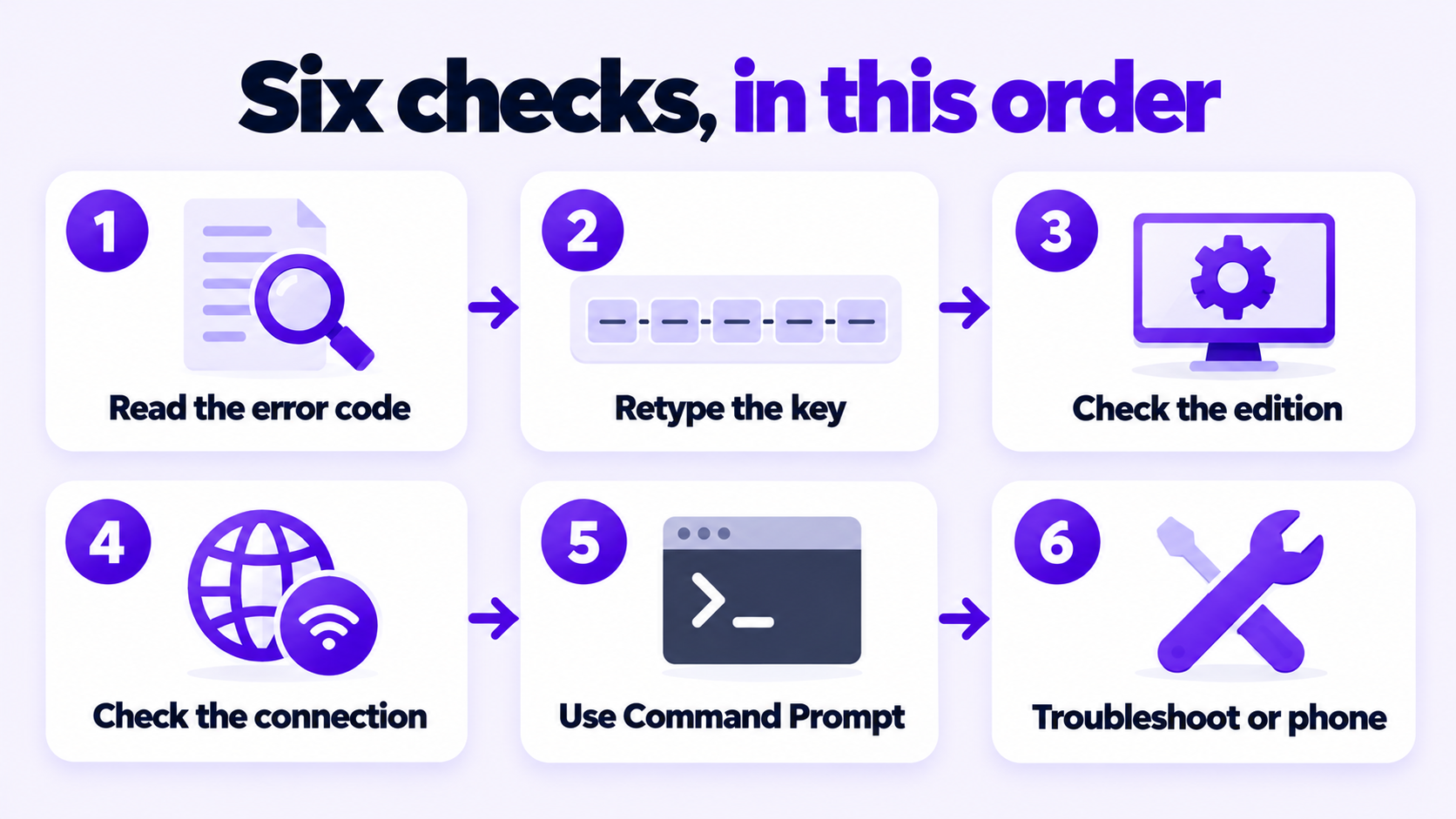
2. Retype the key
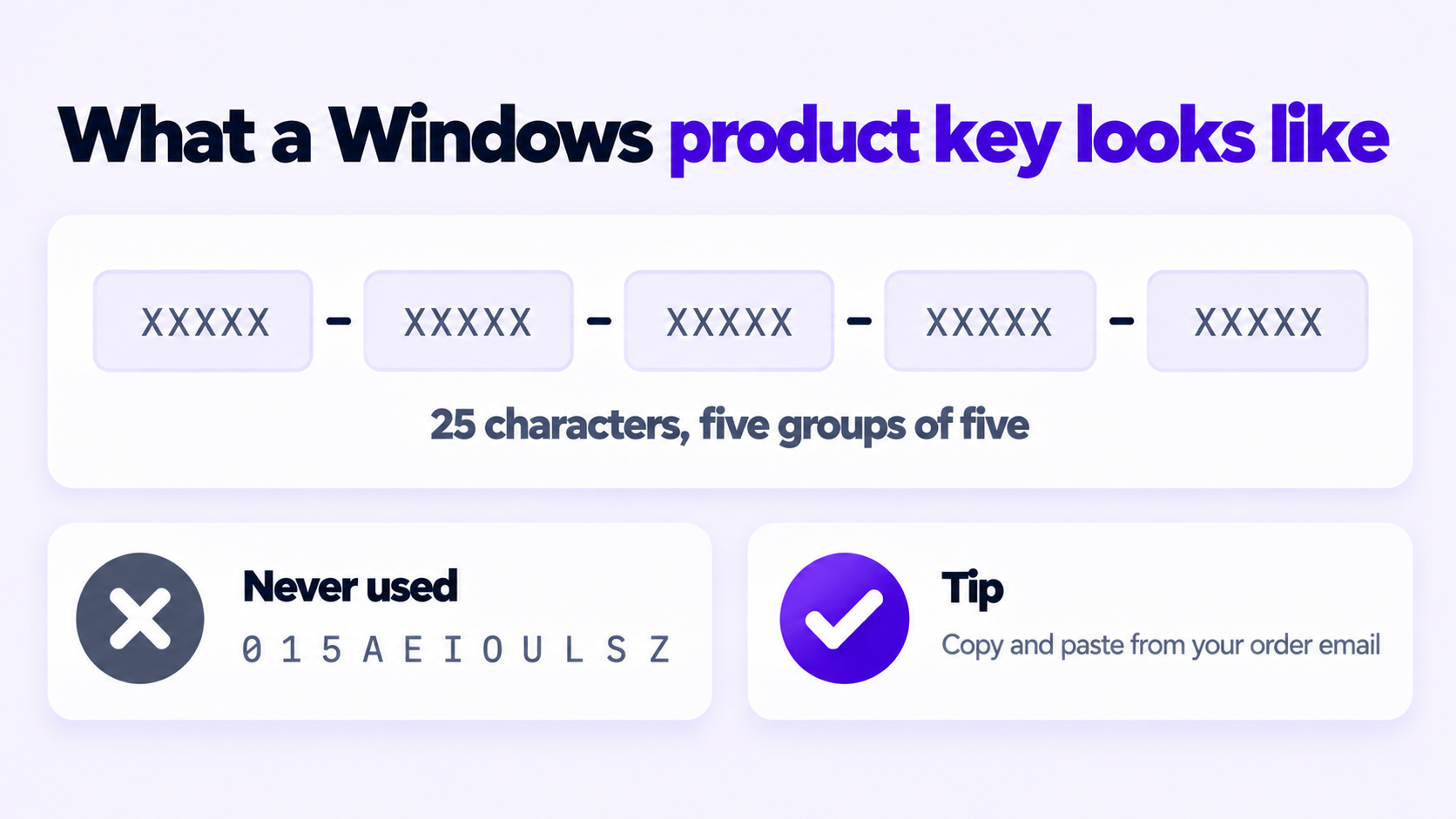
A single wrong character is enough for Windows to reject the whole key.
- Copy and paste the key from the order email instead of typing it. Make sure no space was copied before or after it.
- Count the characters. A key is 25 characters in five groups of five:
XXXXX-XXXXX-XXXXX-XXXXX-XXXXX. - Look for characters that can’t be there. Windows keys do not use the digits 0, 1 or 5, or the letters A, E, I, O, U, L, S or Z. If you read one of those, look at that character again: a zero is really a letter such as D or Q, and an 8 and a B are easy to swap.
Then select Change product key on the Activation page and enter it again.
3. Check that the key matches the installed edition
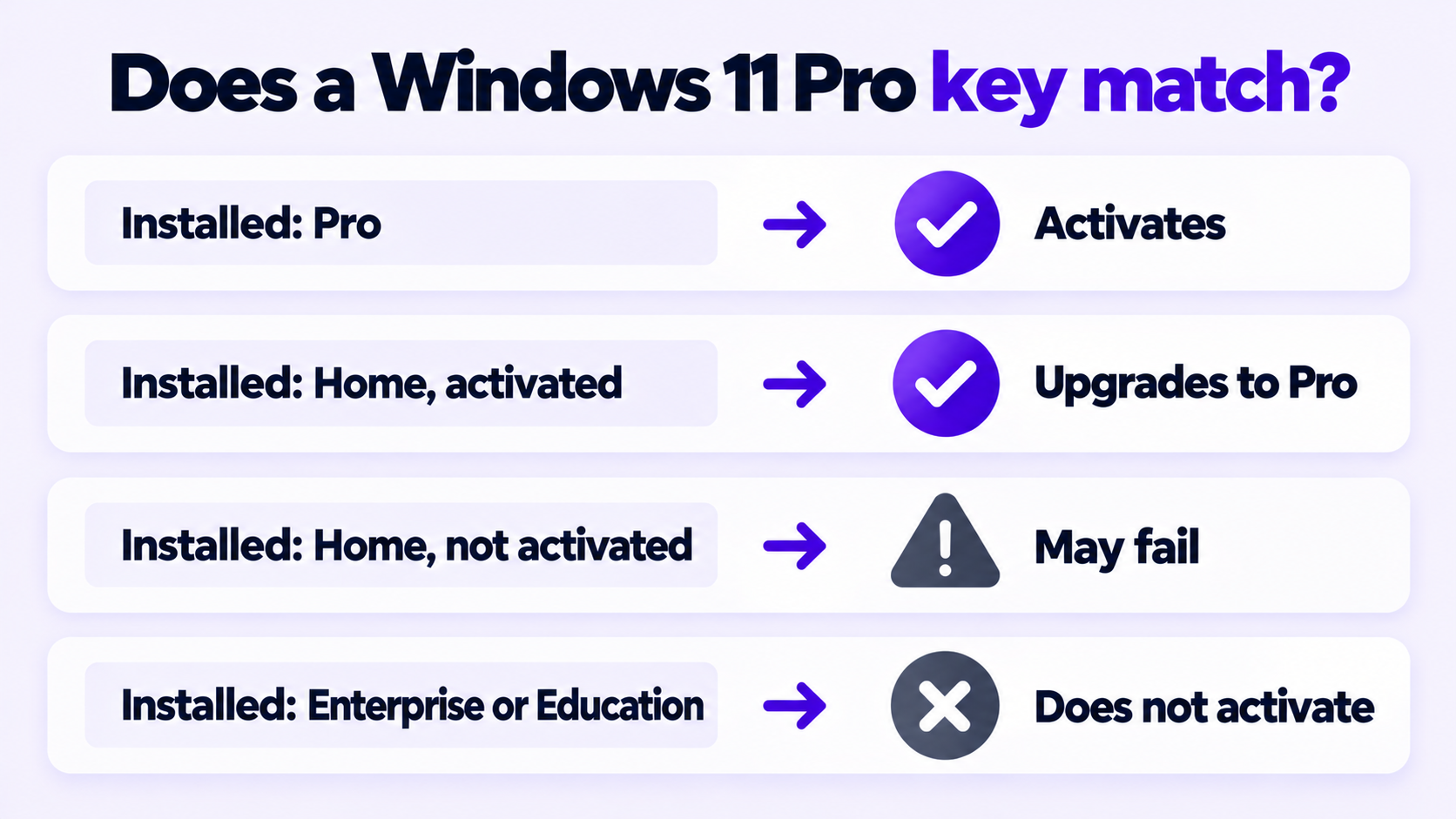
The most common reason a Windows 11 product key didn’t work is an edition mismatch. A key only activates the edition it was issued for. To see what is installed, open Settings > System > About and read Edition under Windows specifications.
| Your key | Installed edition | Result |
|---|---|---|
| Windows 11 Pro | Windows 11 Pro | Activates |
| Windows 11 Pro | Windows 11 Home, activated | Upgrades to Pro, then activates |
| Windows 11 Pro | Windows 11 Home, not activated | May fail. Microsoft recommends activating Home first. |
| Windows 11 Home | Windows 11 Pro | Does not activate. Install Home, or use a Pro key. |
| Windows 11 Pro | Enterprise, Education or Pro for Workstations | Does not activate. Reinstall as Pro. |
The third row catches many people. Microsoft’s Home to Pro instructions are written for a device running an activated copy of Home. If Home was never activated on that PC, the dependable fix is a clean installation of Windows 11 Pro, entering the key during setup.
On a work or school PC: the Enterprise and Education editions are activated by the organization, not by a personal key. Ask the IT department before changing anything.
The full steps for entering a key, in Settings or during setup, are in how to activate Windows 11 Pro with an OEM product key.
4. Check the connection
Activation is an online check against Microsoft’s servers. Error 0xC004FC03 means that check was blocked.
- Open a website to confirm the PC is online.
- Disconnect any VPN or proxy, then try again.
- If a third-party firewall is installed, allow Windows activation through it or pause it for the attempt, then turn it back on.
- Restart the PC and enter the key once more.
5. Install the key from Command Prompt
The licensing script built into Windows does the same job as the Settings page, and its error messages are often more specific. Open Command Prompt as administrator and run these two commands, replacing the placeholder with your key:
slmgr.vbs /ipk XXXXX-XXXXX-XXXXX-XXXXX-XXXXX
slmgr.vbs /ato
/ipk installs the key. It replaces any key that is already installed, and it returns an error straight away if the key is not valid for the installed edition. That alone tells you whether the problem is the key or the activation step. /ato then asks Windows to activate online. Each command answers in a small pop-up window after a few seconds.
To see the result in detail:
slmgr.vbs /dlvYou do not need to remove the old key first. slmgr.vbs /upk uninstalls the current key and leaves Windows unlicensed after a restart until a new one is installed, so only use it if you have a working key ready.
6. Run the troubleshooter, then try offline activation
Activation troubleshooter: on the Activation page, select Troubleshoot. The button only appears while Windows is not activated. It runs diagnostics and fixes many activation problems without further input. If you replaced the motherboard, choose I changed hardware on this device recently and sign in with the Microsoft account linked to your license.
Offline activation: use this when a valid key is refused after a major hardware change, or when online activation stays blocked. Microsoft’s phone line no longer does this; the Installation ID now goes into its Product Activation Portal. The steps are in offline activation with an Installation ID. It is not available for Windows 11 Pro Education or Pro for Workstations.
If your Windows 11 product key didn’t work after every check
If the key is typed correctly, matches the edition, the PC is online, and Windows still refuses it, the key is the problem. This is what codes 0xC004C003 and 0xC004C008 usually point to: the key was activated somewhere else before it reached you. No setting on your PC changes that. Microsoft’s guidance for these codes is to contact the reseller.
Send the seller these four things so the case is settled in one message:
- Your order number
- The error code from the Activation page
- The installed edition, from Settings > System > About
- A screenshot of the Activation page
If you bought the key from us, reply to your order email with those details. A key that fails to activate is replaced or refunded.
If you need a replacement key from a seller that backs it, this is ours: Windows 11 Pro OEM key for 1 PC.
Need a Replacement Windows 11 Pro Key?
One key for one PC. If it does not activate, we replace it or refund it.
Email Delivery in 1 to 12 Hours • 90-Day Money-Back Guarantee