How to Set Up Hyper-V on Windows 10 Pro and Create Your First Virtual Machine
Learn Hyper-V setup Windows 10 Pro the right way with this expert guide featuring verified steps and pro tips. Get the full step-by-step fix on EGODGET now.
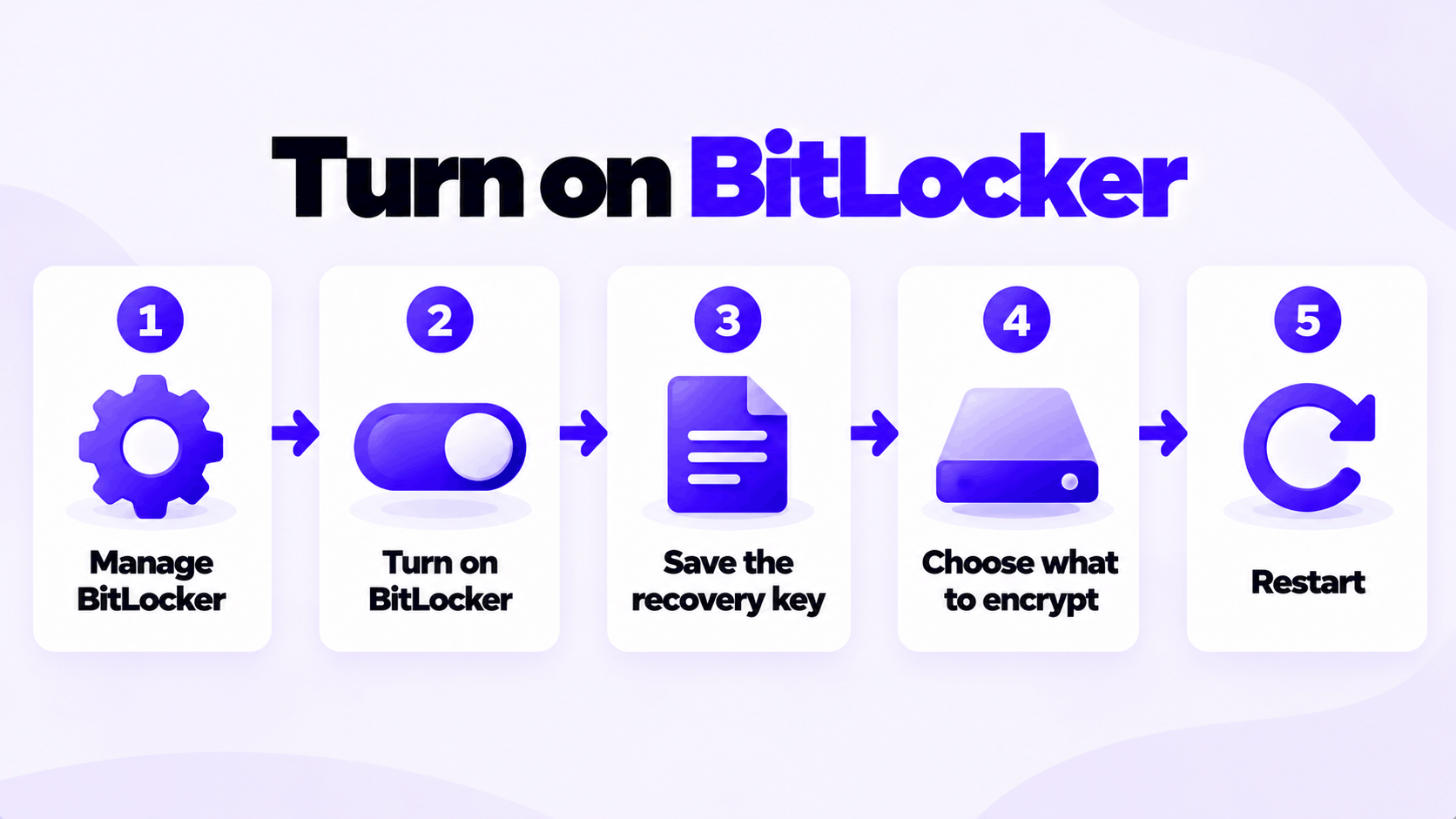
Short answer: To set up BitLocker on Windows 10 Pro, sign in as an administrator, select Start, type BitLocker, open Manage BitLocker, and select Turn on BitLocker next to drive C:. Save the recovery key somewhere that is not on this PC, choose how much of the drive to encrypt, and start. The wizard takes a few minutes; the encryption itself runs in the background and can take from minutes to hours. The one step that matters most is the recovery key: lose it and you can lose everything on the drive.
Applies to: Windows 10 Pro, Enterprise and Education. The steps are the same on Windows 11 Pro. BitLocker is not available on Windows Home. Windows 10 reached end of support on October 14, 2025.
Table of Contents
| Requirement | Detail | How to check |
|---|---|---|
| Windows edition | Pro, Enterprise or Education. Microsoft states it is not available on Home. | Settings > System > About > Edition |
| TPM | Version 1.2 or later for the standard setup | Press Windows + R, run tpm.msc |
| Administrator account | Needed to turn BitLocker on | Settings > Accounts > Your info |
| Somewhere to keep the recovery key | A Microsoft account, a USB drive, or a printer | Decide before you start |
If the PC runs Windows 10 Home, the edition is what is missing, not the hardware. Home has to be upgraded first: see how to upgrade Windows 10 Home to Pro.
A TPM is a security chip, or a function built into the processor, that holds the encryption key and releases it only when the PC starts up unmodified. That is what lets BitLocker unlock the drive automatically at startup without asking you for anything.
The recovery key is a 48-digit number that BitLocker creates when you turn it on. Windows asks for it when it cannot unlock the drive the usual way, for example after a motherboard replacement, a firmware update, or moving the drive to another PC.
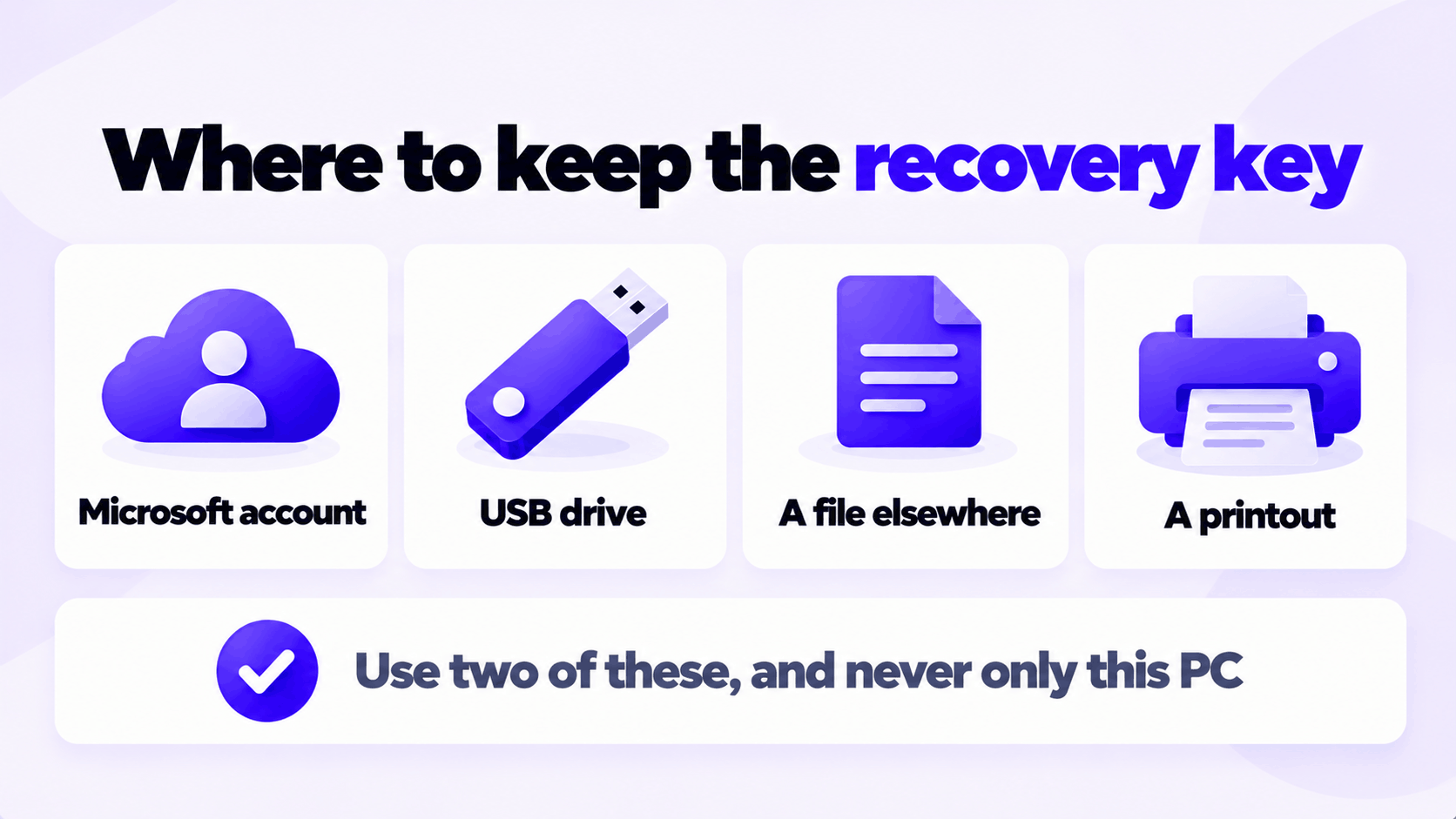
There is no back door. Neither Microsoft nor anyone else can open an encrypted drive without the key. So before you start, decide where it will live:
| Option | Good for | Watch out for |
|---|---|---|
| Save to your Microsoft account | Easy to retrieve from any device by signing in | Only offered if you sign in to Windows with a Microsoft account |
| Save to a USB flash drive | Keeps it offline | Do not leave that USB drive in the laptop bag |
| Save to a file | Storing in a password manager or on another PC | Windows will not let you save it to the drive being encrypted |
| Print it | A copy that cannot be hacked | Paper gets lost. Keep it with other important documents. |
Use two of these, not one.
BitLocker, and select Manage BitLocker. It is also in Control Panel > System and Security > BitLocker Drive Encryption.You can keep using the PC while it encrypts. Avoid shutting it down by force until it finishes; a normal shutdown or sleep is fine, and it resumes where it stopped.
On a PC with a TPM, that is all. The drive now unlocks by itself each time the PC starts, and you sign in to Windows as usual. You are not asked for a BitLocker password at startup.
To encrypt a second internal drive or an external drive, select Turn on BitLocker next to it on the same page. For removable drives this is called BitLocker To Go, and you set a password for the drive.
Open Manage BitLocker again. Drive C: should read BitLocker on. While it is still working, it reads BitLocker Encrypting.
For the detail, open Command Prompt as administrator and run:
manage-bde -status C:Look at three lines:
Fully Encrypted, or Used Space Only Encrypted if you chose that option.100.0%.Protection On.In File Explorer, an encrypted drive shows a padlock on its icon. An open padlock means the drive is encrypted and currently unlocked, which is normal for the drive Windows is running from.
If the wizard says “This device can’t use a Trusted Platform Module”, check first whether the TPM is only switched off. Restart into the firmware settings and look for Intel PTT, AMD fTPM or Security Device Support, enable it, and try again.
If the PC really has none, BitLocker can still work, with trade-offs. Microsoft’s documentation says that without a TPM you must save a startup key on a removable drive, which then has to be plugged in every time the PC starts. A startup password is the other option, and Microsoft discourages it because there is no lockout against repeated guessing. Neither gives the startup integrity check that a TPM provides.
To allow it:
gpedit.msc.| Situation | What to do |
|---|---|
| Before a firmware (BIOS/UEFI) update or a hardware change | In Manage BitLocker, select Suspend protection. Resume it afterward. This avoids a recovery key prompt. |
| The PC asks for the recovery key at startup | Enter the 48-digit key. If it was saved to a Microsoft account, sign in at account.microsoft.com/devices/recoverykey from another device. |
| You want another copy of the key | Manage BitLocker > Back up your recovery key |
| Selling or giving away the PC | Reset Windows with Remove everything. Encrypted data on the old drive is unreadable without the key. |
| You want to remove encryption | Manage BitLocker > Turn off BitLocker. Decryption takes as long as encryption did. |
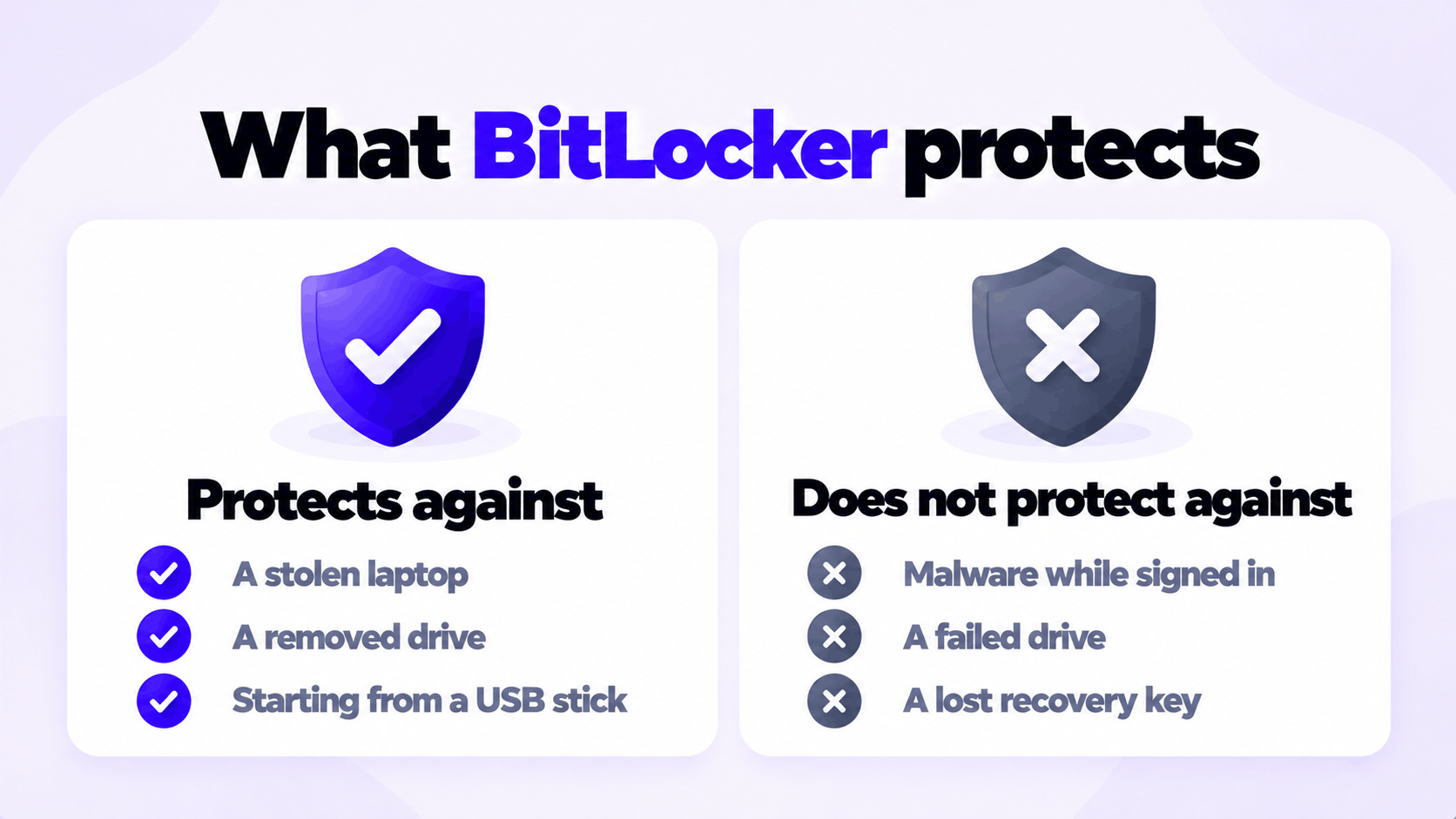
BitLocker protects the drive when the PC is off or locked: a thief cannot read it by removing the drive or starting from a USB stick. It does not protect against malware running while you are signed in, and it is not a backup. A failed encrypted drive is as lost as a failed unencrypted one.
| Problem | Likely cause | What to do |
|---|---|---|
| There is no BitLocker option at all | Windows 10 Home | Upgrade to Pro |
| “This device can’t use a Trusted Platform Module” | TPM off or absent | Enable it in the firmware settings, or use the no-TPM policy above |
| BitLocker is managed by your organization | A work PC with a policy applied | Ask your IT department. On managed PCs they hold the recovery keys. |
| Encryption seems stuck | It pauses on battery power and when the PC is busy | Plug in and leave it. Check progress with manage-bde -status. |
| Recovery key requested after every restart | A firmware setting changed, or a USB device affects startup | Unplug extra devices, then suspend and resume protection once |
Related: Windows 11 Home vs Pro covers what else Pro adds. The keys we sell for Pro: Windows 10 Pro and Windows 11 Pro.
Stuck on a step?
Send us the step and the exact error message. Our support team answers every day, 8 am to 9 pm New York time.
Every day, 8 am to 9 pm New York timeLearn Hyper-V setup Windows 10 Pro the right way with this expert guide featuring verified steps and pro tips. Get the full step-by-step fix on EGODGET now.
How to upgrade Windows 10 Home to Pro with a product key, without reinstalling: the exact Settings steps, what Pro adds, and fixes if the key is refused.
How to enable Remote Desktop on Windows 11 Pro, connect from another device, and keep it secure. Plus why Windows 11 Home cannot be the host.