
By Egodget Tech Team
•
Updated: October 2026
Your Windows License Will Expire Soon: How to Fix It
Short answer: “Your Windows license will expire soon” appears when Windows is activated with a time-limited license: most often a volume (KMS) activation that has not been renewed, or an evaluation copy. A normal retail or OEM activation never expires, so it never shows this message. Run slmgr.vbs /xpr to see the expiry date and slmgr.vbs /dlv to see the license type. On a work PC, reconnect to your organization’s network. On your own PC, replace the key with a permanent one for the edition you have installed.
Applies to: Windows 11 and Windows 10, all editions. Windows 10 reached end of support on October 14, 2025.
Table of Contents
What the “Windows license will expire soon” message means
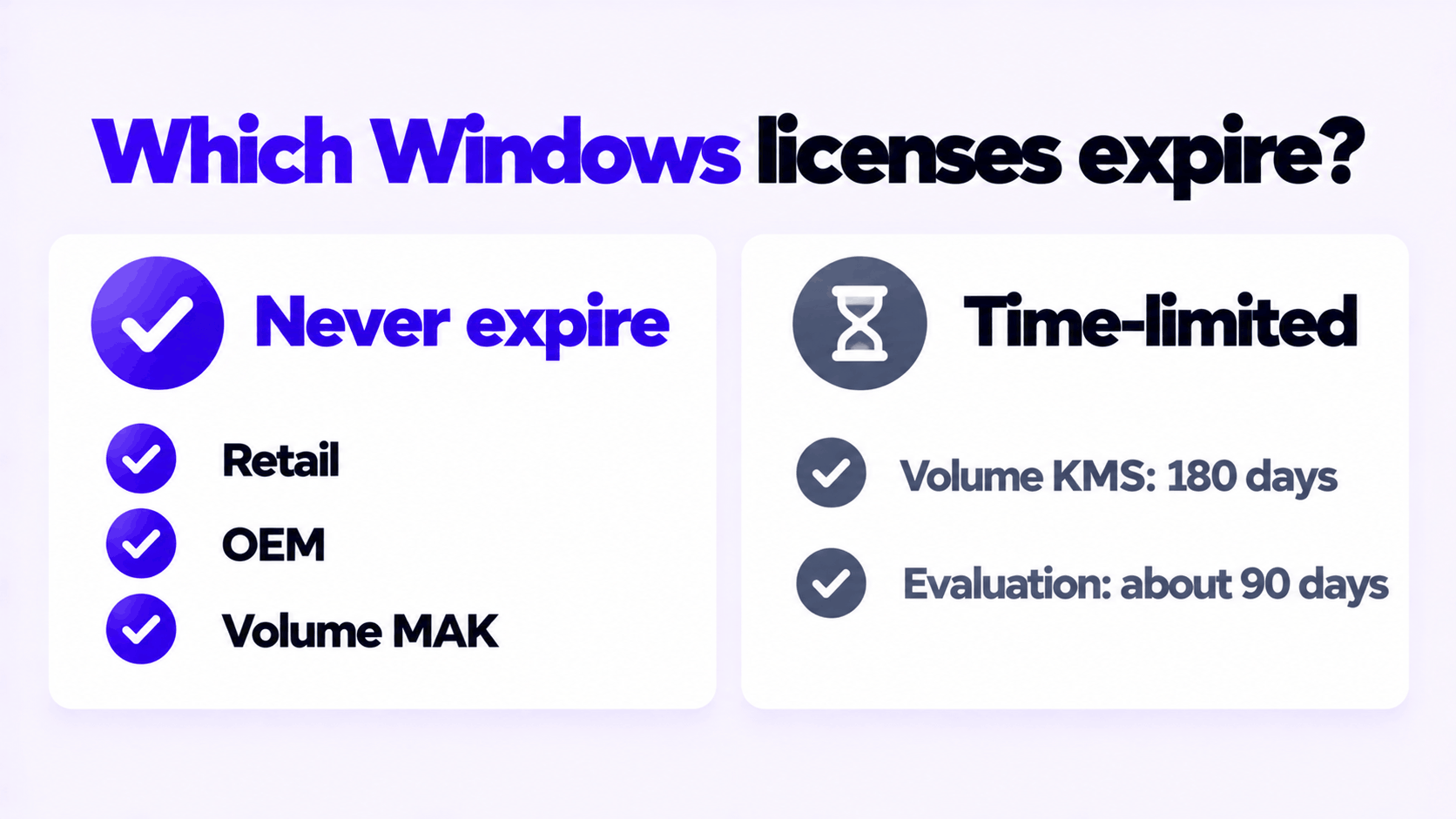
Windows activations come in two kinds. Microsoft’s documentation puts it in one line: retail and MAK activation is perpetual, and the expiry date matters mainly for KMS clients.
| License type | Expires? | Typical place you find it |
|---|---|---|
| Retail | No | Bought from Microsoft or a retailer |
| OEM | No | Came with the PC, or a system builder key |
| Volume, MAK | No | Organizations, activated once with Microsoft |
| Volume, KMS | Yes, every 180 days unless renewed | Organizations with their own activation server |
| Evaluation | Yes, usually after 90 days | Trial downloads of Enterprise |
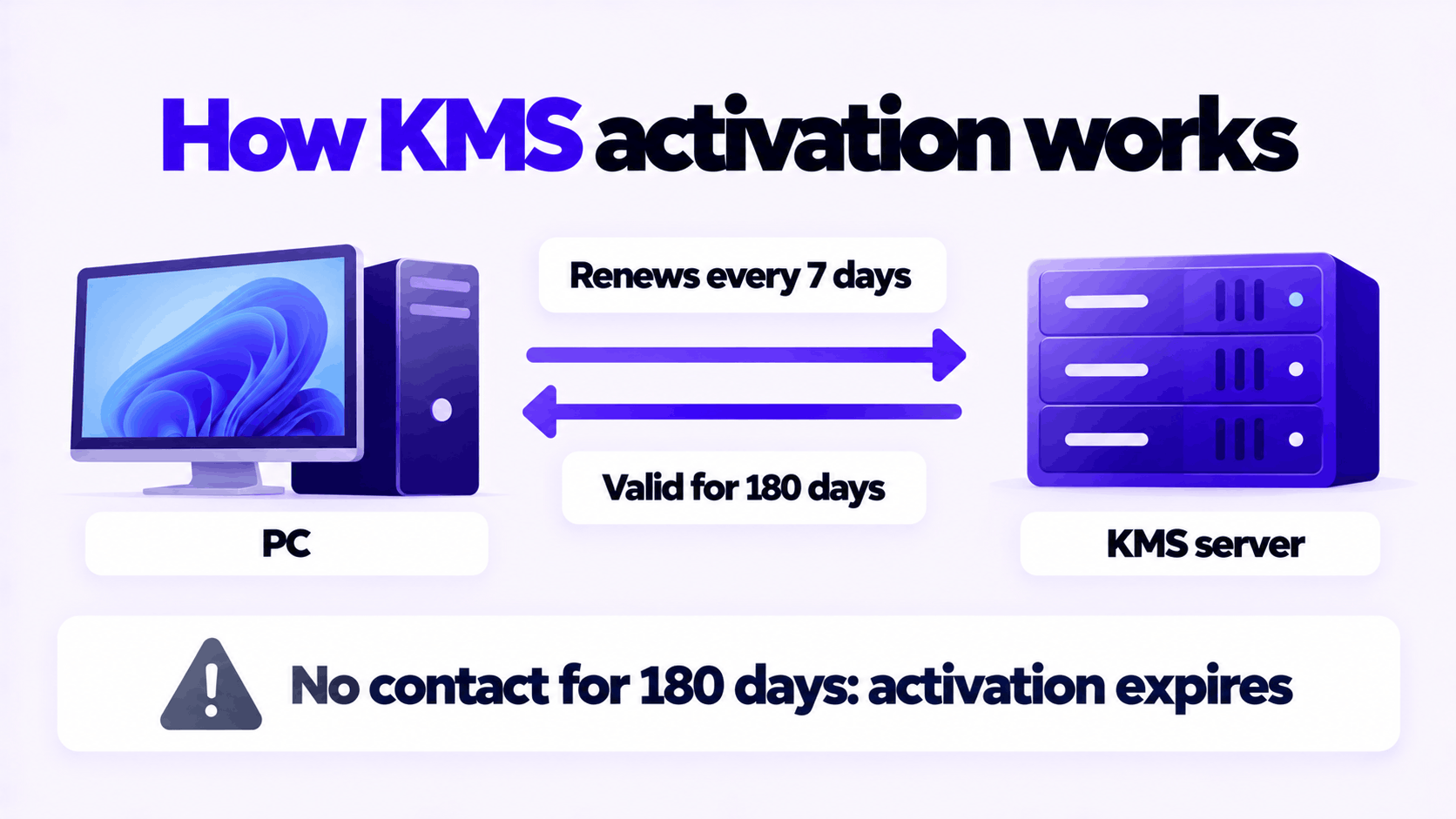
KMS works like this: a company runs an activation server on its own network, and each PC checks in with it. Microsoft documents the timing. An activation is valid for 180 days, and by default each PC tries to renew every seven days. A PC that stays in contact with the server never notices. A PC that loses contact for long enough starts showing “Your Windows license will expire soon”, and when the 180 days run out, it shows as not activated.
So the message is not a bug and not a corrupted file. It is Windows telling you accurately that the license installed on it has an end date.
Step 1: Find out which license you have
Open Command Prompt and run these two commands. Neither needs administrator rights, and each answers in a small pop-up window after a few seconds.
slmgr.vbs /xprThis shows the activation expiration date, or says the machine is permanently activated.
slmgr.vbs /dlvThis shows detailed license information. Read the Description line and, if present, the KMS lines below it.
| What you see | What it means | Go to |
|---|---|---|
VOLUME_KMSCLIENT channel and an expiry date |
KMS activation that needs renewing | Step 2 for a work PC, Step 3 for your own |
TIMEBASED_EVAL channel or “Evaluation” in the edition name |
A trial copy of Windows | The evaluation section |
RETAIL, OEM or VOLUME_MAK channel and “permanently activated” |
The license does not expire | The last section |
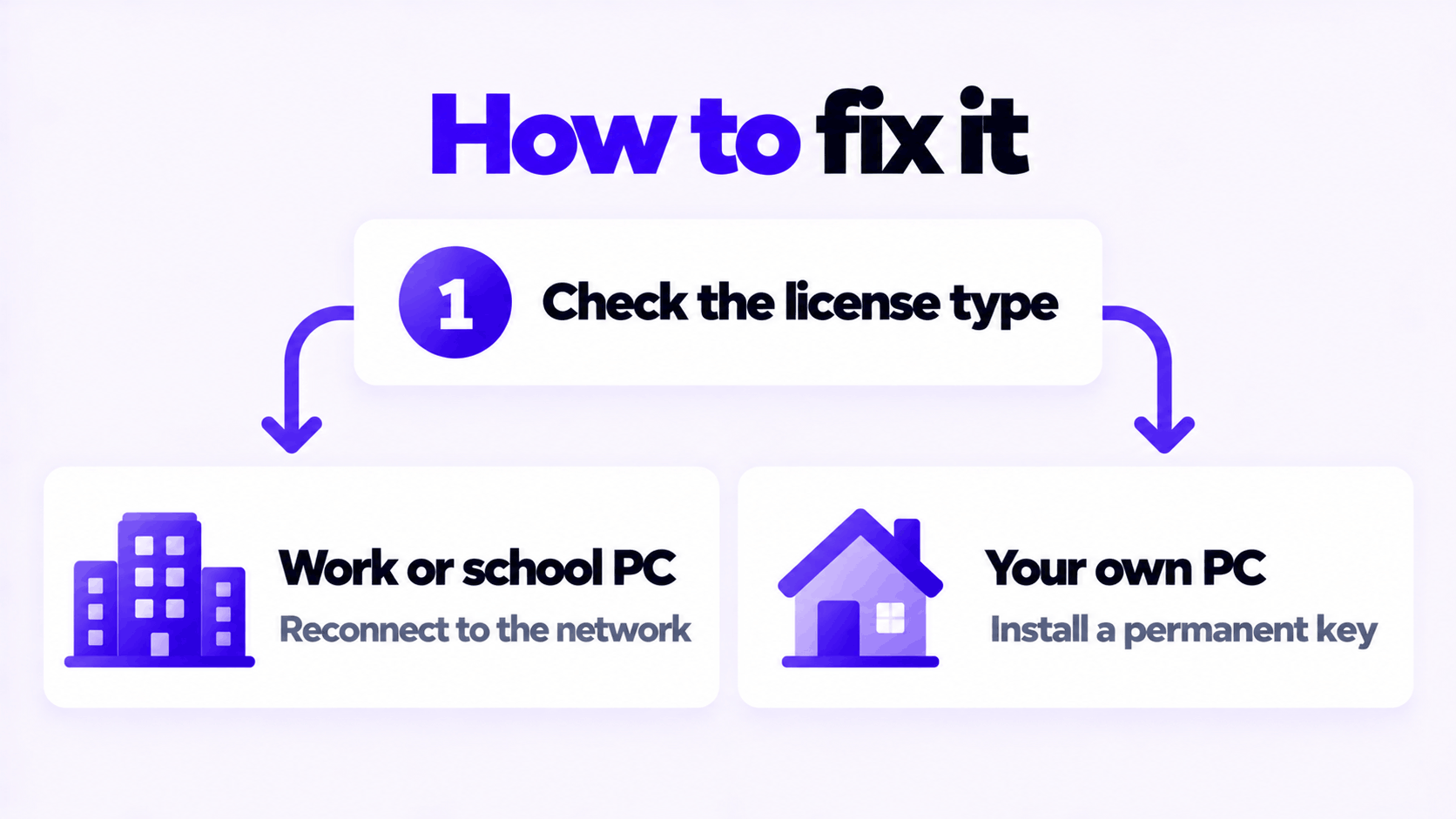
Step 2: If it is a work or school PC
This is the expected case, and it is not yours to fix with a new key. The PC needs to reach your organization’s activation server.
- Connect to the office network, or to the company VPN if you work remotely.
- Leave the PC connected for a while, or open an administrator Command Prompt and ask it to renew now:
slmgr.vbs /ato- Run
slmgr.vbs /xpragain. The date should have moved about 180 days ahead.
If it does not renew while connected, contact your IT department. Do not enter a personal product key on a PC your employer manages.
Step 3: If it is your own PC
A PC you own should not be on KMS activation. If it is, one of these happened:
- It is a former company PC, sold or given away without being reset to its original license.
- A shop or refurbisher installed Windows with a volume key instead of a proper license.
- Someone ran an activator tool on it. These work by pointing Windows at an unofficial KMS server. They are not a license, they stop working, and the tools themselves are a common source of malware.
In all three cases the fix is the same: install a permanent key for the edition that is installed.
- Check the edition. Open Settings > System > About and read Edition. The key has to match it: a Pro key for Pro, a Home key for Home.
- Remove any custom KMS server setting. Open Command Prompt as administrator and run:
slmgr.vbs /ckms- Enter the new key. On Windows 11, open Settings > System > Activation > Change product key. On Windows 10 it is under Settings > Update & Security > Activation. Or from the administrator Command Prompt:
slmgr.vbs /ipk XXXXX-XXXXX-XXXXX-XXXXX-XXXXX
slmgr.vbs /ato- Confirm. Run
slmgr.vbs /xpr. It should now say the machine is permanently activated.
If the edition is Enterprise or Education: a Home or Pro key will not activate it, and there is usually no supported way to step down to Pro in place. Back up your files and do a clean installation of Windows 11 Pro or Home, then activate that.
If an activator tool was used: treat the PC as possibly infected. Run a full scan with Microsoft Defender, and consider the clean installation even if the edition is right.
If Windows is an evaluation copy
Evaluation copies of Windows Enterprise are trials with a fixed end date. A product key does not turn one into a full copy. When the trial ends, the desktop background goes black and the PC starts shutting down on a timer. Back up your files and install a full edition of Windows from Microsoft’s installation media, then activate it with a key for that edition.
Why slmgr /rearm is not a fix
Many guides tell you to run slmgr /rearm. Microsoft’s description of that option is that it “resets the activation timers”. It does not install a license, and it does not make a time-limited license permanent. It can hide the message for a while. It can be used only a limited number of times, and when the timer runs out again you are back where you started.
The same goes for running sfc /scannow, restarting Windows Explorer, or editing the registry to hide the notification. None of them changes what license is installed.
If the message comes back
| Situation | Likely cause | What to do |
|---|---|---|
/xpr says permanently activated, but the message appeared once |
A leftover notification from before the key was replaced | Restart the PC. If it does not return, nothing more is needed. |
| The new key is rejected | The key does not match the installed edition, or it is not valid | See what to do when a product key didn’t work |
/dlv still shows a KMS channel after you entered a key |
The key you were sold is itself a volume key | Contact the seller. A key for a home PC should activate as retail or OEM. |
| The message returns every few months | An activator tool is still installed and re-running | Clean installation, then activate with a real key |
If you need a permanent key, these are the ones we sell: Windows 11 Pro and Windows 10 Pro. Each is for one PC. The steps for entering one are in how to activate Windows 11 Pro with an OEM product key, and OEM vs retail explains the license types.
Need a Permanent Windows 11 Pro Key?
One key for one PC. If it does not activate, we replace it or refund it.
Email Delivery in 1 to 12 Hours • 90-Day Money-Back Guarantee