
By Egodget Tech Team
•
Updated: October 2026
Windows 11 Home vs Pro: Which Edition Do You Need?
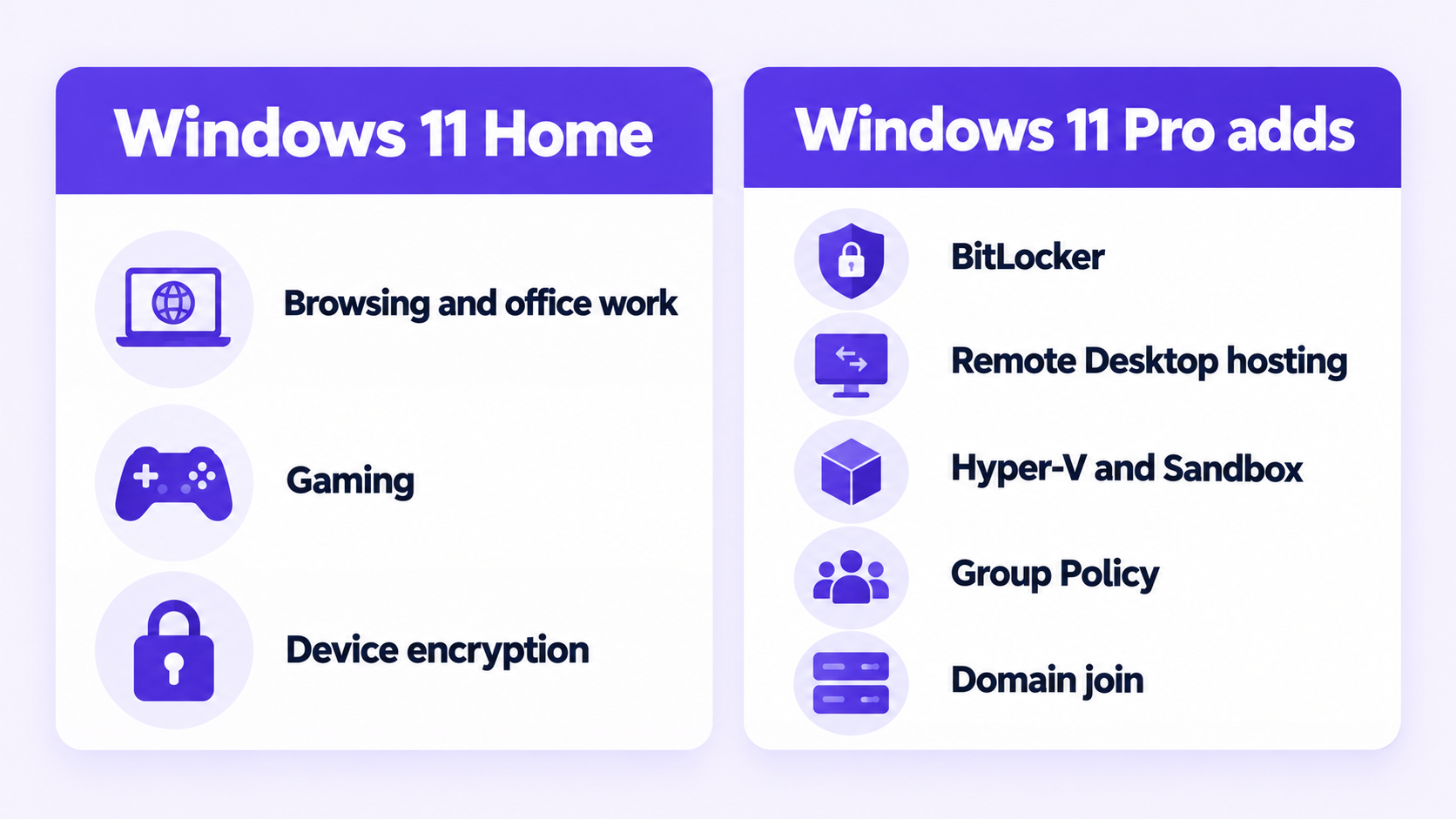
Short answer: Windows 11 Home vs Pro comes down to five things Pro adds: BitLocker drive encryption, hosting Remote Desktop, Hyper-V and Windows Sandbox, Group Policy, and joining a work domain. Pro also supports 2 TB of RAM against 128 GB on Home. For browsing, office work and gaming, the two editions behave the same, so Home is enough unless you need one of those features.
Applies to: Windows 11 Home and Windows 11 Pro, 64-bit.
Table of Contents
- Who should pick which edition
- Windows 11 Home vs Pro: the differences
- Gaming and everyday speed
- Encryption: device encryption vs BitLocker
- Remote Desktop
- Hyper-V and Windows Sandbox
- Group Policy and work networks
- Hardware limits
- How to check which edition you have
- How to upgrade from Home to Pro without reinstalling
Who should pick which edition
Choose Windows 11 Home if the PC is for browsing, office work, study, streaming or gaming, and you sign in with a Microsoft account. Nothing in Pro makes those tasks faster.
Choose Windows 11 Pro if any of these apply:
- You carry a laptop with work or client files and want to control disk encryption yourself, including USB drives.
- You want to connect to this PC from another device with Remote Desktop.
- You run virtual machines or want a disposable test desktop.
- Your employer or school needs the PC joined to its domain.
- You want to set update and security rules with Group Policy.
Windows 11 Home vs Pro: the differences
This table lists only the rows where the two editions differ in a way that changes a buying decision.
| Feature | Windows 11 Home | Windows 11 Pro |
|---|---|---|
| Disk encryption | Device encryption (automatic, internal drives) | BitLocker, with full control, plus external drives |
| Remote Desktop | Can connect to other PCs | Can connect to other PCs and be connected to |
| Hyper-V virtual machines | No | Yes |
| Windows Sandbox | No | Yes |
| Group Policy Editor | No | Yes |
| Join a work domain (Active Directory or Microsoft Entra ID) | No | Yes |
| Maximum RAM | 128 GB | 2 TB |
| Processor sockets | 1 | 2 |
Gaming and everyday speed
Pro does not run games or apps faster than Home. The gaming features, such as DirectX 12 Ultimate, Auto HDR and DirectStorage, are part of Windows 11 itself and are in both editions. Your frame rate depends on the graphics card, processor and drivers, not the edition.
If you are building a PC only for gaming, buy Home and put the difference toward hardware. You can move to Pro later with a product key, without reinstalling.
Encryption: device encryption vs BitLocker
Both editions can encrypt the internal drive. The difference is how much control you get.
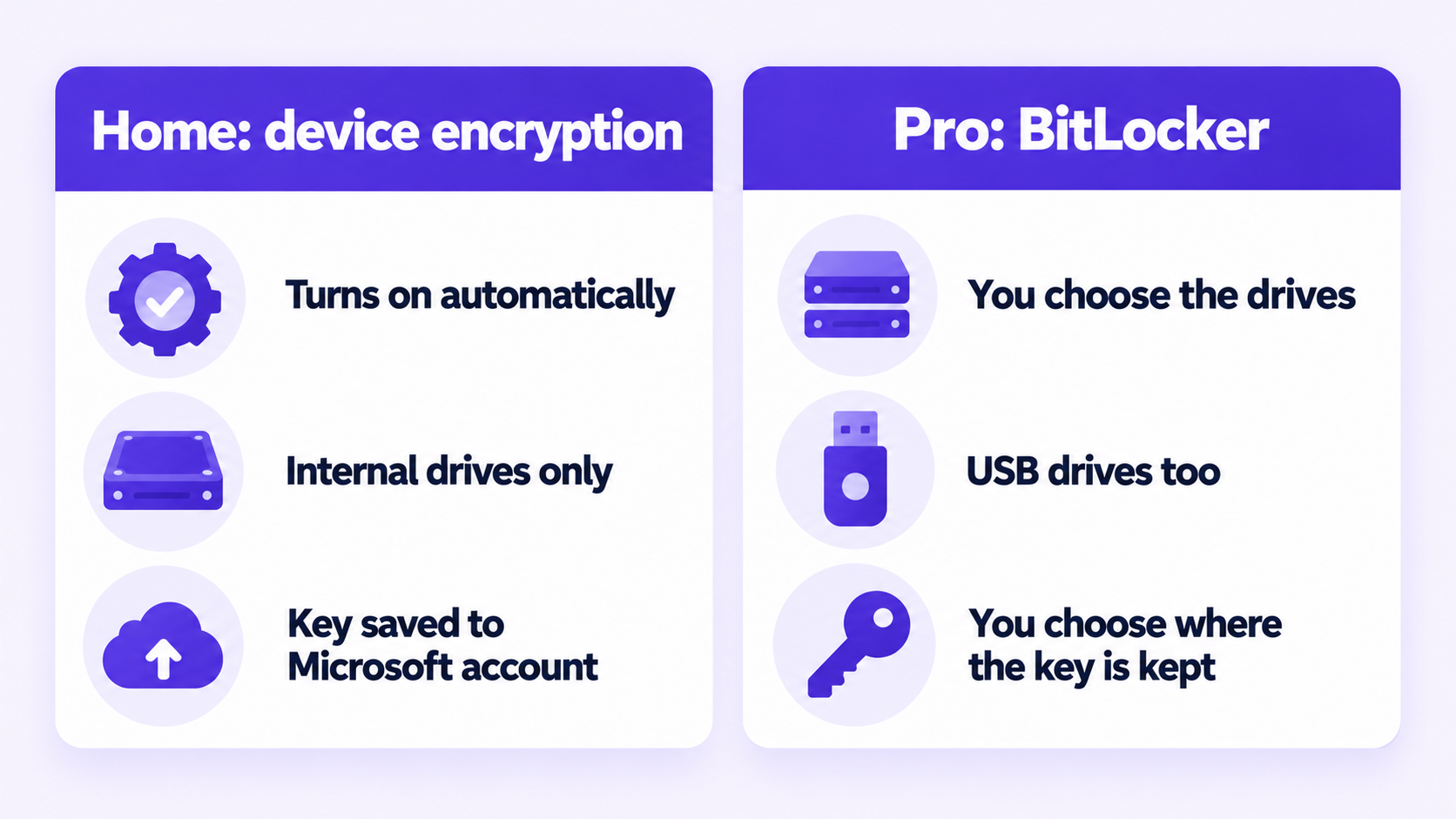
Home: device encryption. Microsoft describes it as a simple way to turn BitLocker encryption on automatically. It covers the operating system drive and fixed drives, and it backs up the recovery key to your Microsoft account. It does not cover USB drives. To see whether your PC supports it, run msinfo32 and look for “Device Encryption Support”.
Pro: BitLocker. You choose which drives to encrypt, how they unlock, and where the recovery key is kept. BitLocker To Go also encrypts external and USB drives.
Whichever you use, save the recovery key somewhere you can reach without the PC. If Windows asks for it after a hardware or firmware change and you do not have it, the data cannot be recovered. Microsoft’s BitLocker overview lists the editions and requirements.
Remote Desktop
Both editions include the Remote Desktop client, so either can connect to another computer. Only Pro can be the computer you connect to. If you want to reach your desktop PC from a laptop, the desktop needs Pro.
See our guide to enabling Remote Desktop on Windows 11 Pro for the setup steps.
Hyper-V and Windows Sandbox
Hyper-V is Microsoft’s built-in tool for running virtual machines: a second copy of Windows or a Linux system in a window. It is included in Pro and not in Home.
Windows Sandbox opens a clean, temporary Windows desktop. Anything you install or open inside it is discarded when you close the window, which makes it useful for trying software you do not fully trust. It is included in Pro and not in Home.
Group Policy and work networks
Pro includes the Group Policy Editor (gpedit.msc). It gives you settings that Home only exposes partly or not at all, such as deferring feature updates, restricting what users can change, and applying the same rules to several PCs.
Pro can also join an Active Directory domain or Microsoft Entra ID, which is how companies and schools manage their computers. Home cannot. If an IT department will manage the PC, it needs Pro.
Hardware limits
Microsoft’s published limits for 64-bit Windows 11 are 128 GB of RAM on Home and 2 TB on Pro. Home supports one physical processor and Pro supports two. These limits matter for workstations; an ordinary desktop or laptop is far below both.
Source for the memory figures: Memory limits for Windows releases.
How to check which edition you have
Press Windows key + R, type winver and press Enter. The window shows the edition and build number.
To see the license type as well, open Command Prompt and run:
slmgr.vbs /dliOur guide on checking your Windows license type explains what the result means.
How to upgrade from Home to Pro without reinstalling
Moving from Home to Pro keeps your files, apps and settings. You need a Windows 11 Pro product key.
- Open Settings > System > Activation.
- Open Upgrade your edition of Windows and select Change product key.
- Enter your Windows 11 Pro product key and select Next.
- Select Start. Windows adds the Pro features and restarts.
- After the restart, run
winverto confirm the edition now reads Windows 11 Pro.
The same change from an elevated Command Prompt:
changepk.exe /ProductKey <ProductKey>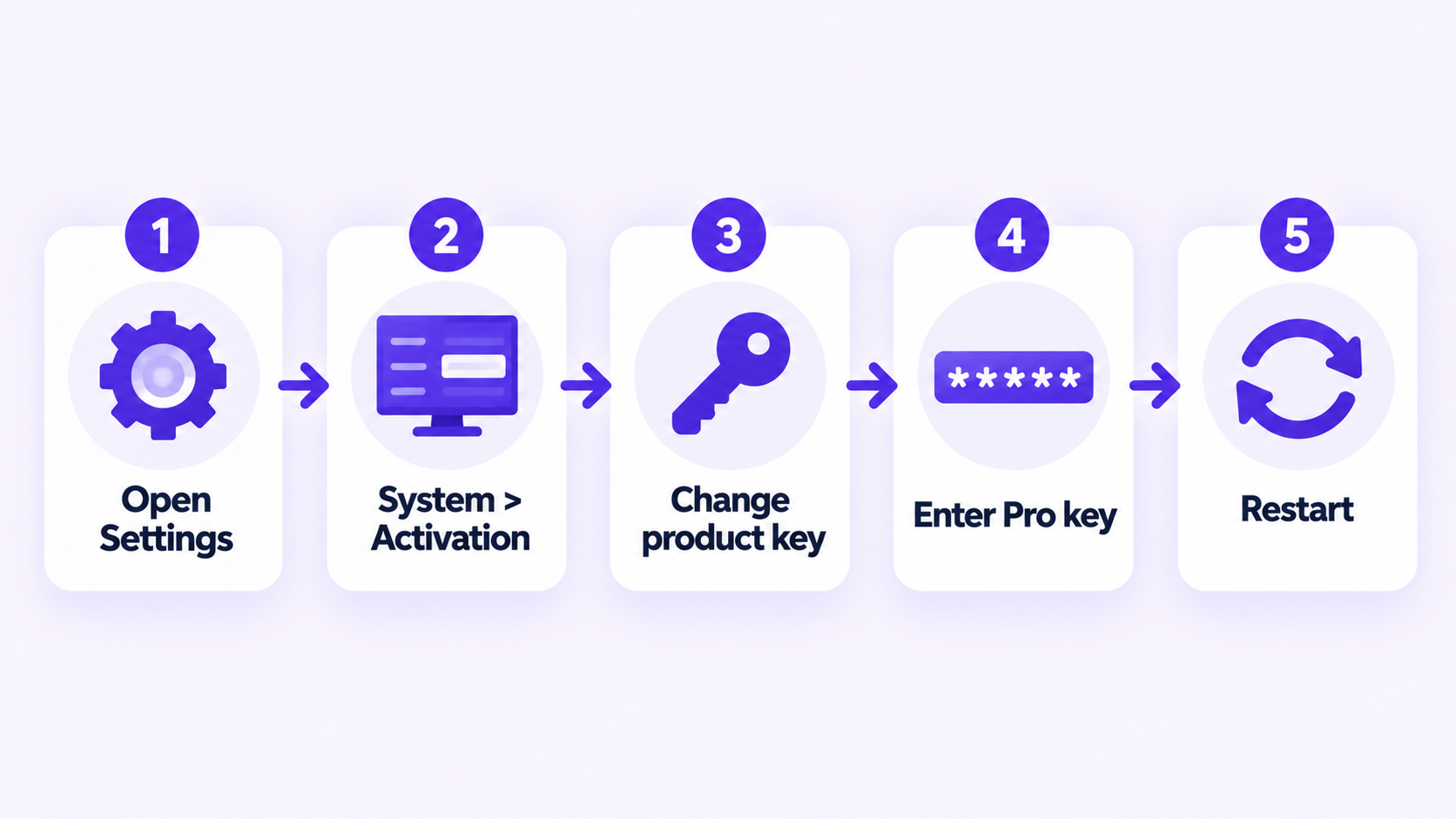
Upgrade to Windows 11 Pro
Delivered by email. Enter the key in Settings to upgrade from Home without reinstalling.
Microsoft Partner • Email Delivery in 1 to 12 Hours • 90-Day Money-Back Guarantee