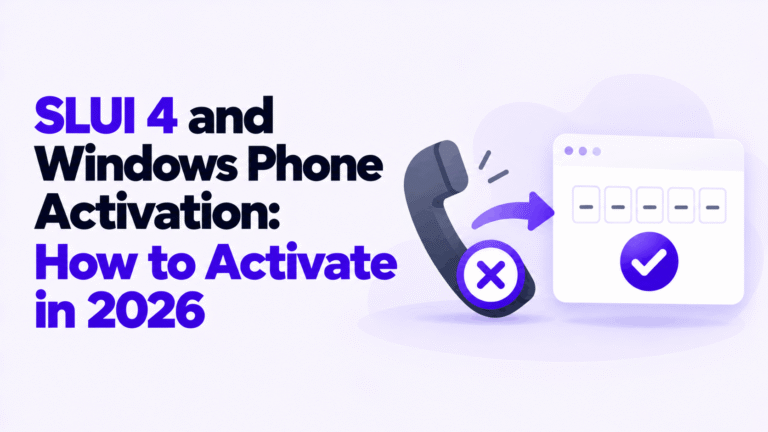
SLUI 4 and Windows Phone Activation: How to Activate in 2026
Windows phone activation by SLUI 4 has moved online. How to get the Installation ID, use the Product Activation Portal and enter the Confirmation ID.
Drafted with AI assistance and reviewed by our support team. Illustrations are AI-generated.
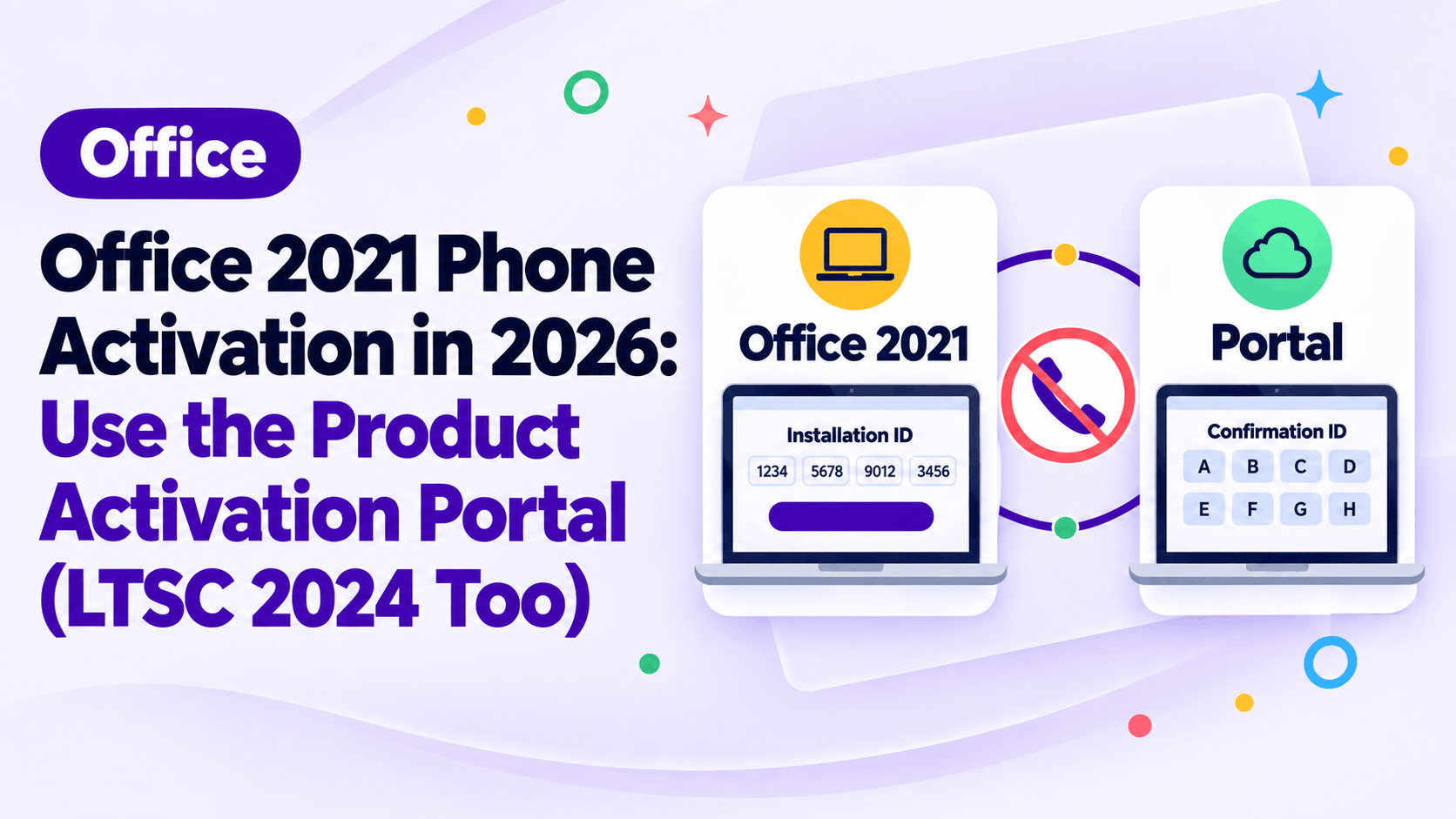
Short answer Office 2021 phone activation no longer uses an automated telephone line. Microsoft moved telephone activation to the web-based Product Activation Portal at visualsupport.microsoft.com (or aka.ms/aoh) on December 3, 2025. You generate an installation ID inside Office, enter it into the online portal, and apply the returned confirmation ID.
Applies to: Microsoft Office 2021 Professional Plus, Microsoft Office 2021 Home & Business, Microsoft Office 2021 Home & Student, Microsoft Office LTSC 2024 (perpetual volume), Microsoft Office 2019 (perpetual retail and volume)
Office 2021 phone activation fails if you try dialing the toll-free numbers listed in the software wizard.
Calling those numbers now only plays a recorded advisory directing you online, leaving your software unlicensed and stuck in view-only mode if you do not know the replacement procedure.
This guide provides the official steps to obtain your confirmation ID using Microsoft's web portal, whether your PC has an active internet connection or remains completely offline.
Key takeaways
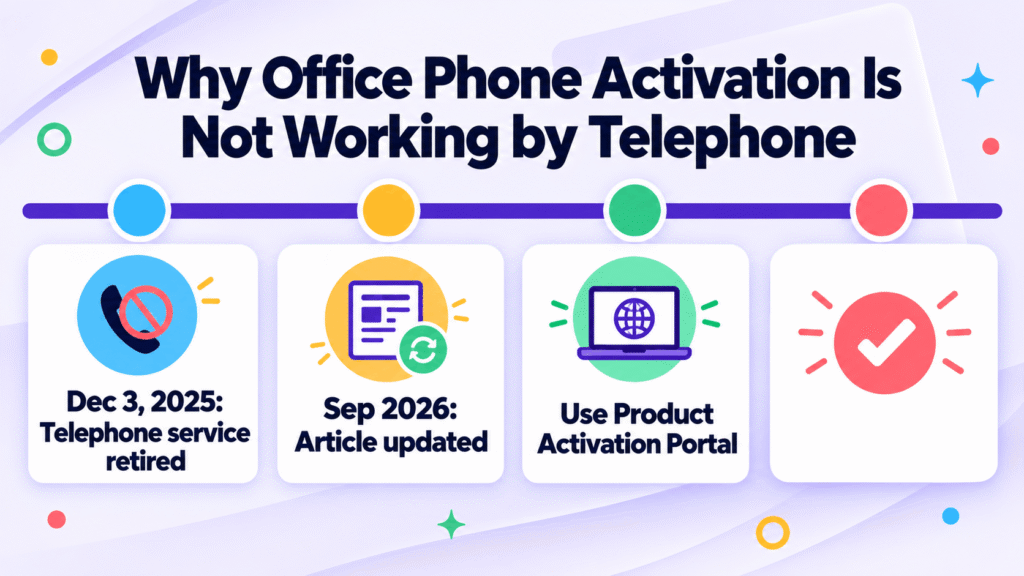
Office 2021 phone activation no longer functions over traditional telephone lines. According to the Microsoft Support article Activate Microsoft perpetual products using the Product Activation portal (updated September 2026), Microsoft retired its automated telephone activation service on December 3, 2025. If you dial the numbers displayed on your screen, an automated voice directs you to a web address and terminates the call.
Instead of speaking or keying digits into a phone keypad, Microsoft directs users to the Product Activation Portal hosted at visualsupport.microsoft.com, which is also reachable via the official shortcut aka.ms/aoh. This portal accepts your installation ID and returns the corresponding confirmation ID. For users dealing with Windows operating systems, a similar transition exists in our Windows phone activation (SLUI 4) guide.
You need an unactivated perpetual copy of Office 2021 or LTSC 2024 installed and an active internet connection on at least one device. The target computer running Office does not need internet access, but you must have a smartphone, tablet, or secondary PC to view the web portal.
You must also have a standard Microsoft account (personal, work, or school) to sign into the portal. The sign-in is required solely for CAPTCHA verification and security access; Microsoft documentation notes that your login is not linked to the Office license itself. If you manage multiple workstations and need additional standalone licenses, you can browse verified Office keys.
To begin, open any Office application like Word or Excel and navigate to File > Account. Click on Activate Product (or Change Product Key) and select I want to activate the software by telephone, then select Next.
The wizard displays an installation ID split into nine groups of six or seven digits each. Leave this dialog window open on your screen so you can read the values accurately.
If you manage an offline machine without a graphical activation prompt, open Command Prompt as an administrator, navigate to your Office installation path, and query the ID using the Office Software Protection Platform script:
cd "C:Program FilesMicrosoft OfficeOffice16"
cscript ospp.vbs /dinstid
For 32-bit Office installations running on 64-bit Windows systems, replace the directory path with "C:Program Files (x86)Microsoft OfficeOffice16".
Open a web browser on any internet-capable device and visit visualsupport.microsoft.com (or aka.ms/aoh). Complete the visual CAPTCHA prompt and log in using any valid personal, work, or school Microsoft account.
Once authenticated, select Activate a Microsoft Product. The portal displays text boxes matching the installation ID groups shown on your target machine. Type each numerical cluster carefully into the corresponding fields and submit the form.
If the installation ID validates successfully, the portal generates an Office confirmation ID divided into blocks labeled A through H. Do not close your browser tab until you enter these values into the software.
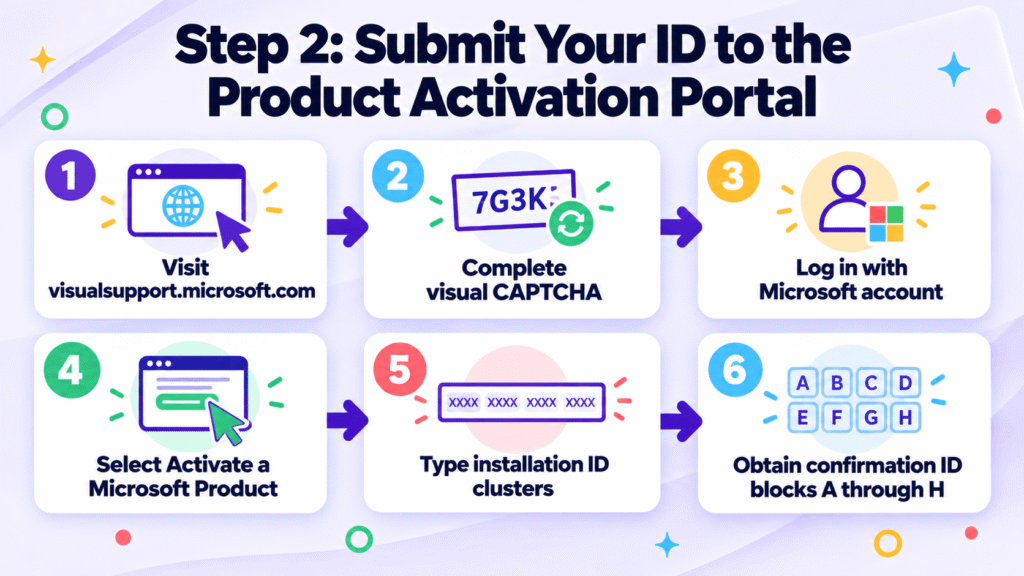
Return to your Office installation wizard where you retrieved your installation ID. Type each lettered cluster of numbers from the portal into boxes A through H, then click Next to finalize activation.
For command-line deployments or headless servers, you can pass the confirmation ID directly through the software licensing script in an elevated Command Prompt:
cd "C:Program FilesMicrosoft OfficeOffice16"
cscript ospp.vbs /actcid:<ConfirmationID>
Run the script to inject the confirmation ID. Once the script finishes, execute cscript ospp.vbs /act to complete validation.
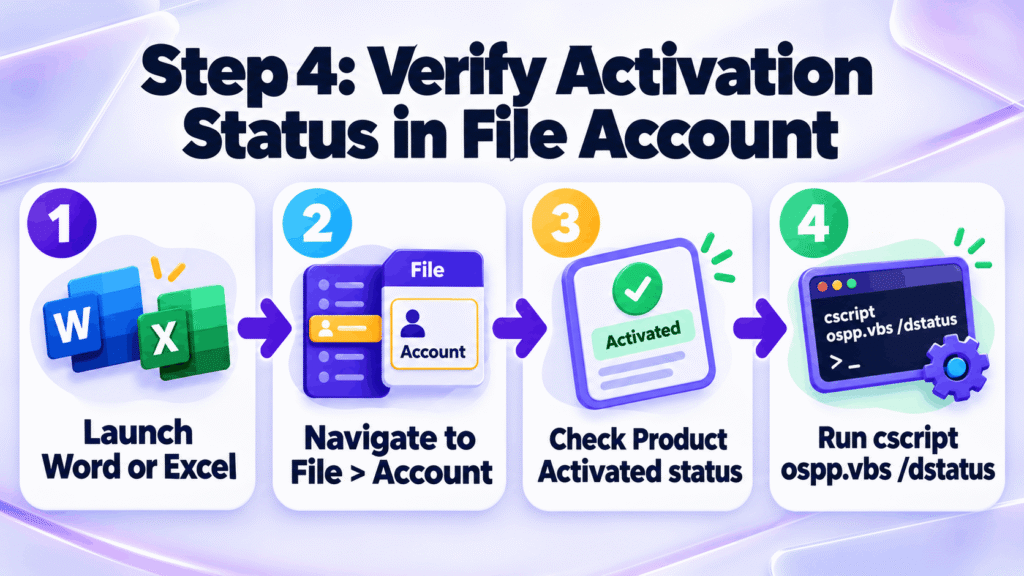
Launch Word or Excel, navigate to File > Account, and examine the right pane under Product Information. It should now display Product Activated alongside your installed edition name.
If you require command-line confirmation on an offline workstation, open an elevated Command Prompt and inspect the licensing status with the following command:
cscript ospp.vbs /dstatusConfirm that the line labeled LICENSE STATUS reads ---LICENSED---.
This web-based process applies to all retail and volume perpetual licenses that previously relied on telephone activation. Specifically, it supports Office 2021 Professional Plus, Office 2019, and Microsoft Office 2021 Professional Plus License Key – Phone Activation 1 PC Lifetime.
The identical portal workflow handles Office LTSC 2024 phone activation. LTSC 2024 volume editions activated without a Key Management Service (KMS) or Multiple Activation Key (MAK) online connection generate an installation ID that processes through visualsupport.microsoft.com in the exact same manner.
| What you see | Likely cause | Fix | Confirm with |
|---|---|---|---|
| Telephone number plays a message and disconnects | Microsoft retired automated phone line activation on December 3, 2025. | Do not attempt to call again. Open visualsupport.microsoft.com (or aka.ms/aoh) on a web browser to enter your Installation ID. | Confirm that the phone message specifically directs users to Microsoft's online activation web resources. |
| Installation ID not recognized by portal | A digit was mistyped, or the selected product category in the portal does not match the Office edition. | Double-check each 6- or 7-digit block against the screen and ensure you selected Activate a Microsoft Product. | Verify if the portal enforces strict numeric digit counts per block depending on retail versus volume editions. |
| Telephone activation button is grayed out or missing | The installed edition may be an Office 365 / Microsoft 365 installation rather than a perpetual license, or the key was not accepted. | Run cscript ospp.vbs /dinstid from an elevated Command Prompt to extract the installation ID manually. | Check if ospp.vbs outputs an error code when run against a Click-to-Run subscription client. |
No, you cannot activate Office by telephone. Microsoft retired automated telephone lines on December 3, 2025. Calling the old numbers plays a recorded message redirecting you to visualsupport.microsoft.com, where you submit your installation ID online.
The phone number plays a recorded message because Microsoft transitioned perpetual software activation to an online portal. The telephone system no longer accepts touch-tone numbers or verbal responses, requiring all perpetual license verifications to be completed through visualsupport.microsoft.com.
You get a confirmation ID by opening the Office activation wizard, choosing telephone activation to display your installation ID, and entering those numbers into visualsupport.microsoft.com. The portal verifies your installation ID and immediately displays confirmation ID blocks A through H.
Yes, you must sign in with a personal, work, or school Microsoft account to access the portal. However, Microsoft documentation confirms this sign-in is used only for portal authentication and is never tied or registered to the Office software license.
Yes, you can activate Office on an offline PC. Note the installation ID displayed on the offline machine, visit visualsupport.microsoft.com using a smartphone or secondary connected computer, obtain the confirmation ID, and type it into the offline PC.
Yes, the portal works for Office LTSC 2024. Perpetual and volume installations that require offline or confirmation ID activation follow the exact same process: extract the installation ID, submit it to visualsupport.microsoft.com, and enter the generated confirmation ID.
Office 2021 phone activation requires using the Product Activation Portal at visualsupport.microsoft.com instead of the retired telephone numbers. Collect your installation ID, sign in from any internet-connected device, and enter the generated confirmation ID to license your software.
Stuck on a step?
Send us the step and the exact error message. Our support team answers every day, 8 am to 9 pm New York time.
Every day, 8 am to 9 pm New York timeWindows phone activation by SLUI 4 has moved online. How to get the Installation ID, use the Product Activation Portal and enter the Confirmation ID.
SQL Server installation fails on Windows Server 2025 with error 0x851A001A when an NVMe drive reports a sector size above 4 KB. How to check and fix it.
How to enable Remote Desktop on Windows 11 Pro, connect from another device, and keep it secure. Plus why Windows 11 Home cannot be the host.