
By Egodget Tech Team
•
Updated: October 2026
Can You Transfer a Windows OEM License to a New PC?
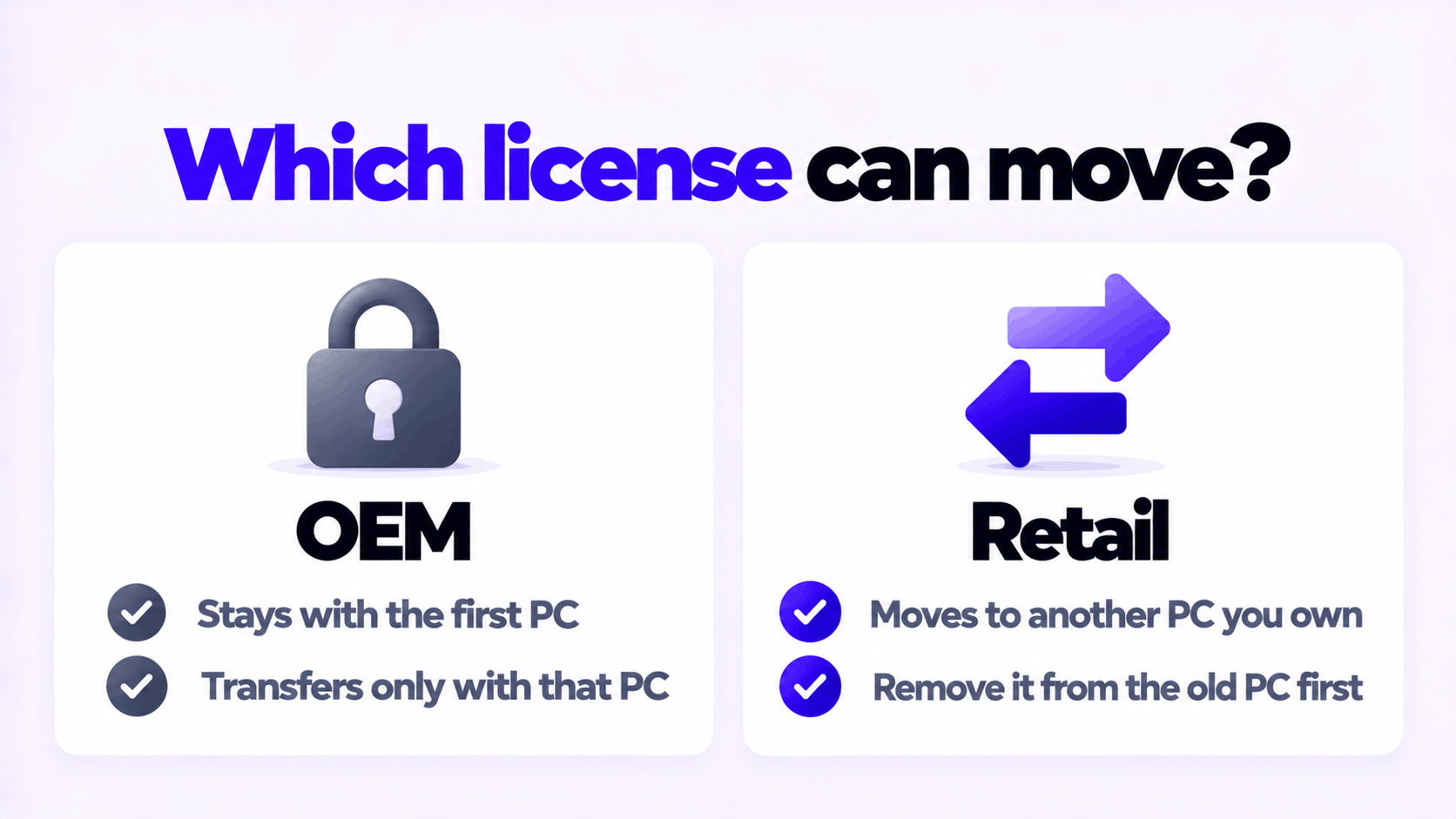
Short answer: No. You cannot transfer a Windows OEM license to a new PC. Microsoft’s license terms say that Windows preinstalled on a device may be transferred only together with that device, so the license stays with the original computer. A retail license is different: it can be moved to another PC you own, as long as you remove it from the old one. Before you buy anything, check which type you have with slmgr.vbs /dli, because many people who think they have OEM actually have retail.
Applies to: Windows 11 and Windows 10, Home and Pro. Windows 10 reached end of support on October 14, 2025.
Table of Contents
Why you cannot transfer a Windows OEM license
The rule comes from the transfer section of the Microsoft Software License Terms for Windows, which splits Windows into two cases.
| Preinstalled on a device (OEM) | Stand-alone software (retail) | |
|---|---|---|
| Move to another PC you own | No | Yes |
| Give or sell to someone else | Only together with the licensed device | Yes, if you are the first licensed user and they accept the terms |
| Condition | The license goes where the PC goes | Remove Windows from the previous device each time |
| Use on two PCs at once | No | No |
An OEM key bought separately from a reseller behaves the same way as the preinstalled case. Once it is activated on a PC, it is tied to that PC’s hardware and should be treated as non-transferable.
A regional note: the same section states that it does not apply to software acquired in Germany and a list of other countries Microsoft publishes, where transfers follow local law instead. If you are in the EU, your rights to move a license may be wider than this summary. That is a legal question for your country, not something Windows activation will tell you.
Check which license type you have
Open Command Prompt and run this. It does not need administrator rights.
slmgr.vbs /dliA small window appears after a few seconds. Read the end of the Description line.
| Description contains | Type | Can it move to a new PC? |
|---|---|---|
RETAIL channel |
Retail | Yes |
OEM_DM channel |
OEM, key stored in the PC’s firmware by the manufacturer | No |
OEM_COA_NSLP channel or OEM_SLP channel |
OEM, system builder or older manufacturer key | No |
VOLUME_KMSCLIENT or VOLUME_MAK channel |
Volume, owned by an organization | Not yours to move |
Two cases surprise people. A PC that was upgraded for free from Windows 7 or 8 years ago often reports as retail. And a PC you built yourself with a boxed copy of Windows is retail even if you have forgotten buying it.
For more on reading this output, see how to check your Windows license type.
If it is retail: how to move it
You need the 25-character product key. If you only have a digital license and no key, link it to your Microsoft account first: Settings > System > Activation > Add an account.
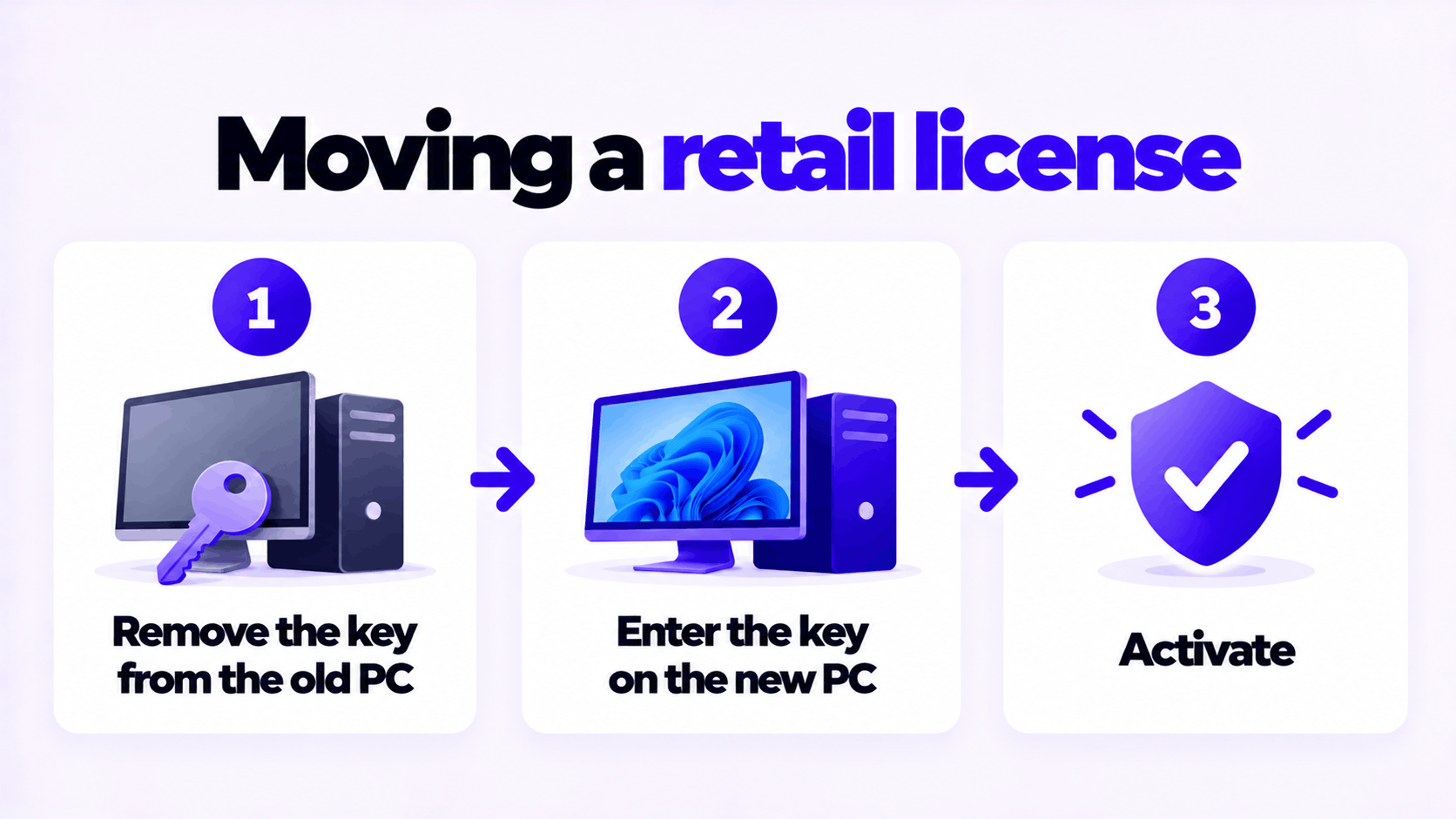
On the old PC, remove the key. Open Command Prompt as administrator and run:
slmgr.vbs /upk
slmgr.vbs /cpky
The first command uninstalls the product key, and Windows on that PC becomes unlicensed after a restart. The second removes the key from the registry. If you are disposing of the old PC, reset it or wipe the drive as well.
On the new PC, install the same edition of Windows, then enter the key under Settings > System > Activation > Change product key.
If Windows refuses it with a message that the key is in use on another device:
- On the Activation page, select Troubleshoot.
- Select I changed hardware on this device recently.
- Sign in with the Microsoft account linked to the license.
- Select the old device from the list, tick This is the device I’m using right now, and select Activate.
Reactivation works only if the edition is the same as before: a Pro license activates Pro, not Home.
If it is OEM: what you can and cannot do
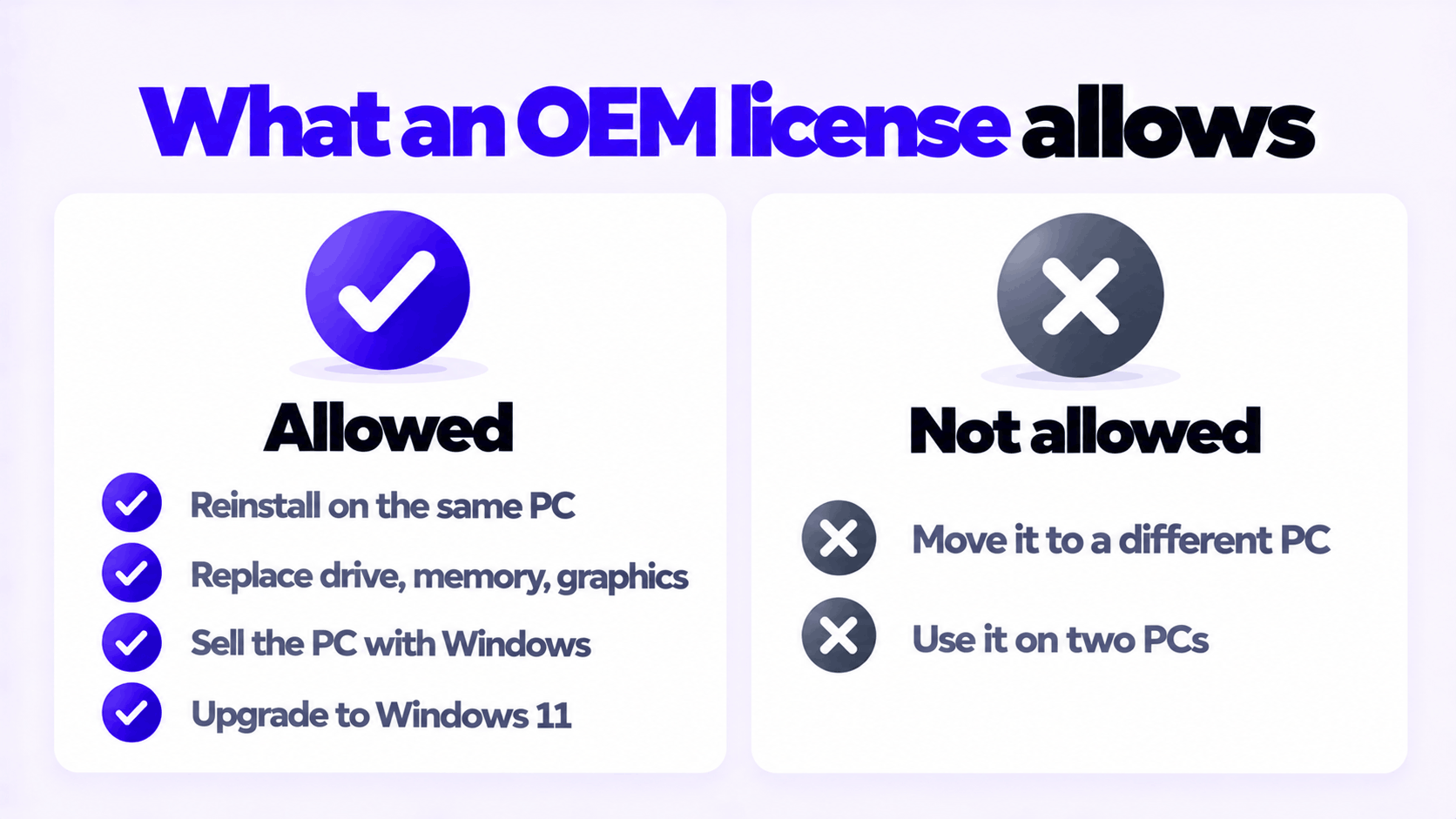
| What you want to do | Allowed? |
|---|---|
| Reinstall Windows on the same PC | Yes, as often as you need |
| Replace the drive, memory or graphics card | Yes. Activation is not affected. |
| Sell or give away the PC with Windows on it | Yes. The license goes with the PC. |
| Upgrade that PC to Windows 11 | Yes, if the hardware qualifies |
| Move the license to a different PC and keep the old one | No |
| Move the license to a new PC and scrap the old one | No |
Guides that claim to show how to transfer a Windows OEM license anyway, including what to say to a support agent, describe how to get a license activated on a PC it was not sold for. We are not going to do that here. Even when such an attempt succeeds, it can be reversed later, and you end up buying a license anyway.
What does make sense is to keep the old PC useful. With its license still attached, it has resale value, or it can carry on as a second machine.
Replacing a motherboard in the same PC
This is the one grey area, and it is a different situation from a new PC. Microsoft’s support pages name a motherboard replacement as a significant hardware change after which Windows may no longer find a matching license. They also say that if Windows came preinstalled and the motherboard was replaced, you may need a new license.
It is still worth trying to reactivate, particularly when the board was replaced because it failed:
- Before the swap, if you still can, link the license to your Microsoft account under Settings > System > Activation > Add an account. Microsoft calls this step essential.
- After the swap, open the same page and select Troubleshoot.
- Select I changed hardware on this device recently, sign in, pick the device, and select Activate.
If that fails and the PC is under warranty, ask the manufacturer that replaced the board. A like-for-like warranty replacement is normally expected to keep its license, and the manufacturer is your support contact for an OEM copy of Windows.
Licensing the new PC
If your license is OEM, the new PC needs its own. The choice comes down to how long you will keep this PC as it is:
- Another OEM license costs the least and is tied to the new PC in the same way. It suits a PC you will keep for years.
- A retail license costs more and can move with you next time. It suits someone who rebuilds often.
The trade-offs are set out in OEM vs retail license. For a new PC in 2026, choose Windows 11: Windows 10 no longer receives security updates.
The OEM keys we sell, each for one PC: Windows 11 Pro and Windows 10 Pro. The steps for entering one are in how to activate Windows 11 Pro with an OEM product key.
Need a License for the New PC?
One key for one PC, tied to that PC. If it does not activate, we replace it or refund it.
Email Delivery in 1 to 12 Hours • 90-Day Money-Back Guarantee