
SQL Server Installation Fails on Windows Server 2025: How to Fix Error 0x851A001A
Short answer: When SQL Server installation fails on Windows Server 2025 with error 0x851A001A and the message "Wait on the Database Engine recovery handle failed", the usual cause is an NVMe drive that reports a disk sector size larger than 4 KB. SQL Server only supports 512-byte and 4,096-byte sectors. Add the ForcedPhysicalSectorSizeInBytes registry value with the data * 4095, restart the server, and run setup again.
Applies to: SQL Server 2019 and SQL Server 2022 setup on Windows Server 2025 with NVMe storage. Microsoft documents the same problem on Windows 11 and Windows Server 2022 and says the fix applies to all released versions of SQL Server.
Table of Contents
What the error looks like
Setup runs almost to the end, then the Database Engine Services feature fails. The setup summary file (Summary.txt) shows:
Component error code: 0x851A001A
Error description: Wait on the Database Engine recovery handle failed. Check the SQL Server error log for potential causes.
The SQL Server error log, in the instance's MSSQL\Log folder, confirms the cause. Look for error 5178 and a line like this one:
Error: 5178, Severity: 16, State: 1.
Cannot use file '...\master.mdf' because it was originally formatted with sector size 4096 and is now on a volume with sector size 8192.
If your log shows a sector size of 8192 or 16384, this article is your fix. If it shows a different error, the cause is something else and the registry change below will not help.
Why SQL Server installation fails on Windows Server 2025 with NVMe drives
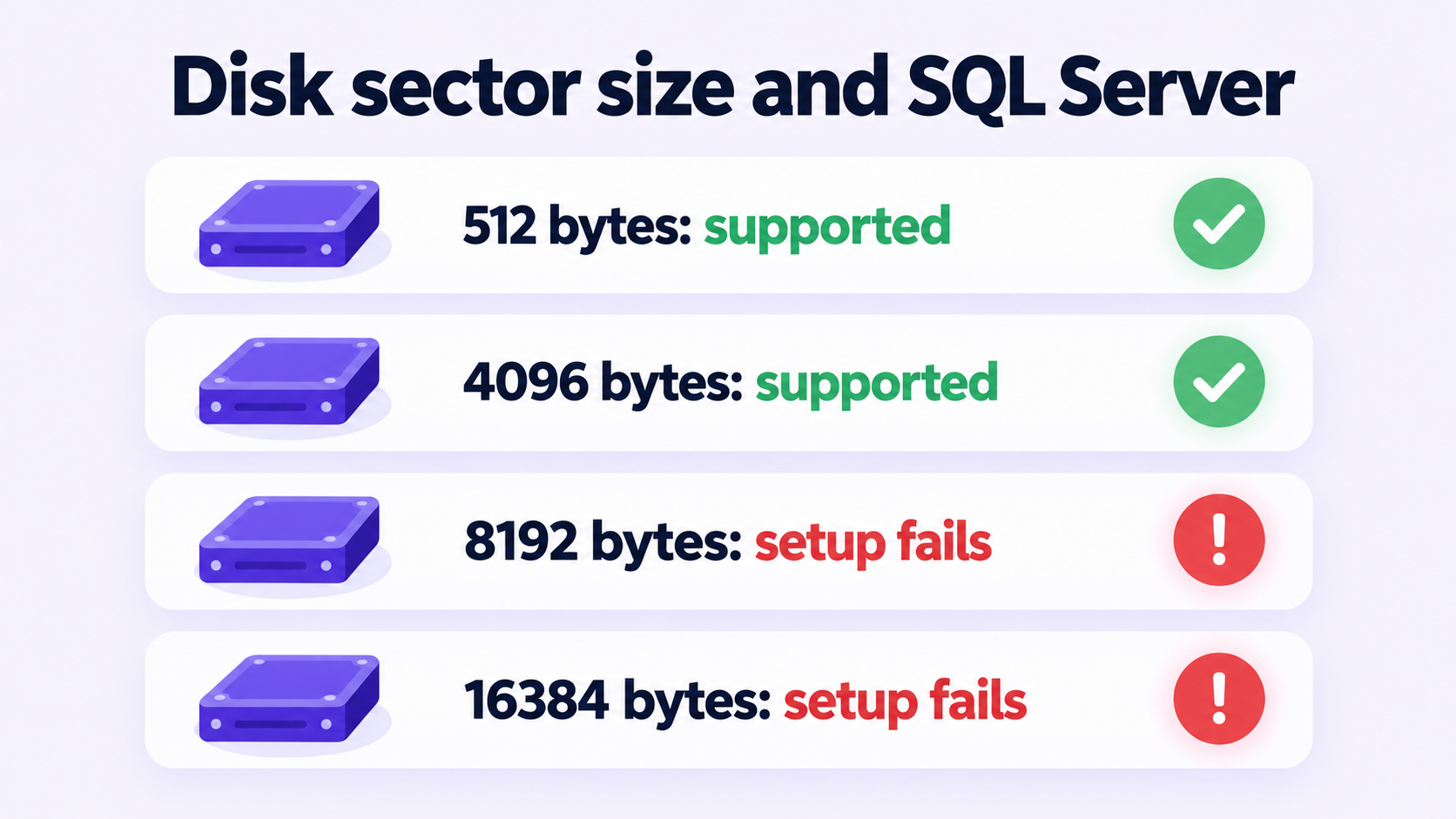
When the Database Engine starts, it checks the file system before it opens the system databases. SQL Server supports two disk sector sizes: 512 bytes and 4,096 bytes (4 KB).
Some modern NVMe drives report a physical sector size of 8 KB or 16 KB. Older Windows storage drivers presented these drives as 4 KB. Newer Windows NVMe drivers report the real value, and the Database Engine refuses to start on it. Setup creates the system databases, cannot start the engine, and rolls back.
Microsoft states that no released version of SQL Server is compatible with sector sizes greater than 4 KB. A drive that reports 4,096 bytes is fine. The problem is only with values above that.
Microsoft's own article on this, Troubleshoot SQL Server errors related to system disk sector size greater than 4 KB, is the source for the error text, the check and the fix on this page.
Check the sector size your drive reports
Open Command Prompt as administrator and run this for the drive where SQL Server stores its data. Replace C: if your data drive is different.
fsutil fsinfo sectorinfo C:Read these two lines in the output:
PhysicalBytesPerSectorForAtomicityPhysicalBytesPerSectorForPerformance
If the two values differ, use the larger one. A value of 4096 or lower is supported. A value of 8192 or 16384 is the cause of the failed installation. This is the example Microsoft gives for an affected drive:
LogicalBytesPerSector :                                 512
PhysicalBytesPerSectorForAtomicity :                    16384
PhysicalBytesPerSectorForPerformance :                  16384
FileSystemEffectivePhysicalBytesPerSectorForAtomicity : 4096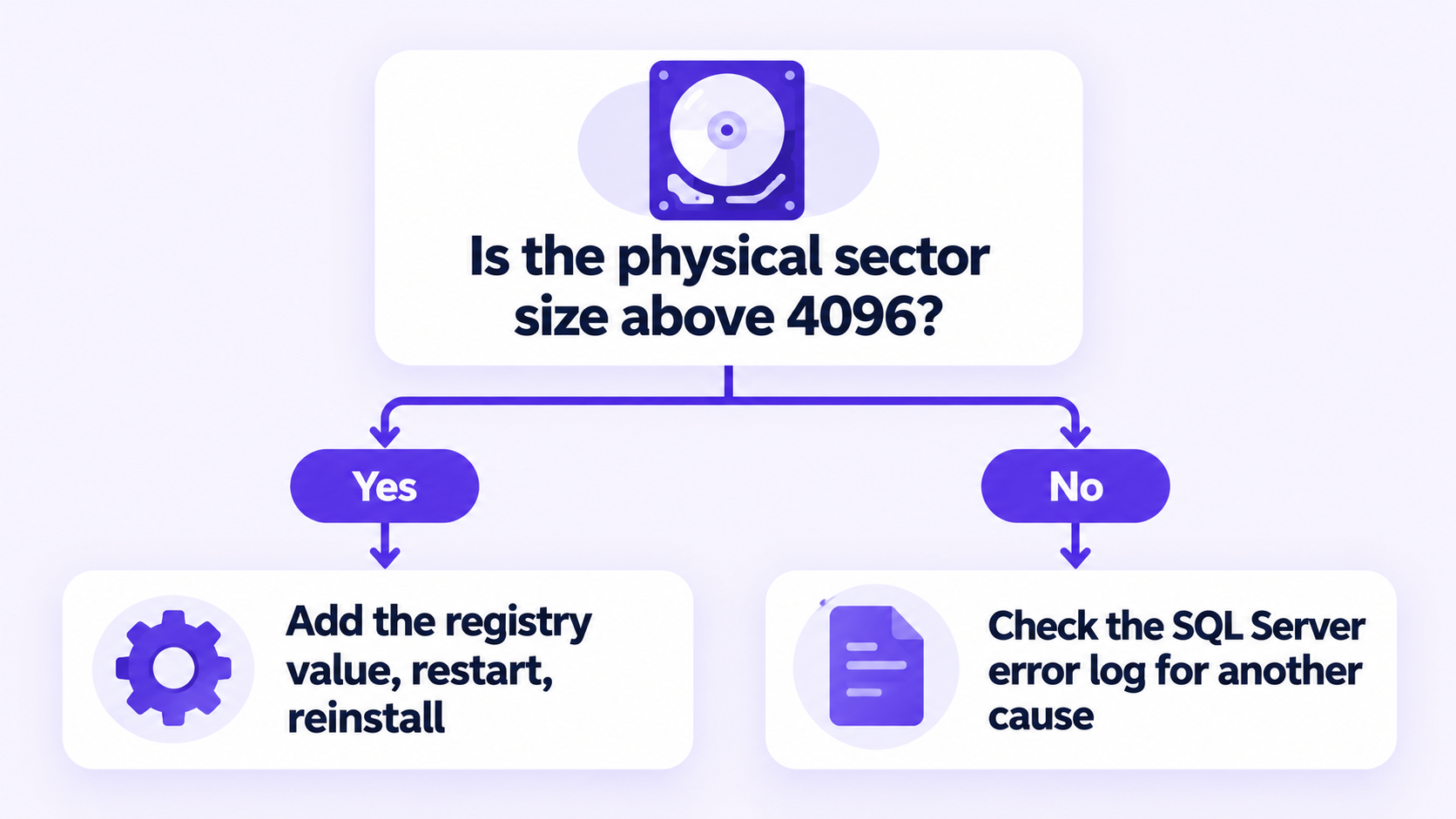
Fix: add the ForcedPhysicalSectorSizeInBytes registry value
This value tells the Windows NVMe driver to present the drive with a 4 KB sector size. Microsoft says it is currently required to install SQL Server on NVMe storage that reports more than 4 KB.
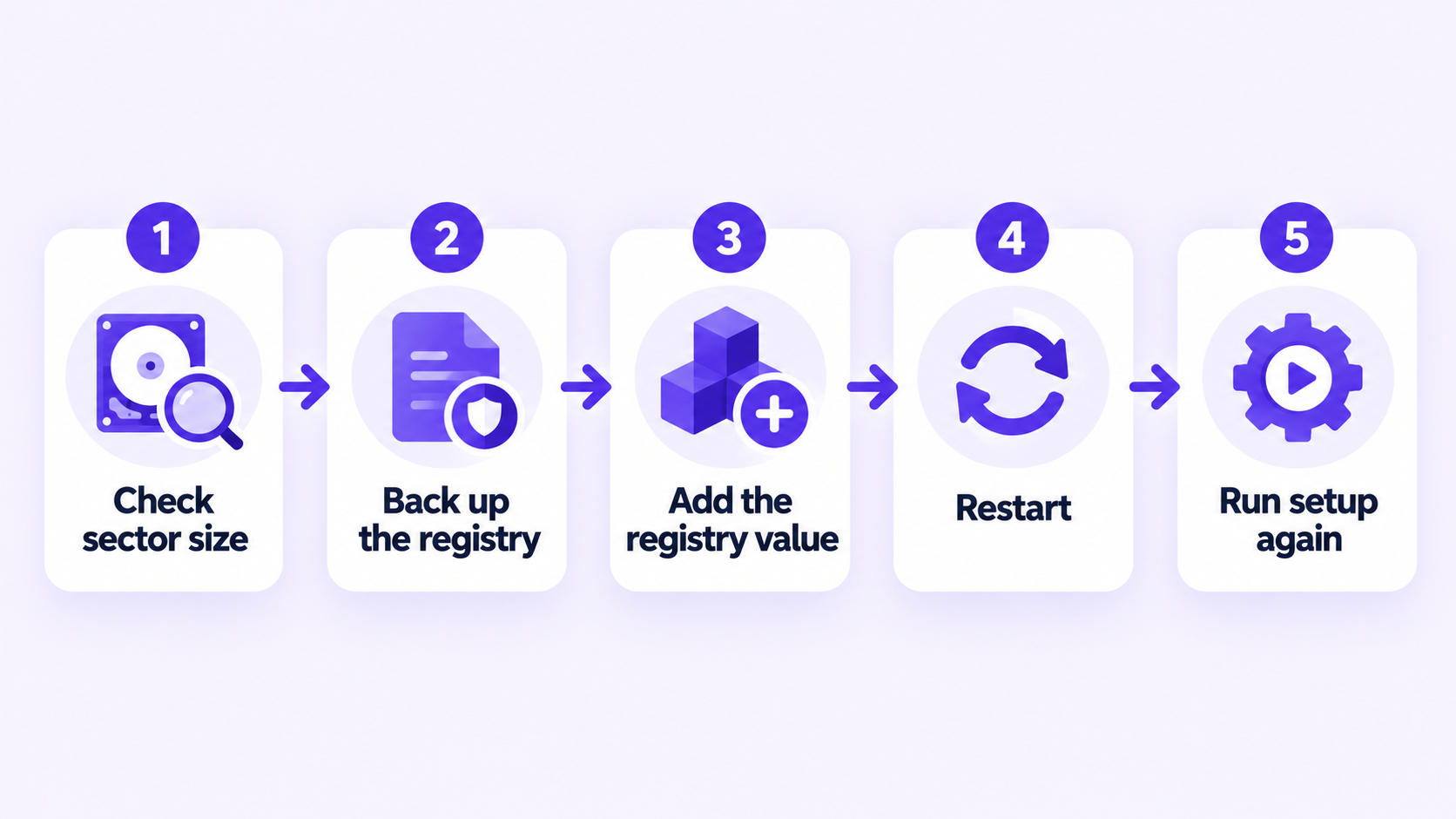
Before you start: back up the registry. A wrong change under Services can stop Windows from starting.
- Open Registry Editor as administrator.
- Go to
HKEY_LOCAL_MACHINE\SYSTEM\CurrentControlSet\Services\stornvme\Parameters\Device. - Select Edit > New > Multi-String Value and name it
ForcedPhysicalSectorSizeInBytes. - Right-click the new value, select Modify, and enter
* 4095as the value data. - Select OK and close Registry Editor.
- Restart the server. The change does not take effect until you do.
The value data is * 4095, with a space after the asterisk. It is not 4096.
The same change from an elevated Command Prompt:
REG ADD "HKLM\SYSTEM\CurrentControlSet\Services\stornvme\Parameters\Device" /v "ForcedPhysicalSectorSizeInBytes" /t REG_MULTI_SZ /d "* 4095" /fAfter the restart, confirm the value is in place:
REG QUERY "HKLM\SYSTEM\CurrentControlSet\Services\stornvme\Parameters\Device" /v "ForcedPhysicalSectorSizeInBytes"You do not need trace flag 1800 for this problem. Microsoft's article says so directly.
If you use a storage pool: a pool built from disks with a sector size above 4 KB has to be removed, the fix applied, and the pool rebuilt before you install SQL Server on it.
Run SQL Server setup again
- Remove the failed instance first: in Settings > Apps, uninstall the SQL Server entry for that instance, or start setup and choose to remove it.
- Run
fsutil fsinfo sectorinfo C:once more and check the two physical sector lines. - Start SQL Server setup again and enter your product key on the Product Key page.
- When setup finishes, confirm the edition in SQL Server Management Studio:
SELECT SERVERPROPERTY('Edition'), SERVERPROPERTY('ProductLevel'), SERVERPROPERTY('ProductVersion');If you still need a license for the instance, this is the one we sell for SQL Server 2019: SQL Server 2019 Standard with 1 CAL.
Other option: use a volume with a supported sector size
If the server has more than one drive, check each with fsutil fsinfo sectorinfo. Microsoft notes that database files can be placed on a volume that reports 512 or 4,096 bytes. Microsoft describes this as an option for where the database files live after installation; for the installation itself, it names the registry value as the requirement on affected NVMe storage.
Quick diagnosis
| What you see | What it means | What to do |
|---|---|---|
Error code 0x851A001A and error 5178 with sector size 8192 or 16384 in the log | The drive reports a sector size above 4 KB | Add the registry value, restart, reinstall |
Error code 0x851A001A but no sector-size line in the log | A different startup failure | Read the SQL Server error log for the real cause |
fsutil reports 4096 for both physical sector lines | The drive is supported | Do not change the registry; look elsewhere |
| Registry value added but setup still fails | The server was not restarted, or the data is not exactly * 4095 | Check the value with REG QUERY and restart |
Get the License Key for This Guide
Delivered by email. Enter it on the Product Key page of SQL Server setup.